Each section of the Storeganise system has a dedicated export function, including:
Invoices
Users
Unit types
Units
Unit rentals
and more
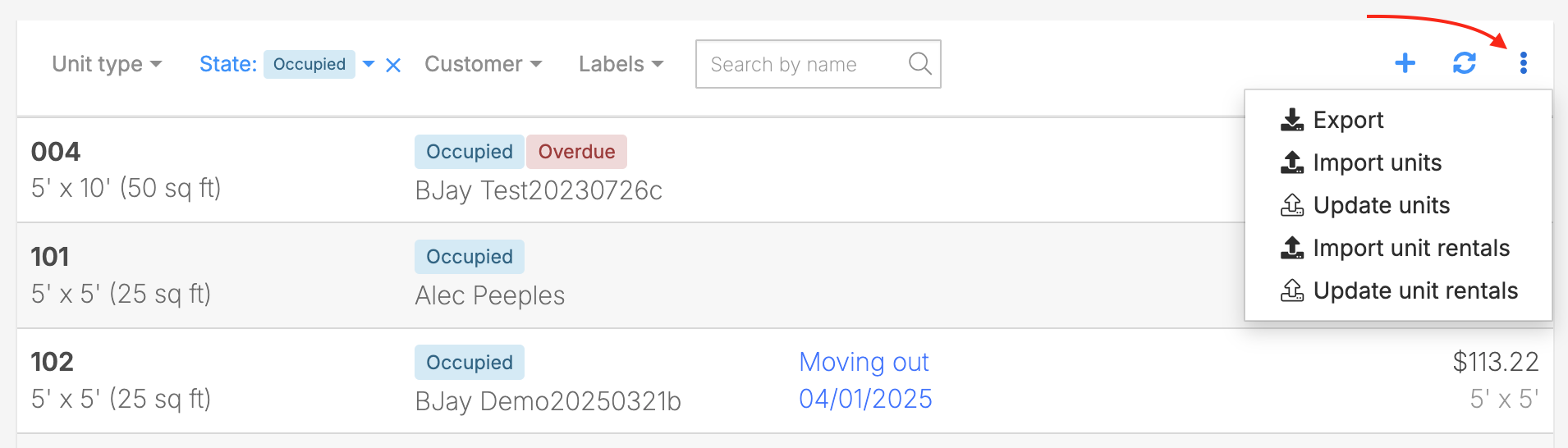
Data can be exported in CSV or XLSX format. You can choose which data points to include in your export, allowing you to tailor the file to your specific needs.To prepare and download the file, first navigate to the desired section in the Management portal (for example, your units list). Then click the three-dots menu and select Export, where you can choose your preferred format.
Accessing the export function from the units list
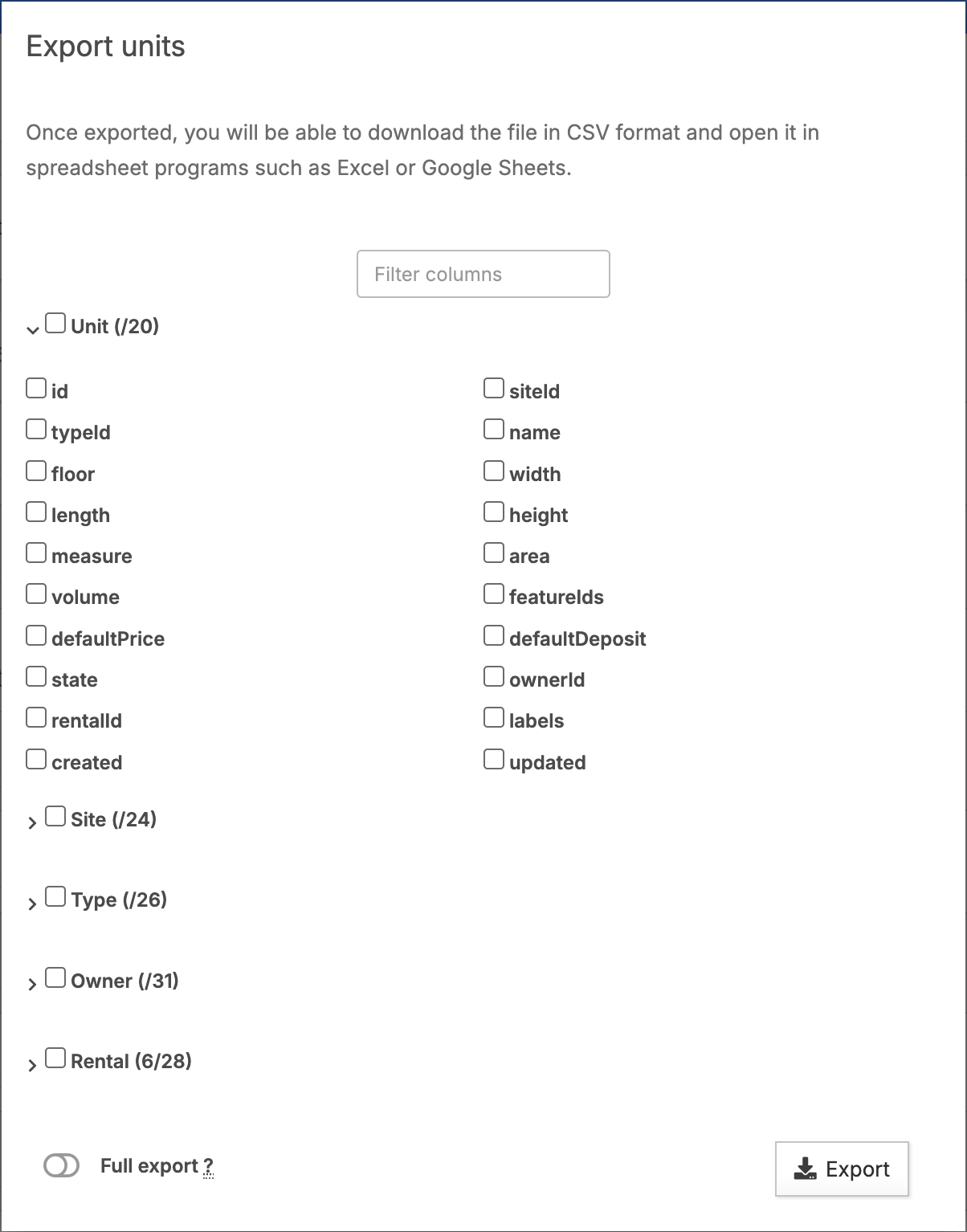
This will open a window where you can select the data points you want to include in the exported file. This includes other applicable categories such as rental info, and any custom fields you may have.
The data export window
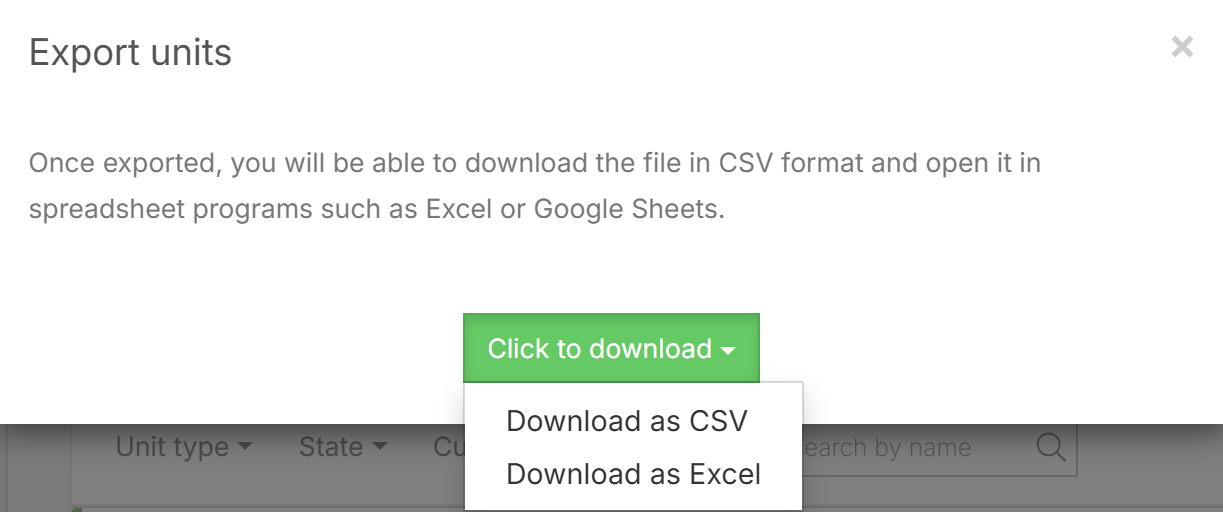
After selecting your data points, click Export and choose your preferred format (CSV or XLSX) to generate the file.
Note: The application and settings you use to open the CSV file can impact how the data is shown.
 Note: The application and settings you use to open the CSV file can impact how the data is shown.