A credit note is an invoice with a negative total amount that reduces or reverses charges on an invoice. It can be used either to offset an existing invoice balance or to refund money to the customer, depending on the situation.
Move-out refunds
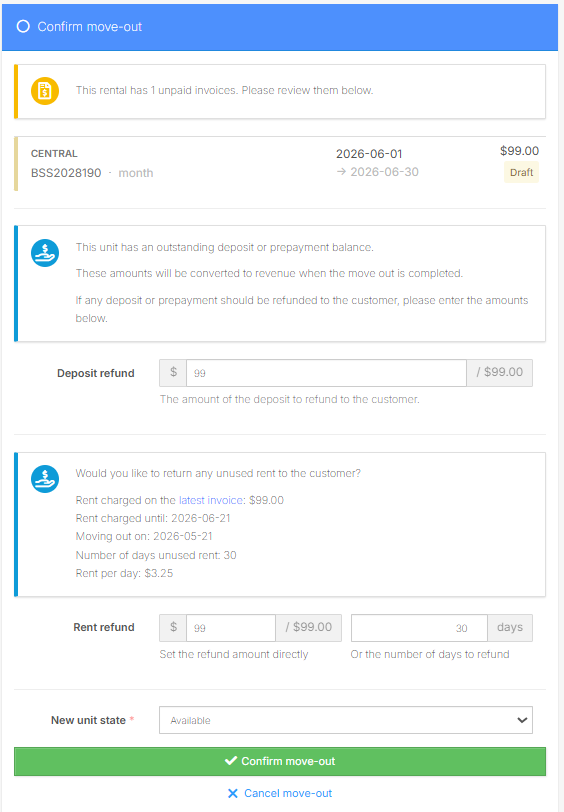
When a customer moves out of a storage unit, you are asked to choose what to do with any leftover money in the deposit, prepayment, and revenue accounts for that unit. If you choose to return some or all of the money to the customer, a credit note will be created for this. For more information: Processing a move-out job
Credit notes: offset and refund
You can create Credit Notes in Storeganise to either offset an invoice balance or refund a paid invoice.There are two types of Credit Notes:
Offset credit notes
Refund credit notes
Each serves a different purpose.
Offset credit notes
Use an offset credit note when you need to reduce or cancel an invoice balance without issuing a payment refund.
When to use an offset credit note
Create an offset credit note when you need to correct an invoice amount, remove charges, offset a balance on an unpaid, failed, or paid invoice, or adjust accounting without returning funds.
How to create an offset credit note
Go to the unit rental and open the Invoices tab.
Open the relevant invoice.
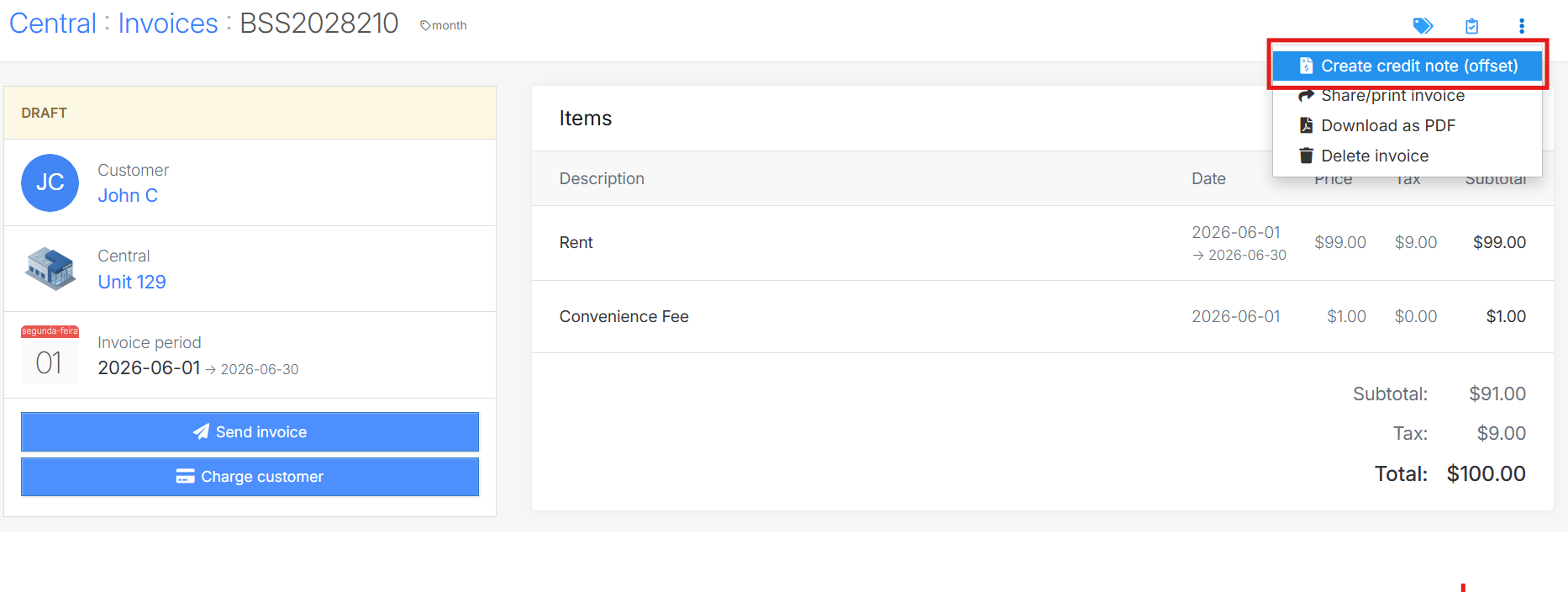
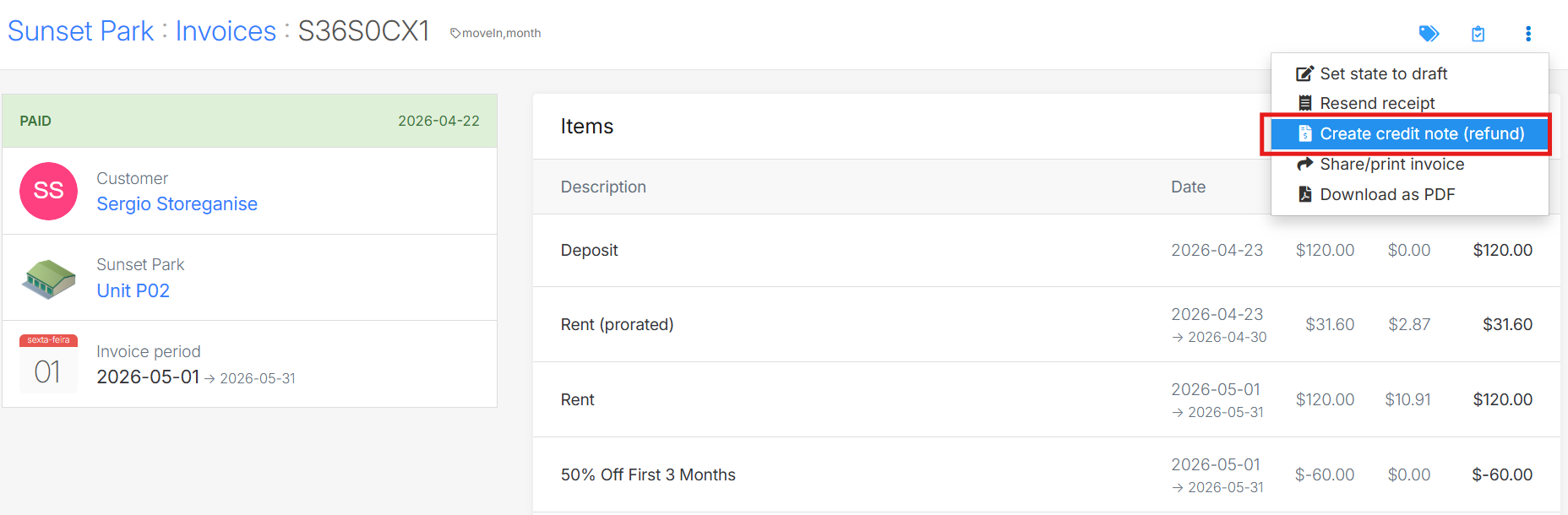
Click Create credit note (Offset).
Review the credit note details and adjust line items or accounting codes if needed.
Use a refund credit note when you need to return money to a customer for a paid invoice.
When to use a refund credit note
Create a refund credit note when the invoice has already been paid and you need to return funds to the customer, such as for a billing correction, cancellation, or overpayment.
The value of a credit note is usually returned to the customer via a refund. This can be done in the following ways:
Manual refunds
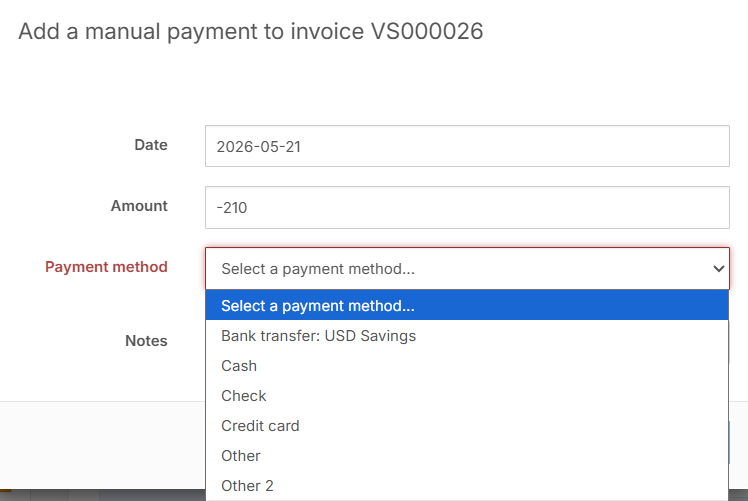
Go to the credit note invoice in Storeganise and click the `+` button in the Payments section
Enter the details such as the date the payment was made, the method and any related notes such as transaction ID etc.
Click `Add payment`
The credit note will be marked as paid if the amount matches the total
Note: For offset credit note, the payment will be populated automatically to match the amount of the parent invoice, you just need to mark the invoice as paid.
Stripe refunds
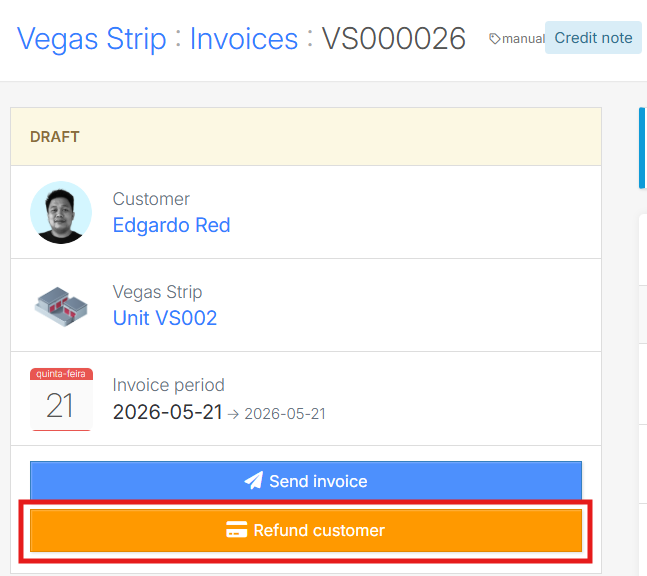
If you integrate with Stripe, you can process a refund directly from the invoice to return funds to the customer's registered payment method. Click the orange Refund customer button.
Parent and child relationship between invoices and credit notes
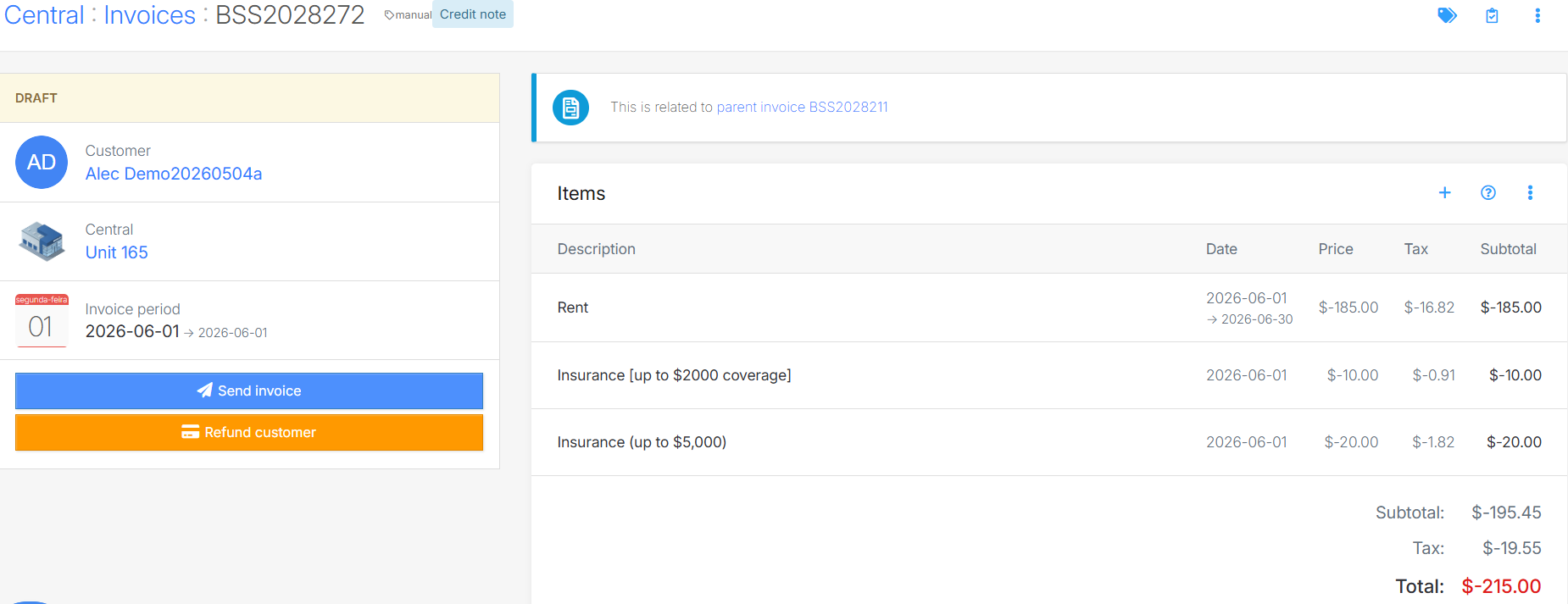
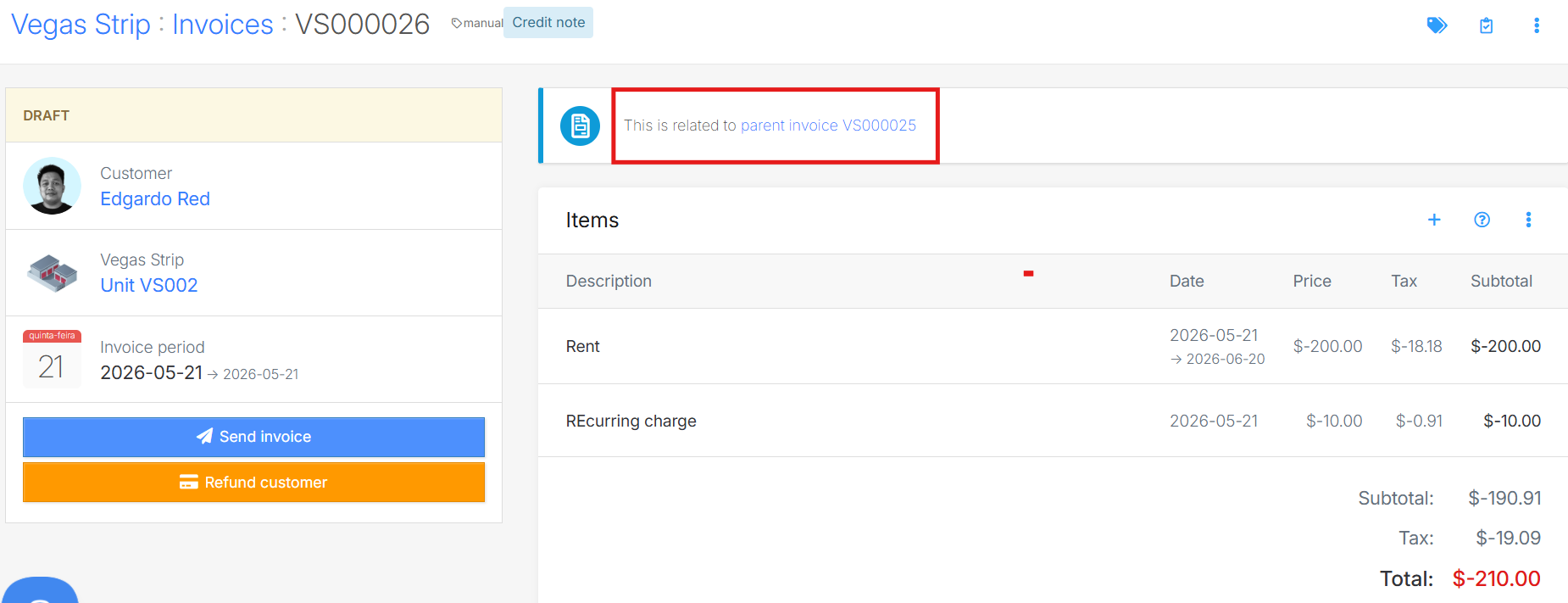
When you create either an offset credit note or a refund credit note, Storeganise automatically links it to the original invoice. The original invoice becomes the parent invoice, and the newly created credit note becomes the child invoice.After creation, the parent invoice displays a note indicating that it has a related credit note, including the invoice number. The credit note also displays a note indicating that it is related to its parent invoice, including the original invoice number.
Parent invoice note
Notes on credit note
This two-way reference allows you to easily track adjustments and refunds from either document.
Email behavior for credit notes and linked invoices
Storeganise automatically suppresses receipt and invoice emails for credit notes and any invoices linked to a credit note. This means:
When you create a credit note, the system does not send an automated receipt or invoice email to the customer.
When an invoice has a credit note linked to it, the system does not send an automated receipt or invoice email for that invoice either.
This is the default behavior and requires no configuration. In most cases, operators do not want customers to receive automated emails for credit note transactions.
Sending a receipt manually
If you need to send a receipt for a credit note or a credit-note-linked invoice (for example, if a customer requests confirmation), you can do so manually:
Open the credit note or the linked invoice.
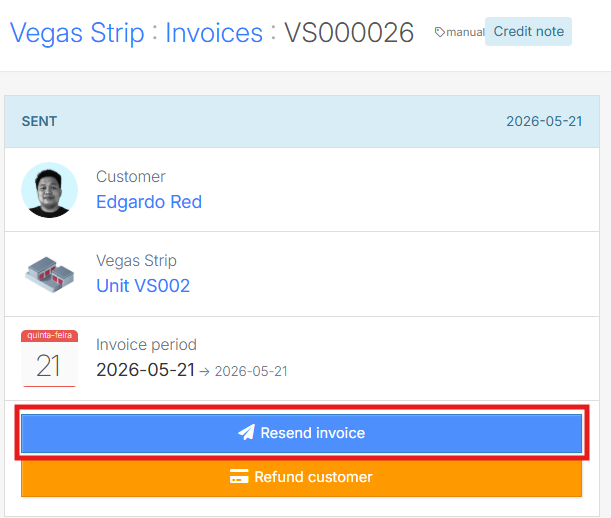
Click the Send/resend Receipt button.
The system sends the receipt email to the customer on file.
Invoice history tracking
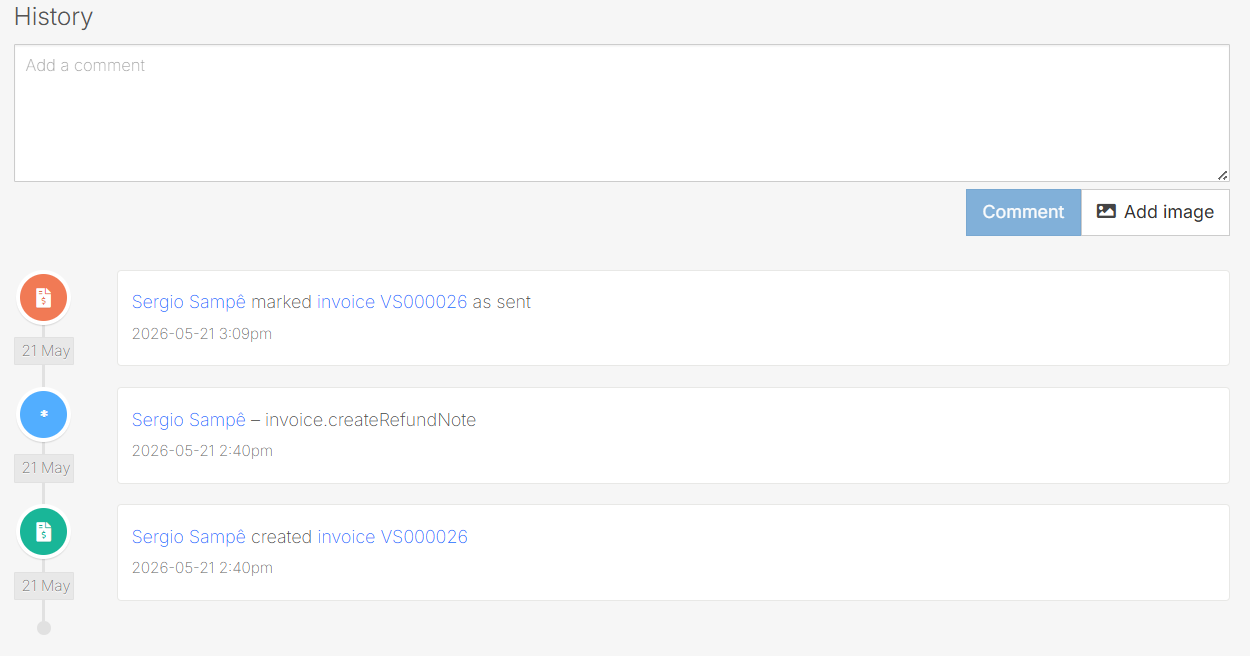
Storeganise records credit note activity in the invoice history. To view the history, open the invoice or credit note and review the History section. The system logs when the credit note was created, including the user and timestamp.
 Note: For offset credit note, the payment will be populated automatically to match the amount of the parent invoice, you just need to mark the invoice as paid.
 For more detailed information, see the following guide: Processing refunds for credit notes via Stripe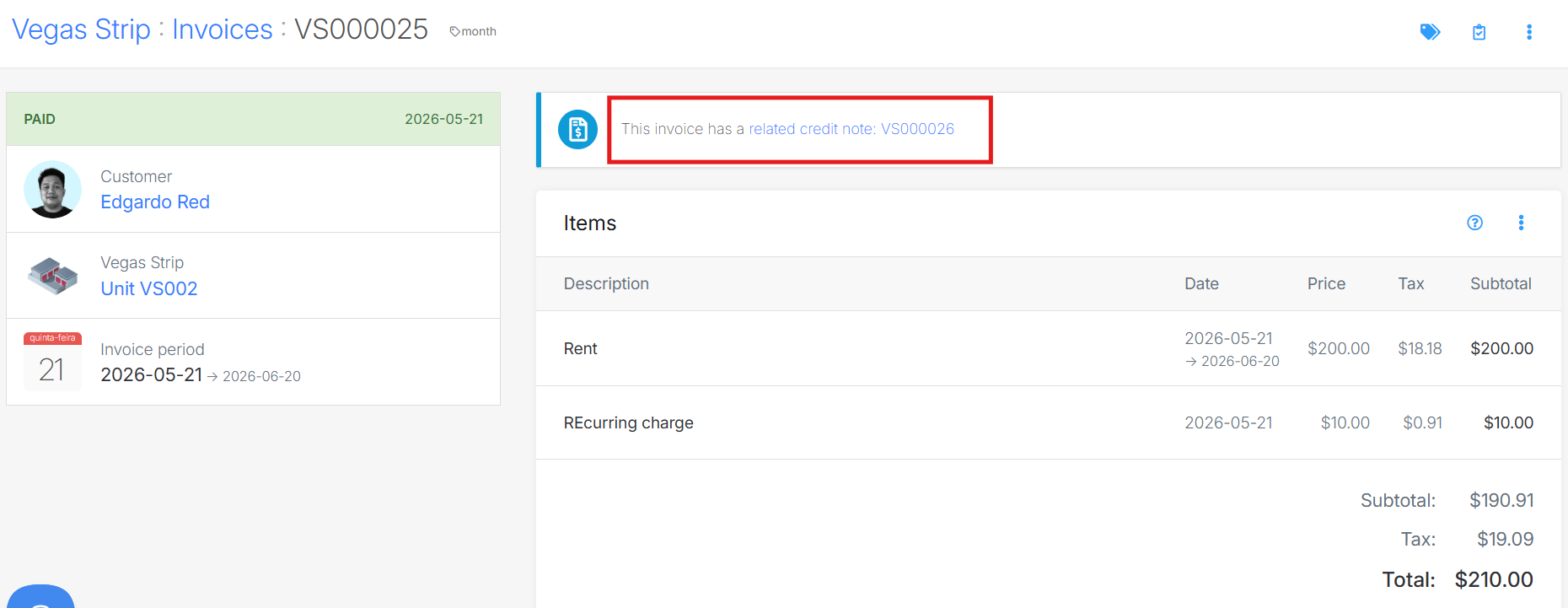
 The system sends the receipt email to the customer on file.