Transfer a tenant to a new unit
How to transfer
From a unit rental page, click on the 3 dots button in the top right corner and select Transfer to another unit.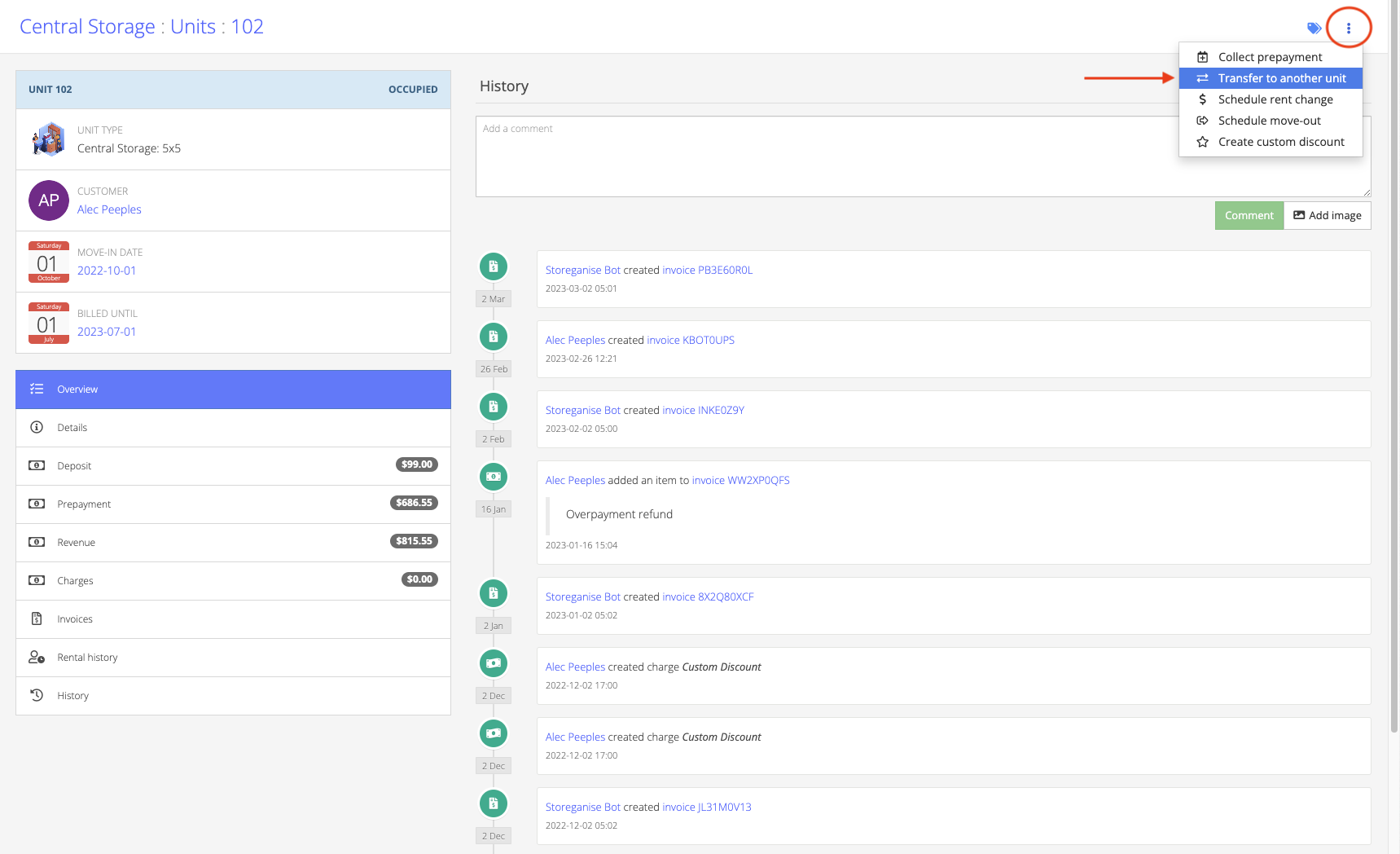
- New unit
- Transfer date
- Rental price
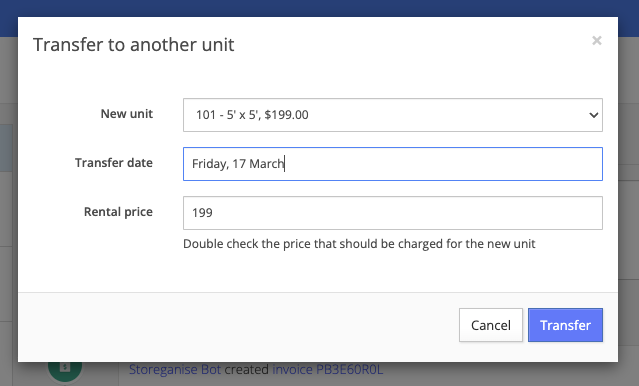
Selecting a new unit
Click the Select Unit button.
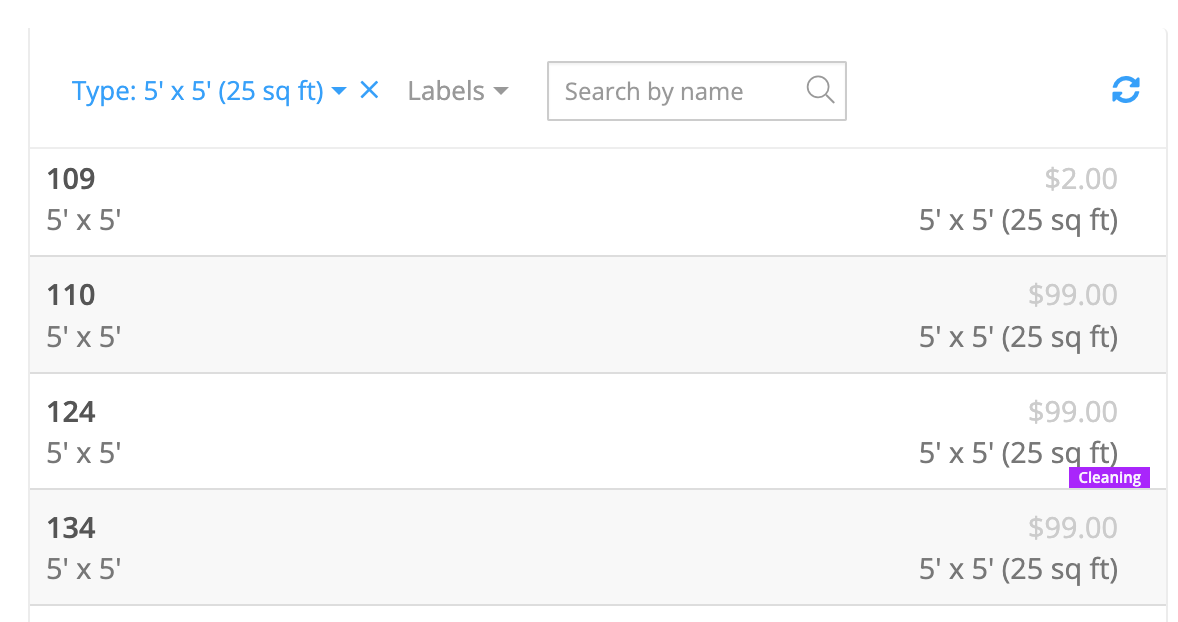
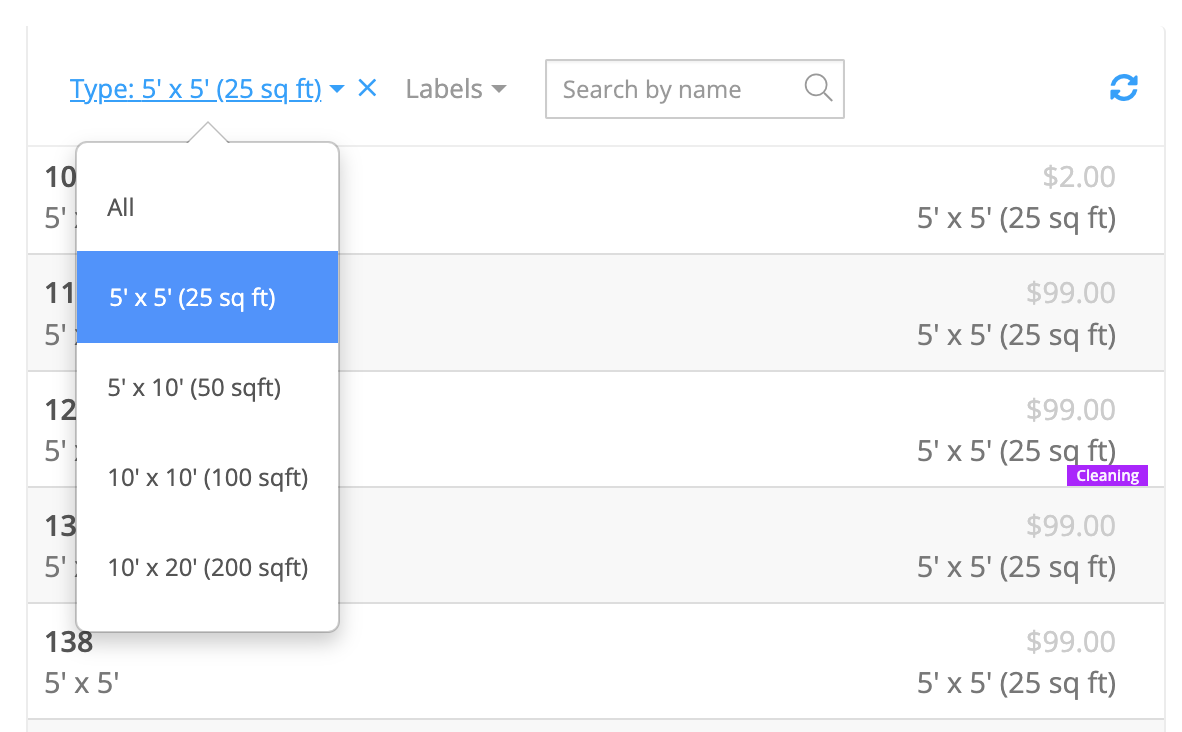
- You can view all available units by clicking on Type: in the top left and then selecting All.
- You can also view specific unit types by selecting them in this same list.
Transfer date
Click in the Transfer date field to view a calendar and select the date you want the transfer to take place.If you select today's date it will initiate the transfer immediately upon clicking the blue Transfer button.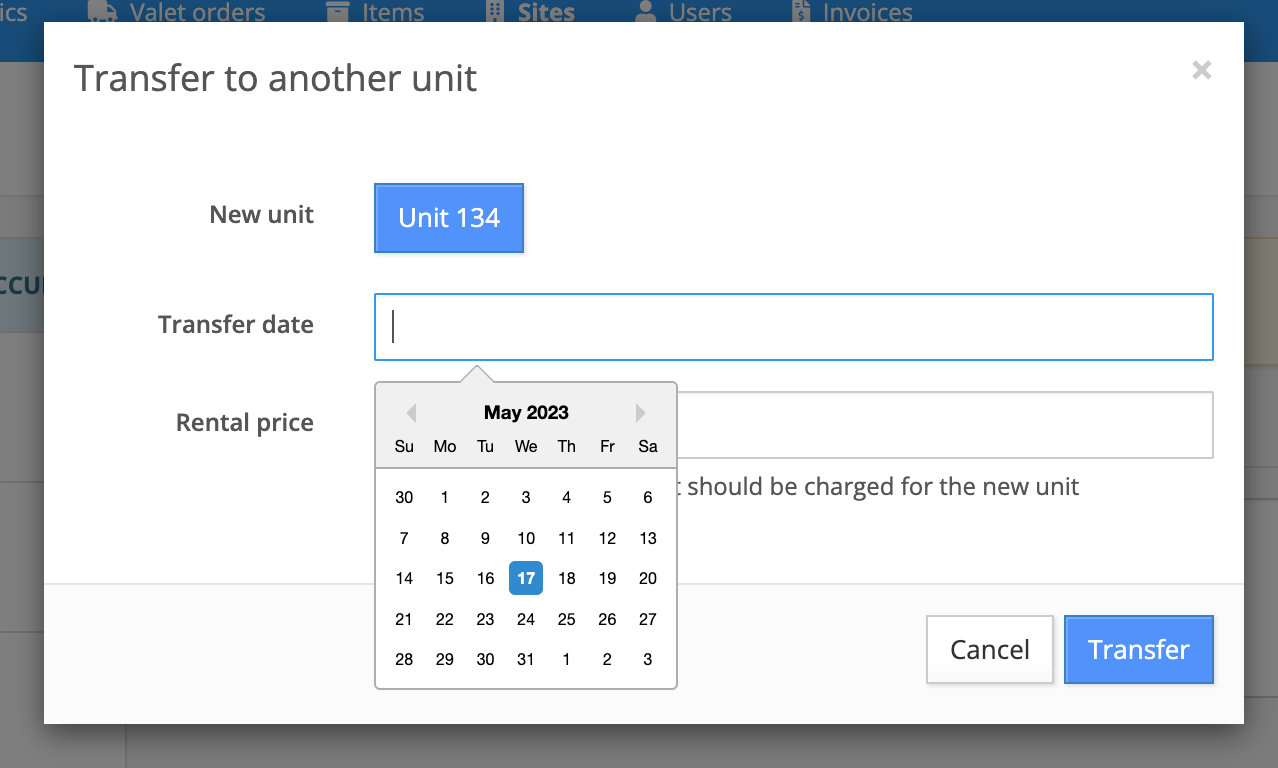
Rental price
Input the amount for the new rental price.If you are transferring the tenant to a different unit type, it is advised to double-check and confirm the rental price matches the new unit type rental cost.After unit transfer
After transferring a tenant to a new unit, their previous unit will immediately be set as available. Additionally, after a transfer, you will be routed to the new unit, where you'll now see a link to the parent (previous) unit. This makes it easy to trace the original unit details and history.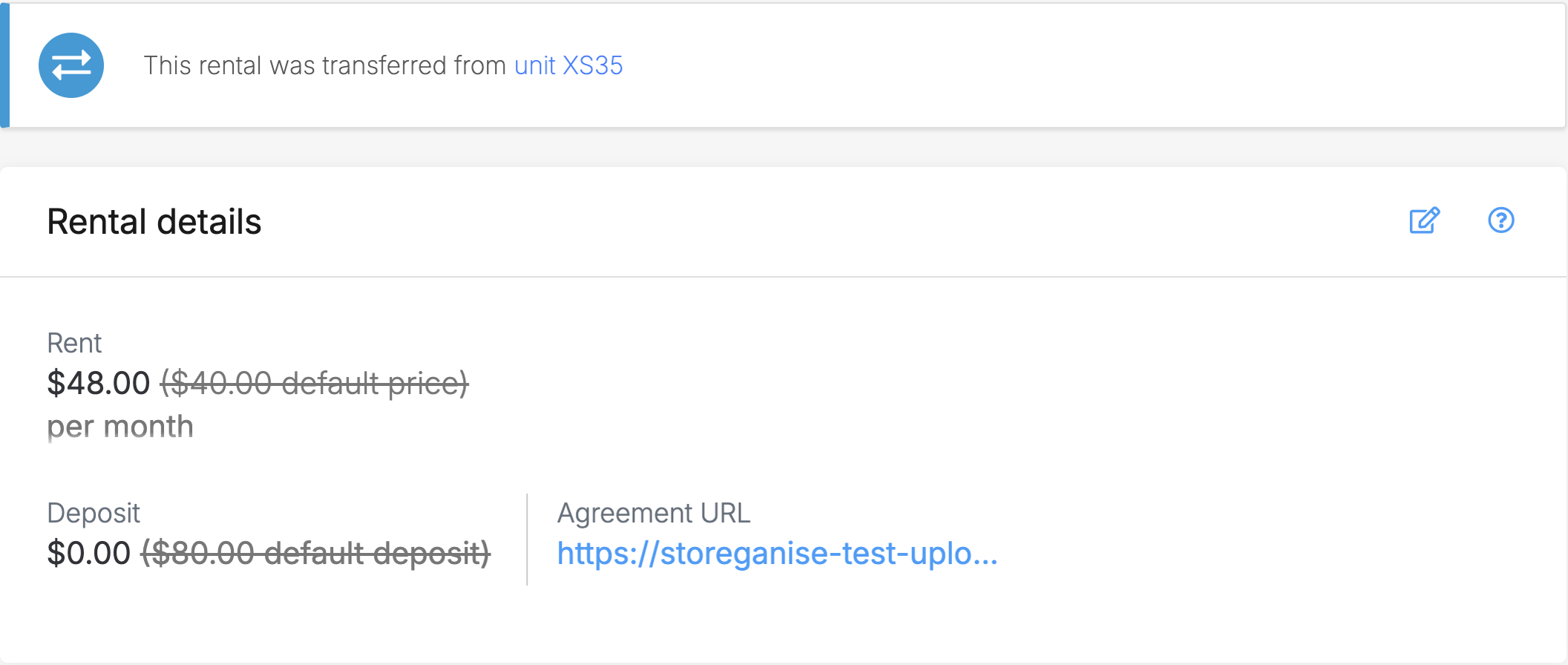
Adjustment after transfer to lower price unit
If a customer moves to a unit with a lower rental price, you may decide to refund a portion to the customer by creating a new invoice or using the overpayment in the next billing cycle to deduct the rental price. One way to do this would be to add a discount through the Charges section of the unit rental for the next invoice.
Adjustment after transfer to higher price unit
If the tenant upgrades to a higher-priced unit, you can create a new invoice to charge them for the price difference immediately. Alternatively, you can add a new charge in the charge section, ensuring that the next month's invoice includes an extra charge for the additional rent owed by the customer.
Any prorate/overpayment calculation needs to be done manually before adjusting amounts for charges or refunds.
Jump to