Create a custom discount for a rental
Overview
Two options for applying a discount to a unit rental account: charges and promotions. Configure discounts for future or existing invoices (in draft state). Adding a discount to a unit rental account will apply it to future invoices. For invoices in draft state, apply discount directly.For further information on pre-defined charges, review our Charges settings document.
For further information on promotion codes, review our Promo code settings document.
Create a custom discount
To create a custom discount using the promotion code settings (allowing for a % discount for a fixed amount discount or any combination thereof) navigate to a unit rental page, click on the three dots, and then choose 'Create custom discount.'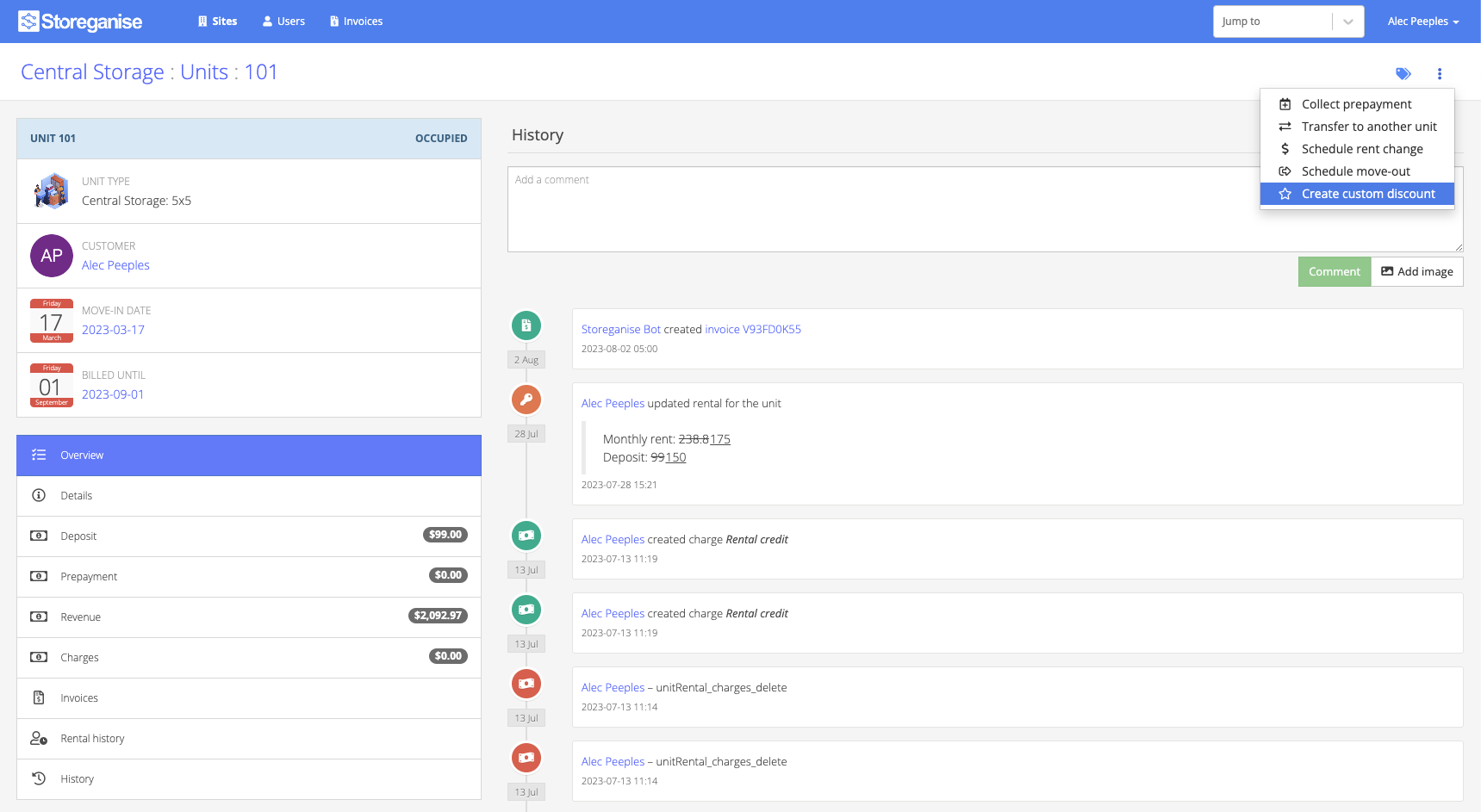
a Start Month and End Month. The start month is linked to the next invoice. For example, '1' applies to the next invoice, '2' to the second, and so on.Here is a discount: 25% off the next invoice and a $10 discount on the second invoice. If no End Monthis specified, the second rule is an ongoing discount for all future invoices (starting with the second).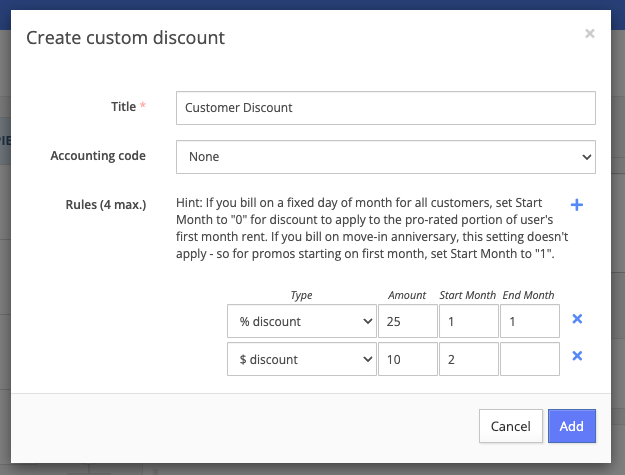
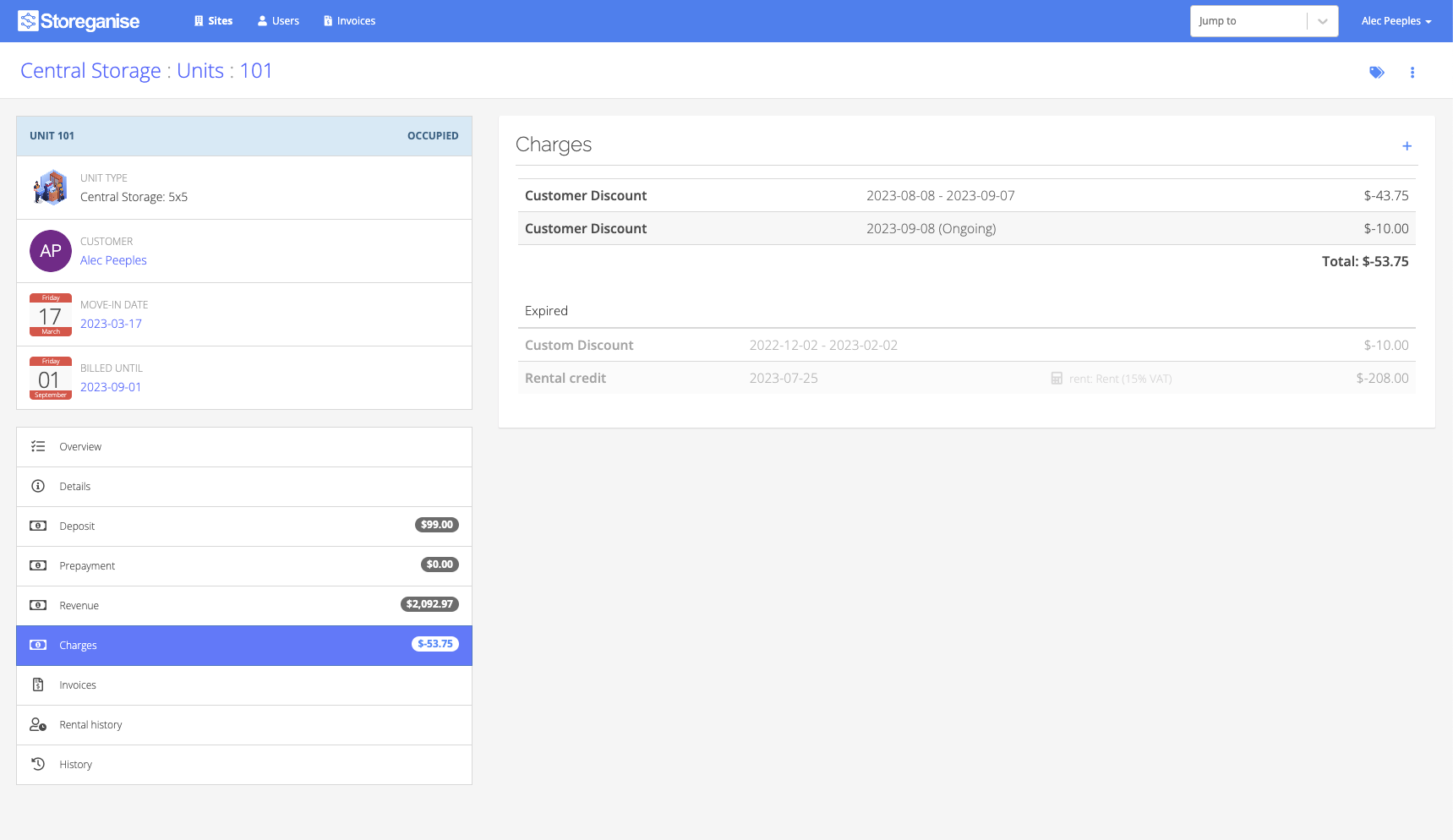
Create a custom charge
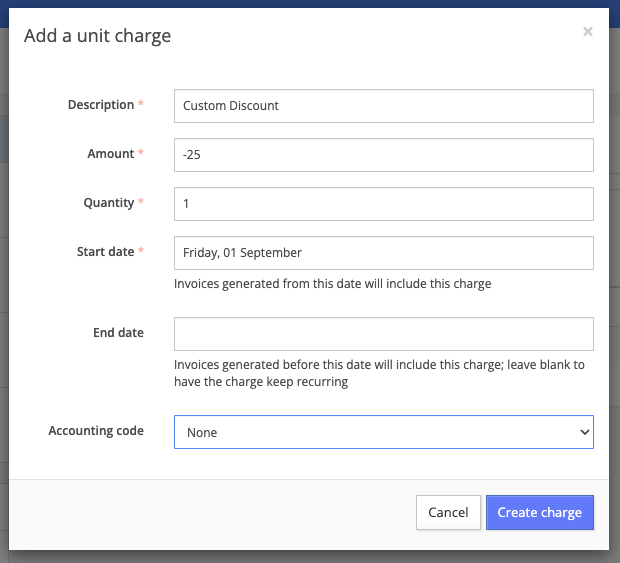
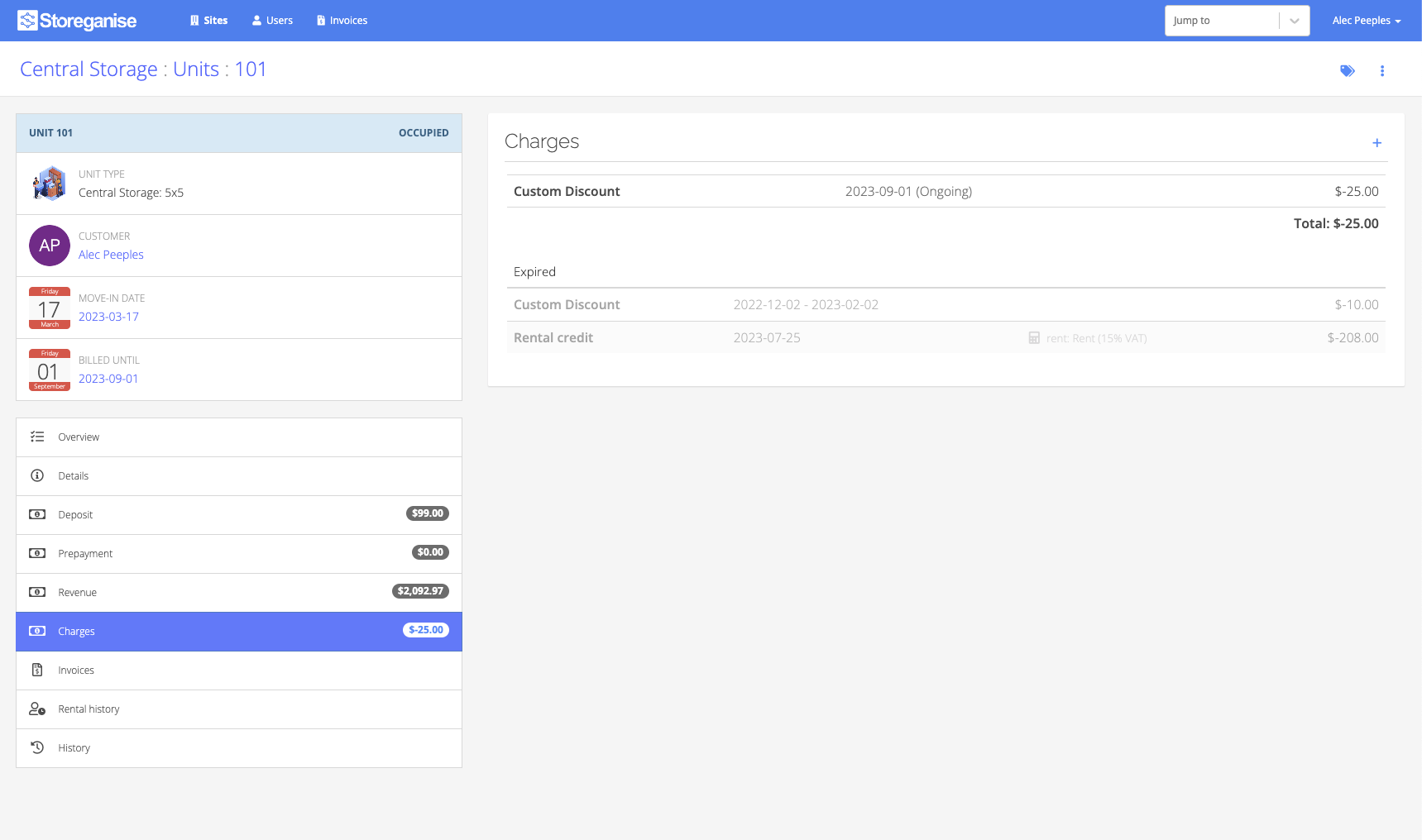
You may also apply a custom charge (a negative charge in the case of a discount) directly to the 'Charges' section of a unit rental account.First, click on the + icon. From here you may choose from predefined system charges or create a one-time custom charge.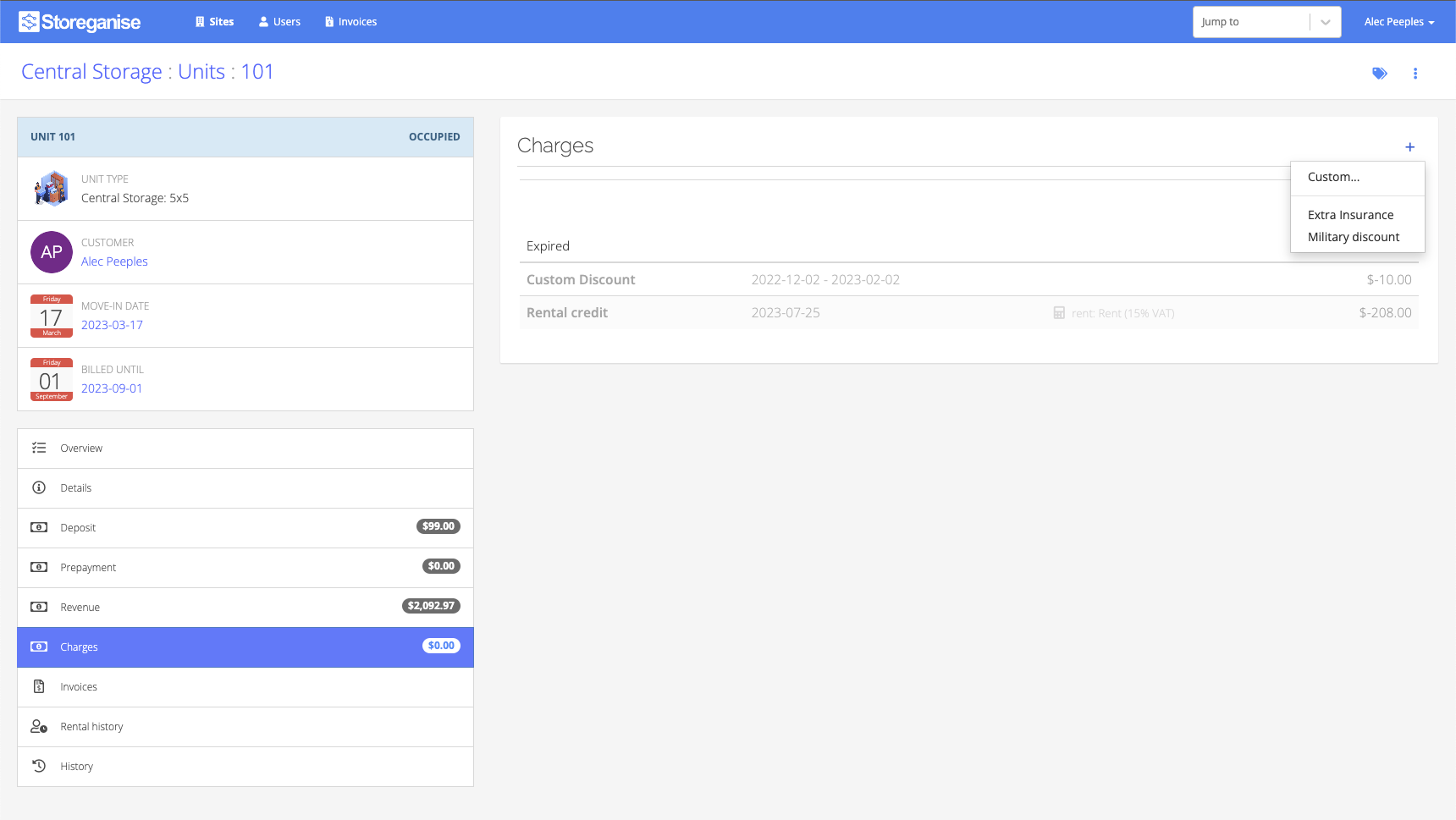
Applying a discount to an existing invoice
To create a discount on an existing invoice, it must first be set to the Draft state.With a draft invoice, choose the + icon. Here you will see a section populated by any predefined system charges as well as the option to add a custom charge.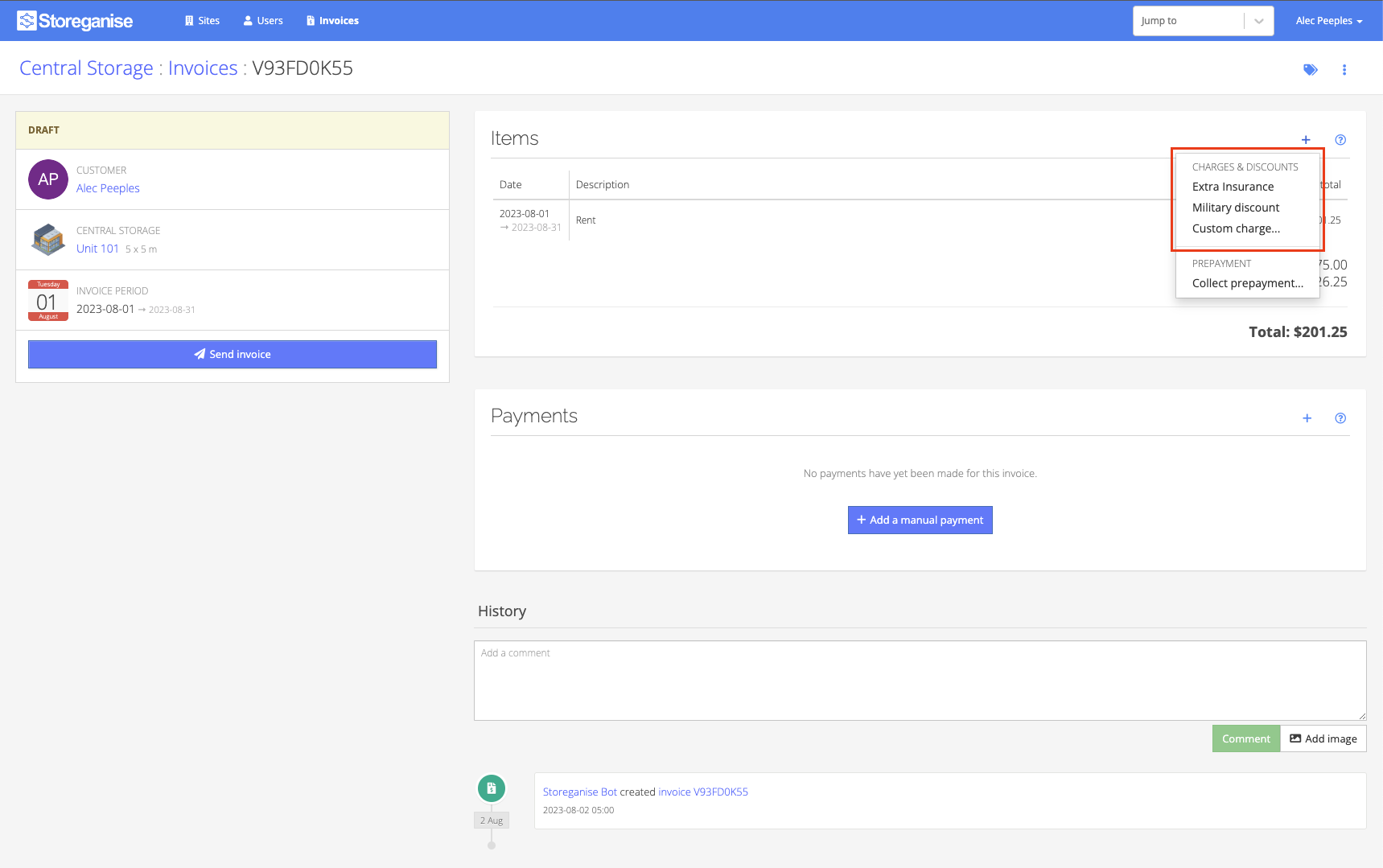
Jump to