Installing Microsoft Clarity on your Storeganise website and Customer Portal
Microsoft Clarity is a free user behavior analytics tool that helps you understand how users are interacting with your website through session replays and heatmaps.
To install Clarity, you need to have your GTM instance installed and connected to Storeganise. You can learn how to connect GTM to Storeganise in this article:
https://help.storeganise.com/article/165-how-to-set-up-google-tag-manager-custom-styles#connect
Storeganise does not offer support for GTM use or guarantee that any custom GTM code will work within Storeganise. Additionally, periodic updates to the Storeganise API could impact or even break how custom GTM code works. Please note also that many users may not see changes made via GTM due to the widespread use of ad-blockers.
Create your Clarity account
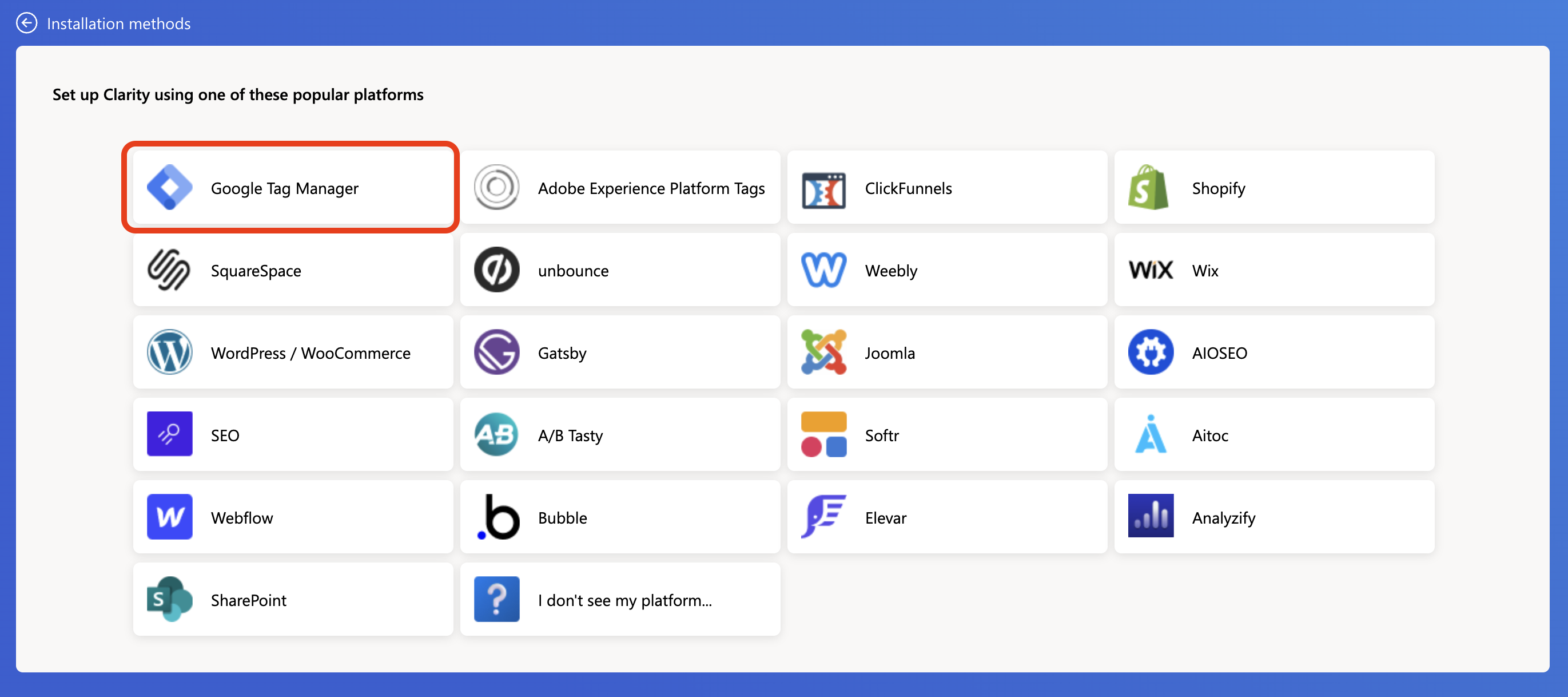
Visit https://clarity.microsoft.com/ to create your Clarity account. During the setup, you will be able to choose the instalation method. You can easily connect Clarity with Storeganise via GTM.Choose Installation methods —> Install on a third-party platform —> Google Tag Manager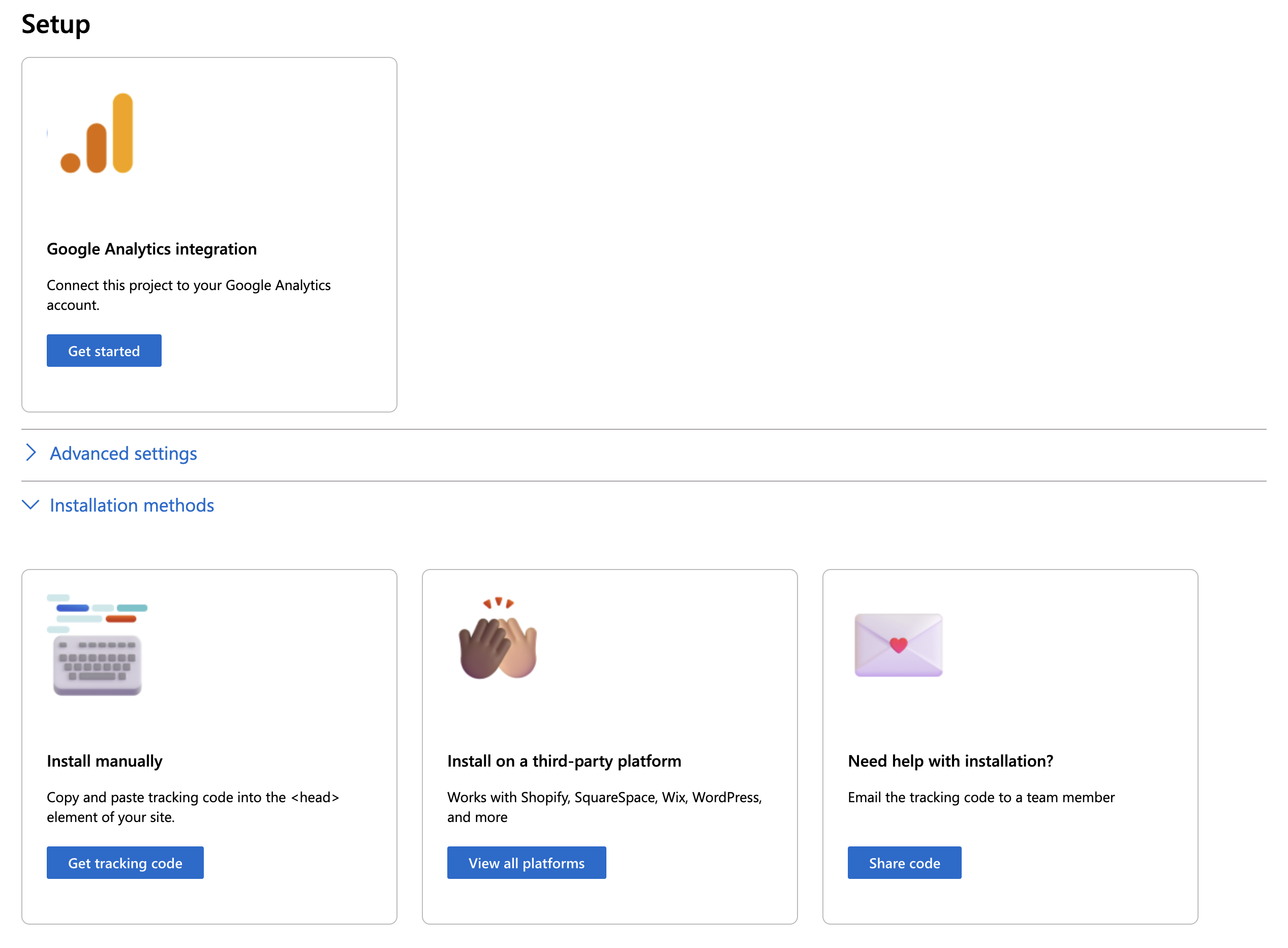
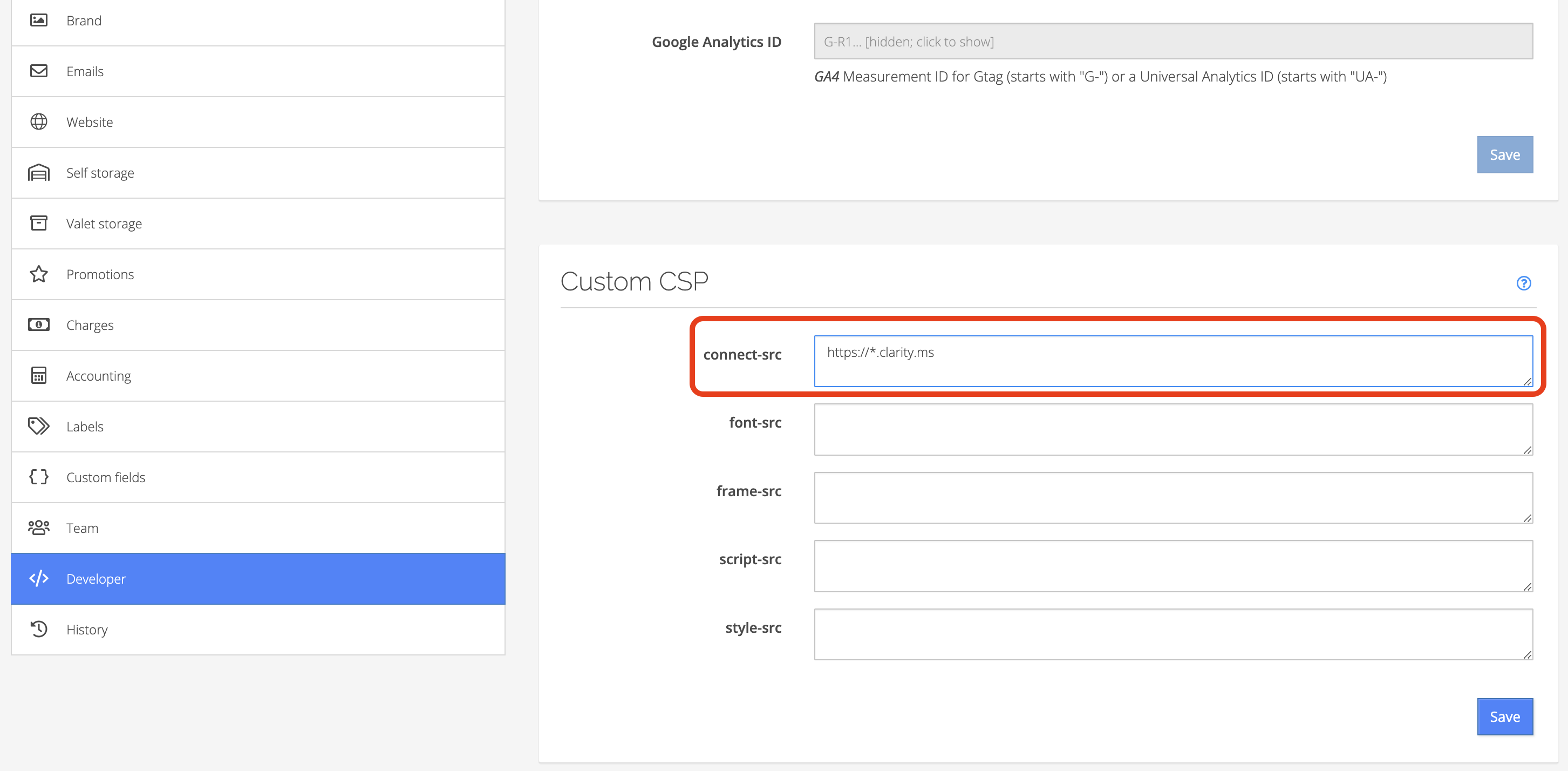
Add the CSP rule to allow Clarity access
You need to add an exception to the Content Secutiry Policies in Storeganise to allow Clarity to work properly and receive data from your website visitors.https://*.clarity.ms
Your Microsoft Clarity account is now connected to Storeganise
After connecting your Clarity account to Storeganise, you should get a notification in your Clarity dashboard.
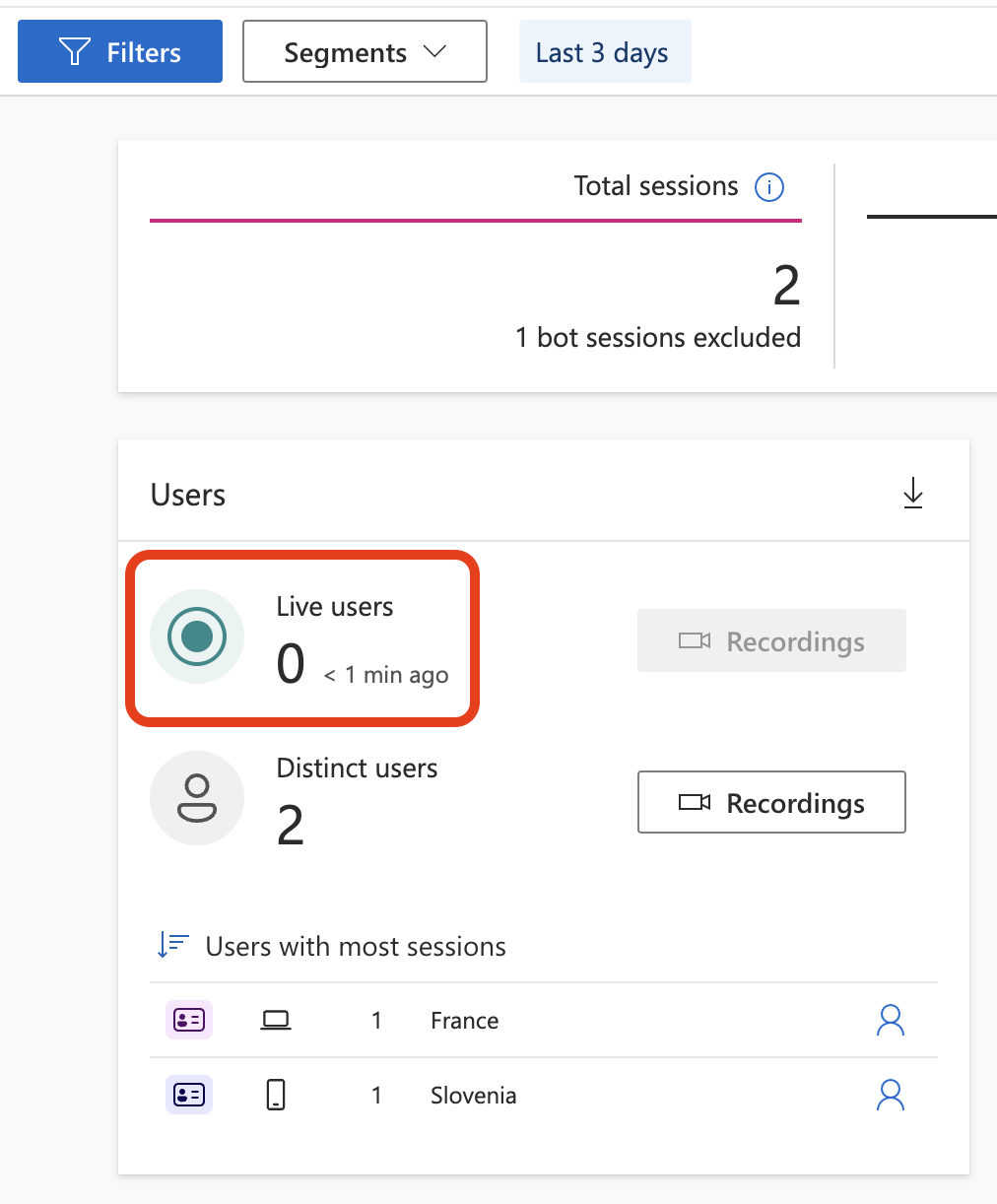
Please note that it may take up to 24 hours for Microsoft Clarity data to show up in your dashboard. It may take a few hours for your Storeganise settings to take effect.