Changing a move-in date
If a pending move-in has not been completed yet, it's possible to change the move-in date. However, it's important to understand the implications and best practices to avoid issues with invoicing and billing cycles.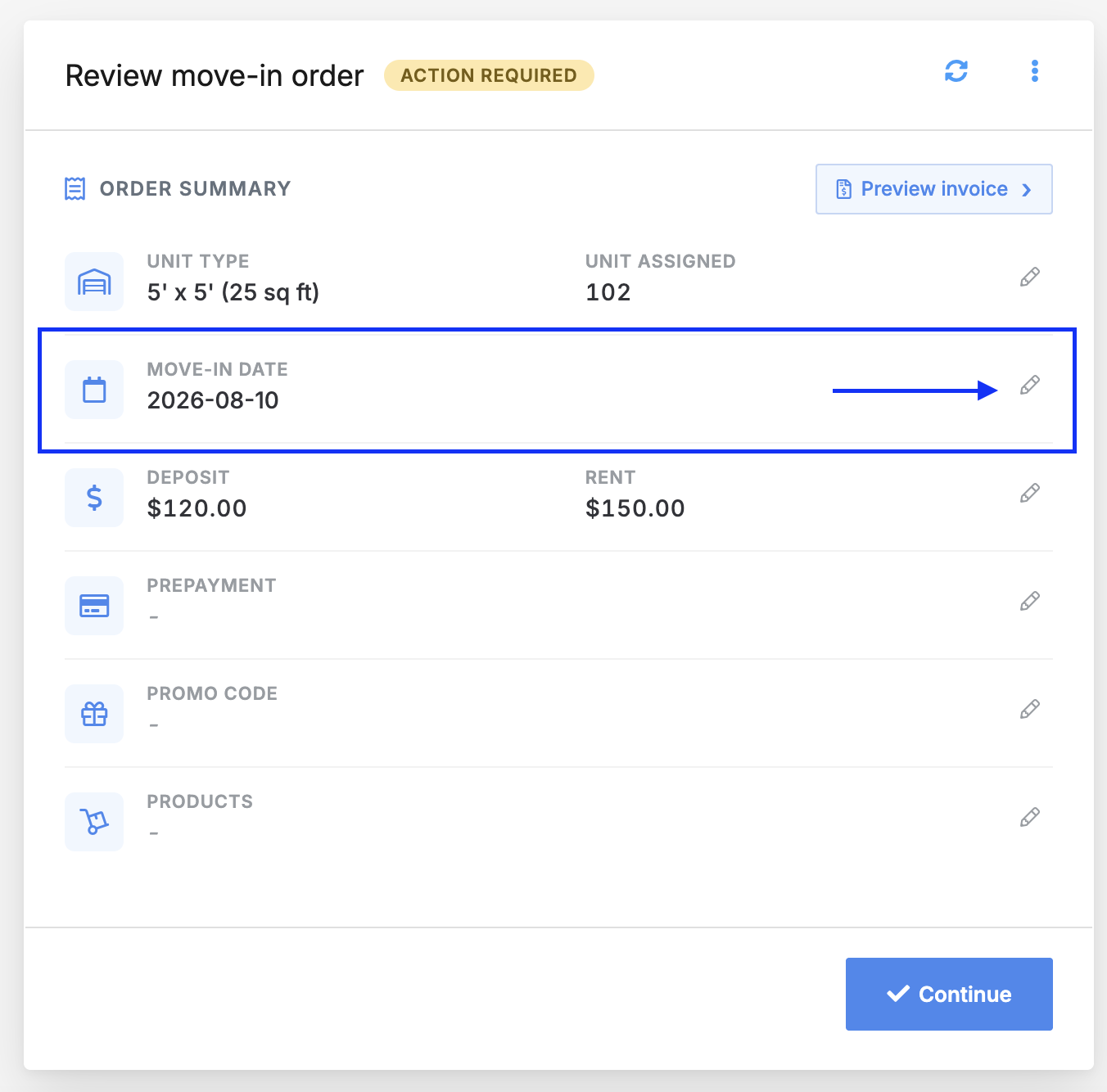
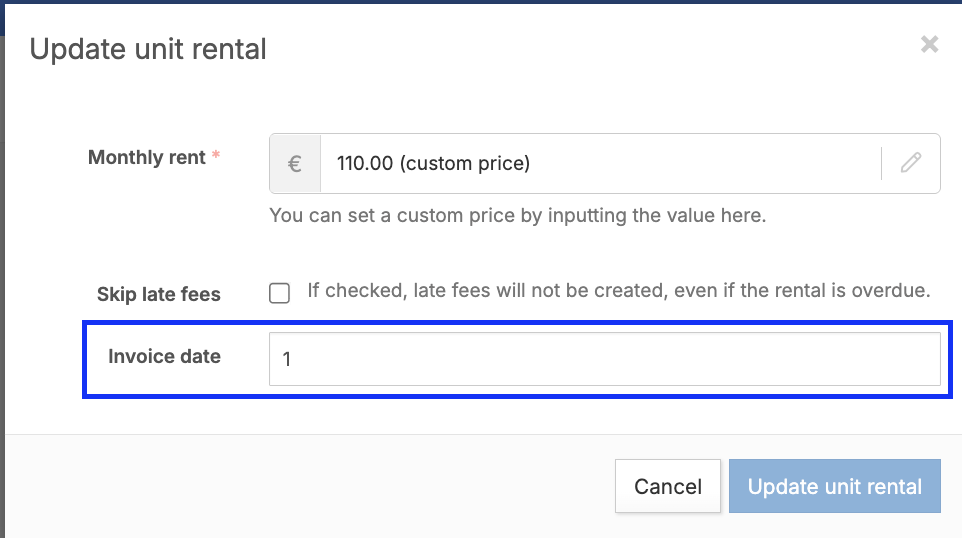 Modifying the move-in date in anniversary billing mode may lead to premature invoicing, resulting in early billing in the next cycle. Example scenario:The original move-in date is March 1, and the system has already generated an invoice covering the rental period starting March 1.Assuming today is February 28 and the customer moved in earlier today and you update the invoice date to 28.The system will now check whether there is an invoice covering the rental period starting February 28. Since the existing invoice only covers the period beginning March 1, the system will generate a new invoice starting February 28.This can result in:
As a general rule of thumb, if the invoice has already been generated for a move-in it is advised to NOT change the move-in date.
Before order confirmation
When a move-in job is at the Confirm order step - meaning, an invoice has NOT been generated yet - changing the move-in date is easy. Simply click the pencil icon in the date section of the order summary. If the billing mode is anniversary-based, the invoice date will also be updated.Note: if your account automatically confirms orders per your site automation settings, refer to the next section below.Changing the move-in date after an invoice is generated
Once an invoice has been generated, even if it is still in draft state, it is not recommended to change the move-in date or edit the invoice.Although invoice line items may reflect the new move-in date, the invoice period will still reflect the original billing period. This can create discrepancies in financial reporting and billing cycles. For this reason, you should not adjust the invoice date or modify invoice items after generation as this may likely cause invoicing issues, such as a new invoice generating early.Recommended approach after invoice generation
If the invoice has not been charged yet, it's easiest to delete the draft invoice and cancel the move-in entirely. Move the customer out of the unit or cancel the move-in and then move them back in using the correct move-in date.This ensures:- The billing period is recalculated correctly
- Reporting remains accurate
- The billed-until date is properly aligned
- Future invoices are generated correctly
If the invoice has already been charged
If the invoice has already been charged, you must prevent automatic double billing before recreating the rental.First:- Go to the customer's user profile.
- Go to the Billing section.
- Change their billing trigger from automatic or default to Manual.
- Move the customer out of the unit and do not create a credit note.
- Move the customer back into the unit using the correct move-in date.
- Open the new draft invoice.
- Add a negative line item that references the previously paid invoice, bringing the new invoice total to 0
What to consider when changing invoice date (Anniversary invoicing mode)
In general and as explained above, it's not recommended to change the move-in date after the invoice is generated. Additionally, you can't edit the move-in date once the move-in is completed and the unit is occupied.While you cannot alter the move-in date on the invoice, you can adjust the invoice date in the rental details. However, changing the move-in date after an order is finalized and the invoice is created may result in inaccuracies and billing problems.- Overlapping billing periods
- Duplicate invoices
- Double charging the customer
Jump to
Related articles
Managing unit move-in jobs