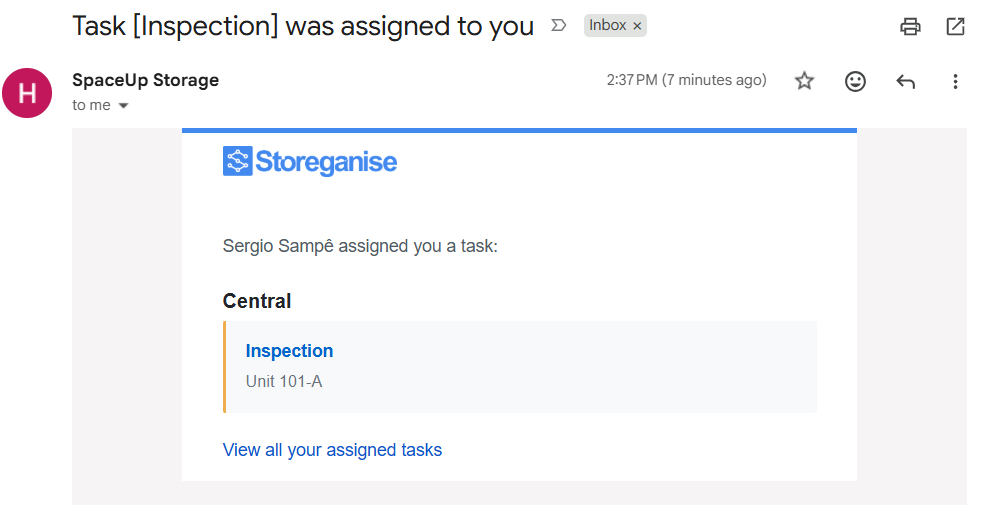
Tasks & reminders in Storeganise help you keep track of reminders and ad hoc tasks across the platform. You can assign tasks to specific admin users, filter them by site or assignee, and receive email notifications to stay organized.
Task templates
Task templates let you pre-configure your most common tasks so your team can create them in seconds instead of starting from scratch each time. Once set up, templates appear in the "Add task" dropdown across the platform.
Setting up task templates
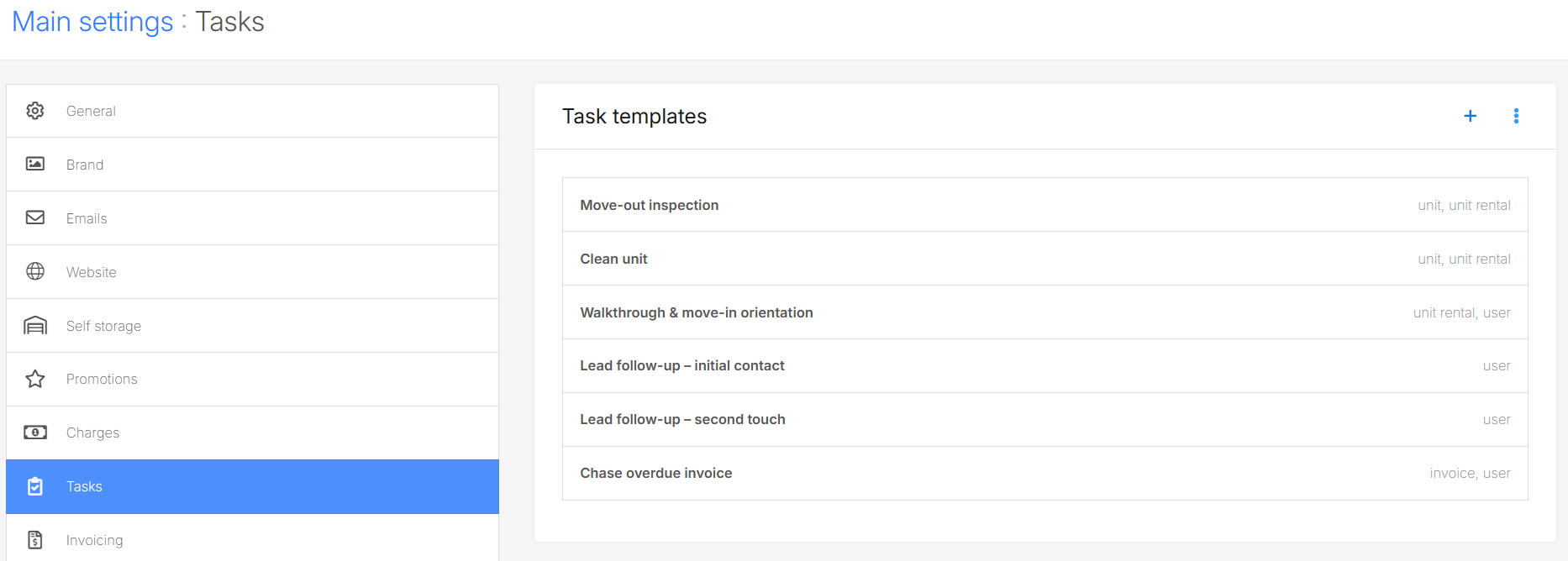
To create and manage task templates, go to Main Settings > Tasks. You'll see a list of all existing templates.
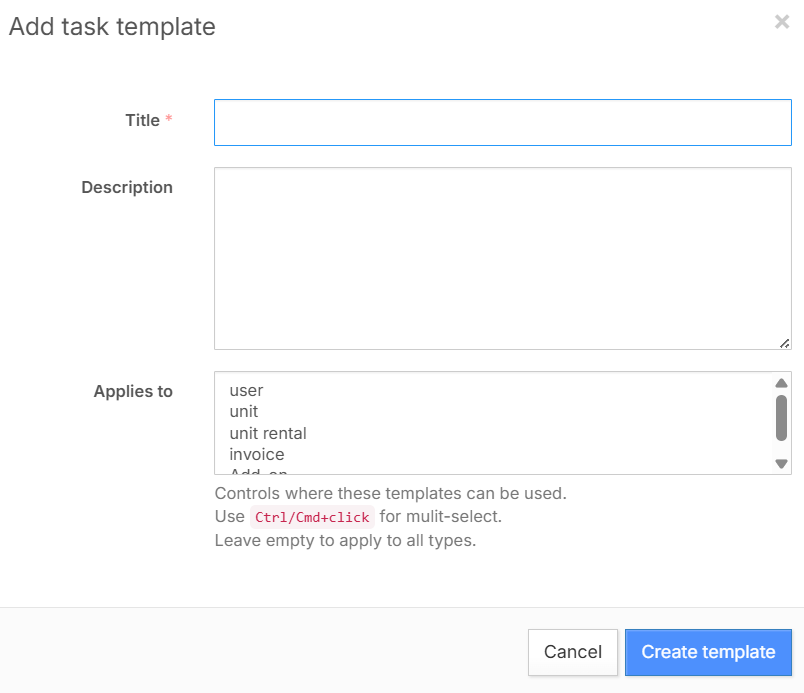
Click the + button to create a new template. Each template has three fields:
Title — the name of the task (e.g., "Move-out inspection," "Clean unit," "Chase overdue invoice").
Description — pre-filled instructions or notes that will appear when the task is created. Use this for checklists, standard procedures, or any details your team needs.
Applies to — controls where this template appears. Options include user, unit, unit rental, invoice, and add-on. You can select multiple types using Ctrl/Cmd+click. Leave empty to make the template available everywhere.
Click Create template to save your changes. You can also delete a template from this screen if it's no longer needed.
Example templates
Here are some templates commonly used by storage facilities:
Move-out inspection (unit, unit rental) — Inspect the unit after the customer has vacated. Note any damage or items left behind. Confirm the unit is cleared and ready for re-letting.
Clean unit (unit, unit rental) — Standard cleaning after a move-out.
Walkthrough & move-in orientation (user, unit rental) — Guide the customer through their unit and facility access on move-in day.
Lead follow-up – initial contact (user) — First outreach to a new lead.
Lead follow-up – second touch (user) — Follow up if no response after the initial contact.
Chase overdue invoice (invoice) — Reach out to the customer about an unpaid invoice.
Adding tasks
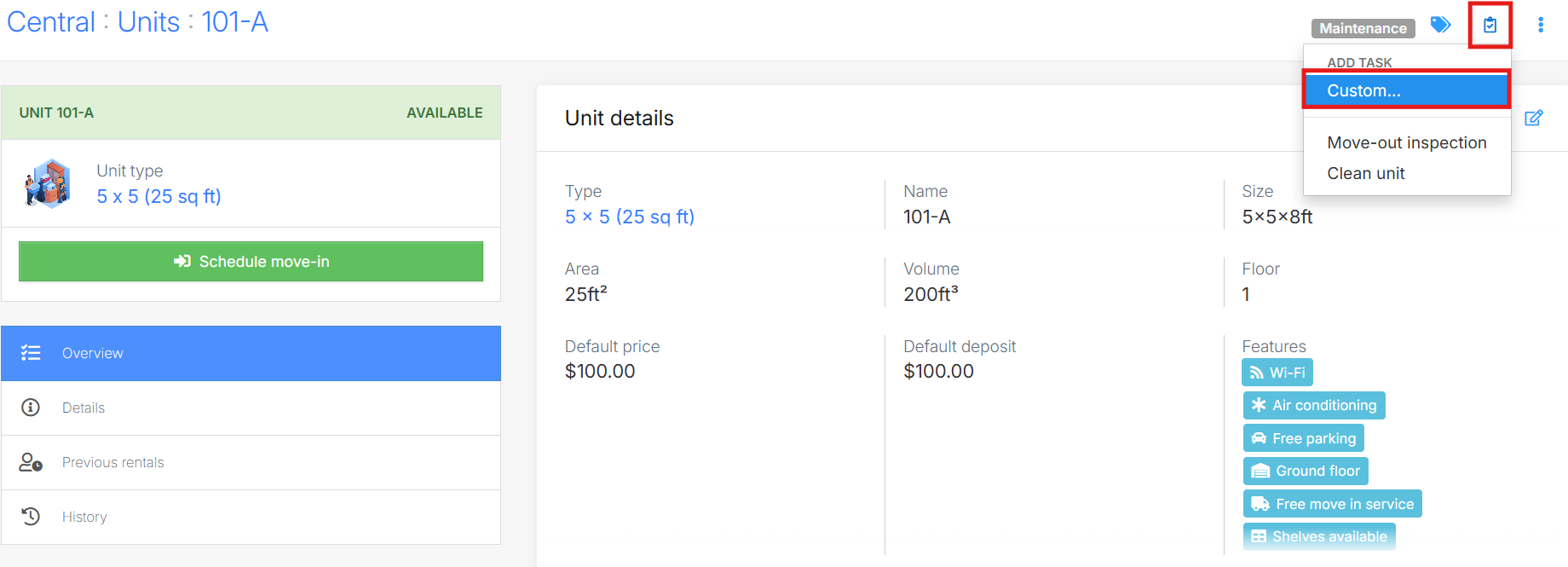
To create a task, go to the relevant page (a unit, unit rental, user, or invoice) in the Management Portal and click the Add task button.
Using a template
If task templates have been set up, clicking Add task opens a dropdown showing all templates that apply to the current context. Select a template, and the task is pre-filled with the template's title and description. You can still edit any field, set a due date, and choose an assignee before saving.
Creating a custom task
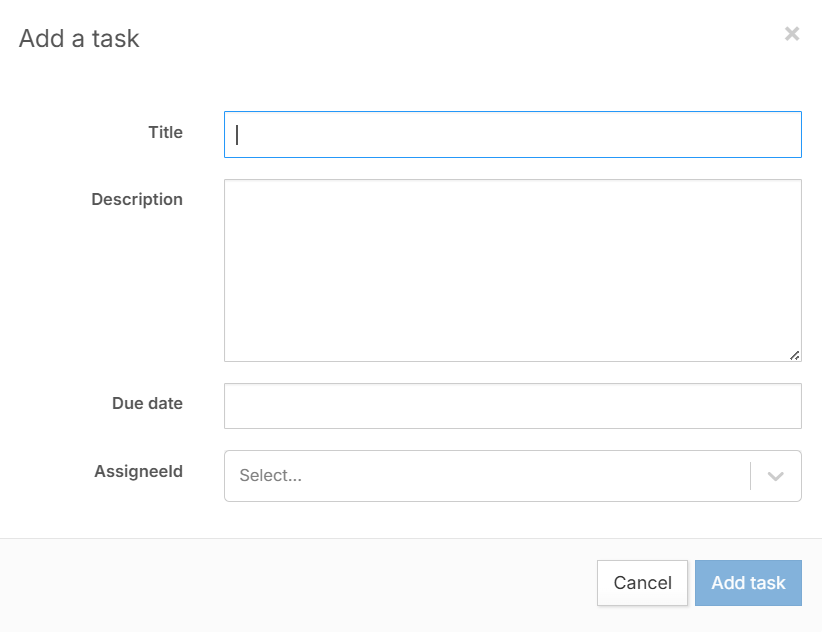
To create a one-off task without a template, select Custom... from the top of the dropdown. This opens a blank task form where you can enter a title, description, due date, and assignee from scratch.
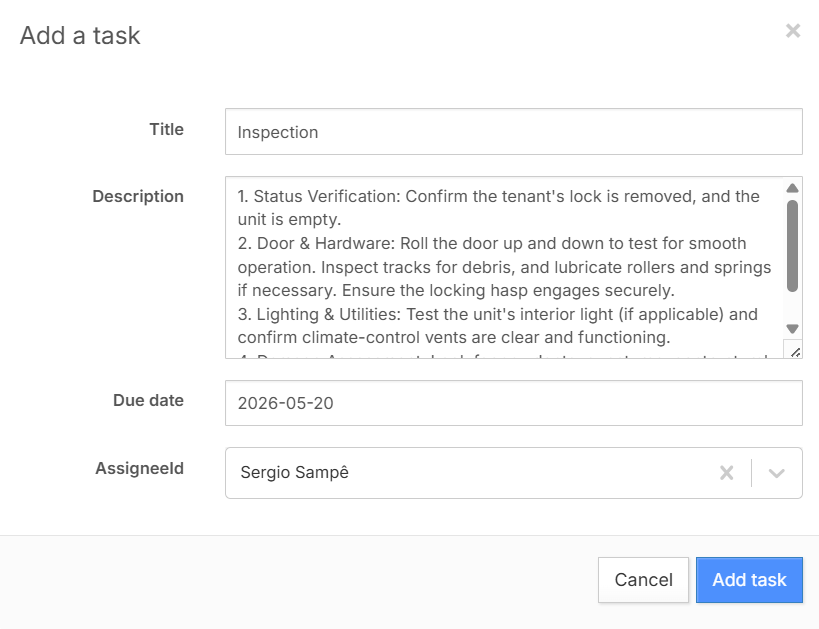
Tailor each task with precision by including comprehensive details such as specific instructions, relevant links, and optionally, a due date for prioritization.
Setting up tasks or reminders will also make it easier for customer interaction management by generating tasks for pivotal actions like following up with leads or handling abandoned reservations, ensuring no opportunity slips through the cracks.Please note that the due date for tasks is for internal tracking only within the system in the jobs list section on each site.
View tasks & reminders
You can see the details of tasks/reminders that you've set up on the relevant page (a unit, unit rental, user, or invoice) directly, along with its description, due date, and assignee.
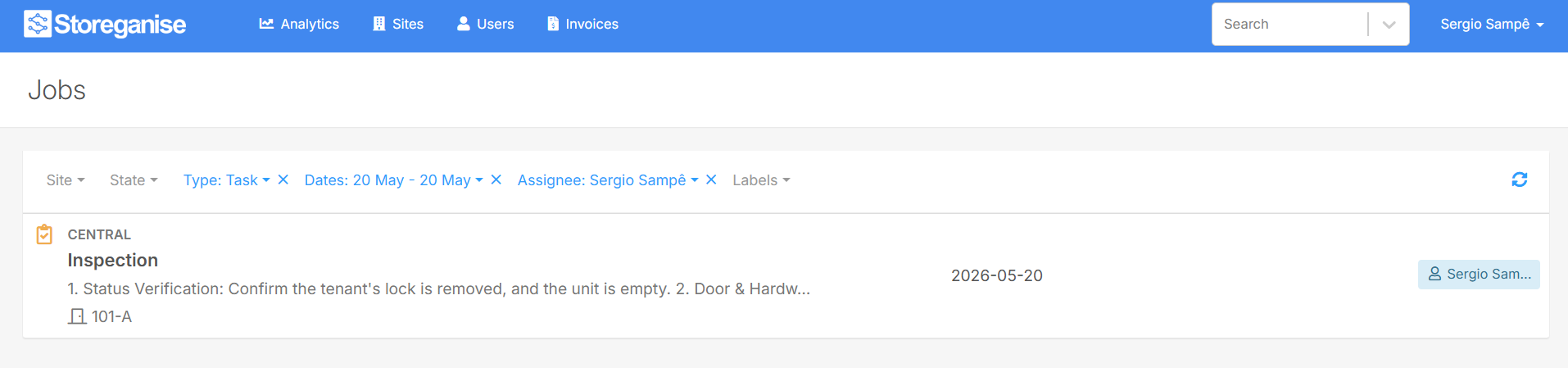
For better daily task management based on the due date set, you can also view the list in the job list section on each site. You can filter tasks directly from the task list to quickly find what you need. Use the available filters to narrow results by assignee, including Unassigned tasks, or by site if you view it from https://yourbusinesscode.storeganise.com/admin/jobs . This allows you to manage tasks across multiple locations while still being able to focus on a single site when necessary. Overdue tasks are visually highlighted in the task list, making it easy to identify and prioritize them.Please note that tasks under users will not be visible under the Site > Jobs section, but they will be available under the My tasks view for the assignee or under the business-wide jobs list.
My tasks view
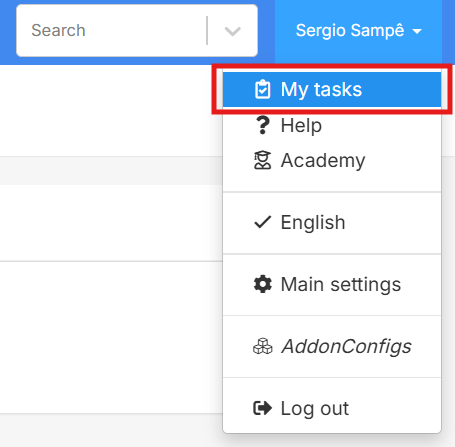
Each admin user has a dedicated My tasks view that shows only the tasks assigned to them. To access it, log in to the Management Portal and open My tasks from the navigation. This view updates automatically whenever new tasks are assigned to the logged-in user.
Editing and reassigning tasks
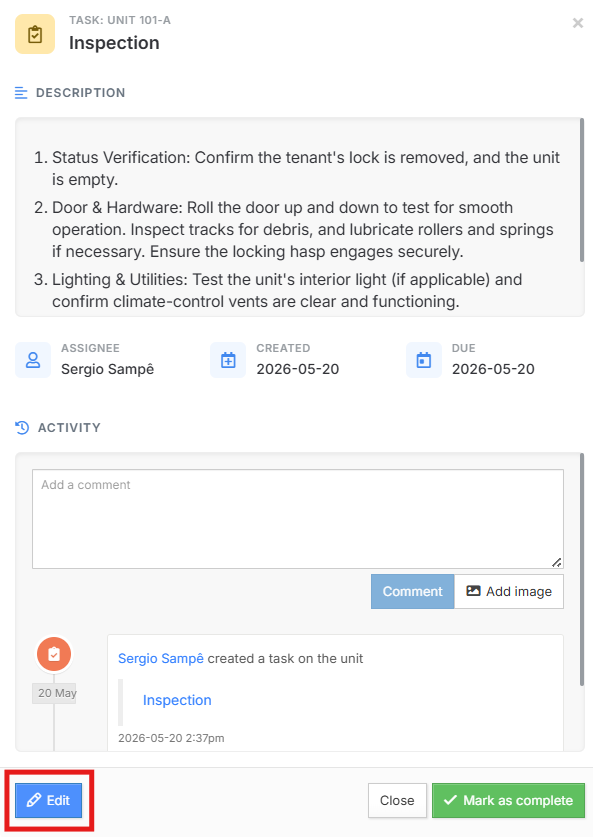
You can edit tasks after creating them. Open the task from the jobs list or from the user, unit, unit rental, orinvoice page, then click Edit. Update the title, description, due date, or assignee as needed, and click Update task to apply your changes. If you change the assignee and save the task, the system automatically updates the assignment. The task will then appear in the new assignee's My tasks view.
Marking a task as complete
To complete a task, simply click on the Mark as complete button. The system will mark the task as completed and remove it from open task lists.
Email notifications
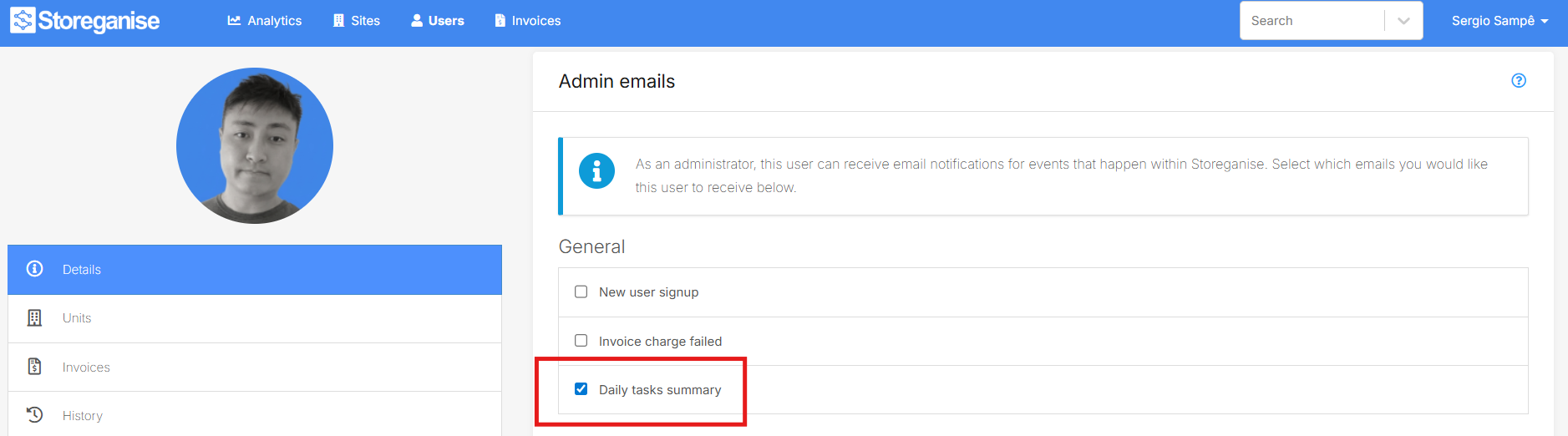
Storeganise sends email notifications to help admins stay on top of task activity and ensure important actions are not missed. When a task is assigned to an admin, the system sends an immediate email notification. If a task is reassigned, the new assignee will also receive an email alert.Admins can also enable the Daily tasks summary, which sends a daily email listing all open tasks. This summary highlights tasks helping managers quickly identify items that require attention and keep their task backlog under control. This can be enabled/disabled from the admin emails list under the admin profile.
 Click the + button to create a new template. Each template has three fields:
 Click Create template to save your changes. You can also delete a template from this screen if it's no longer needed.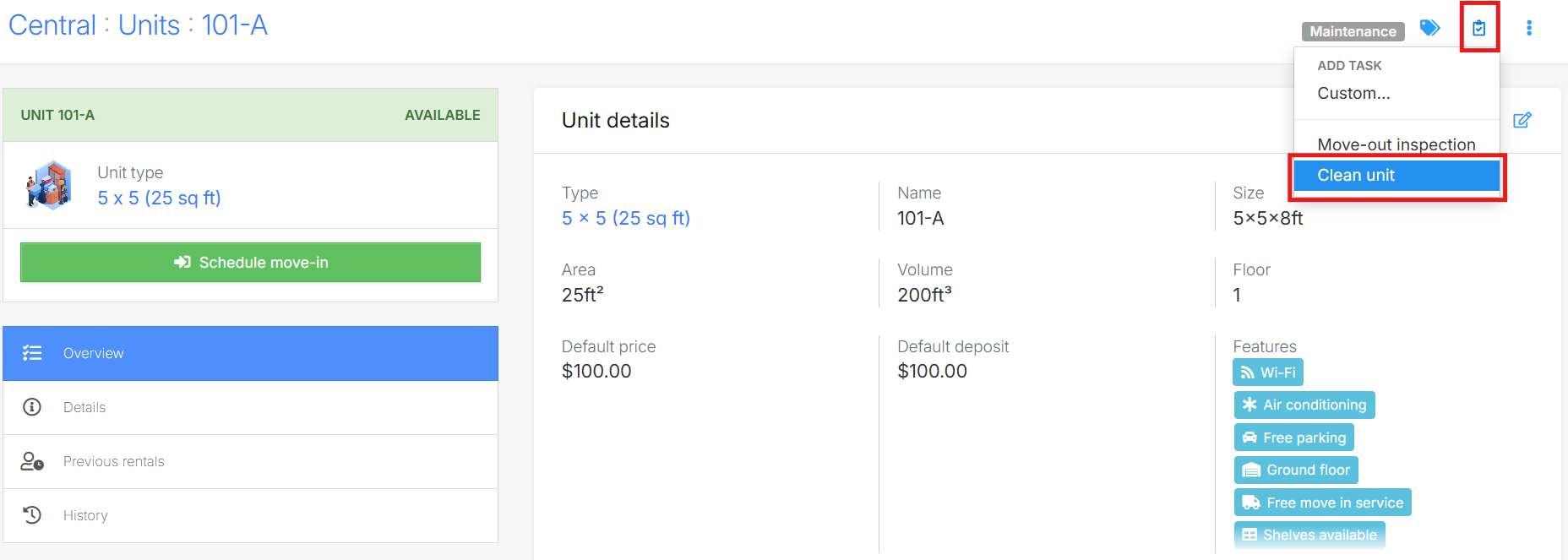
 Tailor each task with precision by including comprehensive details such as specific instructions, relevant links, and optionally, a due date for prioritization.
 Setting up tasks or reminders will also make it easier for customer interaction management by generating tasks for pivotal actions like following up with leads or handling abandoned reservations, ensuring no opportunity slips through the cracks.Please note that the due date for tasks is for internal tracking only within the system in the jobs list section on each site.
 For better daily task management based on the due date set, you can also view the list in the job list section on each site. You can filter tasks directly from the task list to quickly find what you need. Use the available filters to narrow results by assignee, including Unassigned tasks, or by site if you view it from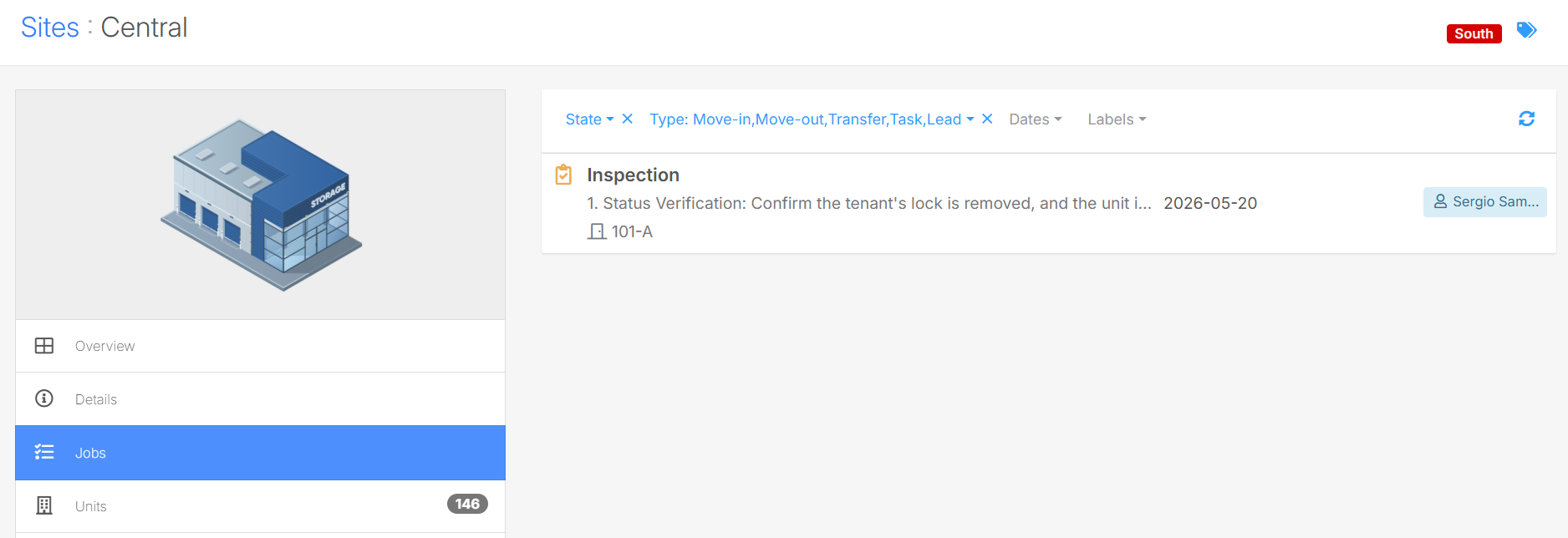
 Example notifications: