Bad debt invoice process
To write off debt in Storeganise, you’ll need to set up a dedicated accounting code specifically for bad debt. Navigate to Main Settings > Accounting section and create a new accounting code labeled for bad debt transactions. This code doesn’t require a tax type or rate but should include a clear description so it’s easily identifiable for reporting purposes. 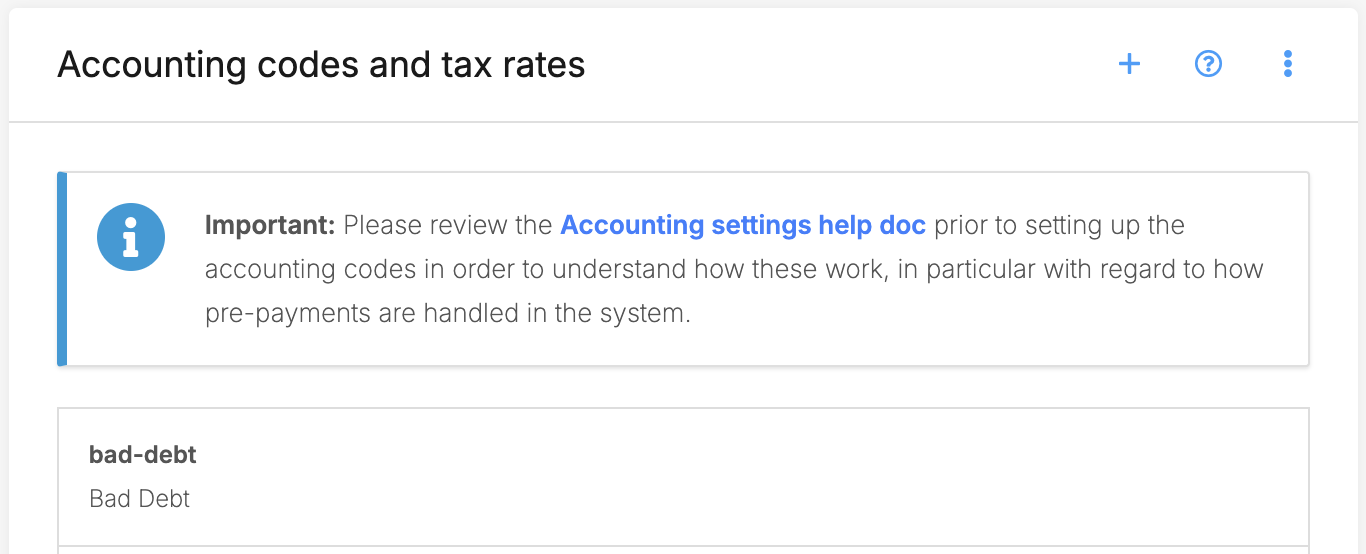 Additionally, it’s helpful to create a custom 'Invoice' label under the Labels section in Main Settings, naming it something like "Bad debt." This label will allow you to quickly sort and filter invoices marked as bad debt, making them easy to track and review.
Now to offset the bad debt, you can use the Offset Credit Note feature.
The system automatically links the credit note to the original invoice. The original invoice will show a note referencing the related credit note, and the credit note will reference its parent invoice. This creates a clear parent–child relationship between the invoices.The creation of the credit note is also recorded in the invoice History section.
Creating the offset credit note for bad debt
- Open the unpaid invoice and click Create credit note (offset).
- Review the credit note details. The total amount should match the outstanding balance of the unpaid invoice. If needed, update the line item to clearly indicate that this is a bad debt write-off.
- Click the labels button on this invoice and select the “Bad debt” label you created, flagging it as a bad debt entry.
- In the accounting field for the line item, select the bad debt accounting code you created earlier.
- Mark the credit note as paid to complete the process
Jump to
Related articles
Credit notes and refunds