Add-on: Salto KS access control
Setting up the Salto Add-on
Note: The demo below is interactive.
- Reach out to Storeganise Support to request the Add-on to be installed.
- Once installed, in your Storeganise admin dashboard, navigate to Sites > [Your Site] > Add-ons.
- Open the Add-on settings by clicking on the pencil icon, then input the following:
- Salto Admin Email - The email address you use to log in to your Salto admin account.
- Salto Admin Password - The password associated with your Salto admin account.
- Salto SiteID - You can find this by navigating to Salto > Sites > Site Overview.
- Salto default access group - You can find this by navigating to Salto > Access.
How the Add-on works
Access groups and locks- Locks: Represent physical or virtual locks for units and entry points.
- Access groups: Manage access permissions for customers. Storeganise interacts with access groups, not directly with individual locks.
- Front door only: A single connected lock on the front door
- Front door + unit locks: Connected locks are installed on both the front door and individual units, and access is granted to both.
- Units without a specific
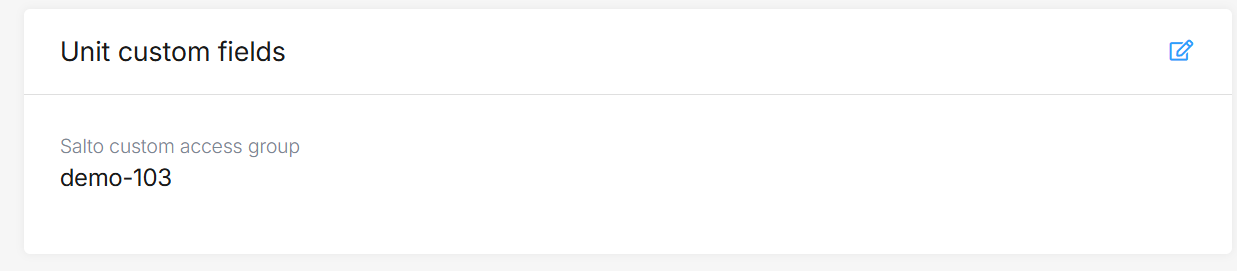
custom field Salto IDare assigned the default access group (e.g., "Front door"). - Units with a
custom field Salto IDare mapped to their corresponding access group. This is shown asSalto custom access groupwithin the unit page on the custom field section.
Synchronizing units and users
- If a payment is overdue, Storeganise flags the unit, triggering an overlock in Salto and locking the customer out. Once the payment is cleared, the unit is automatically unlocked.
- The access code will remain the same for an overlocked unit but will not allow entry to the unit.
- When the unit is unlocked, the access code stays the same but the customer can access the unit
- If a customer is locked out of a unit and in the Salto dashboard they are part of an access group with other users, the other users will not be locked out.
- If a customer has 2 units and one is locked, they would still be able to access the other unit with the same access code.
Salto KS usage
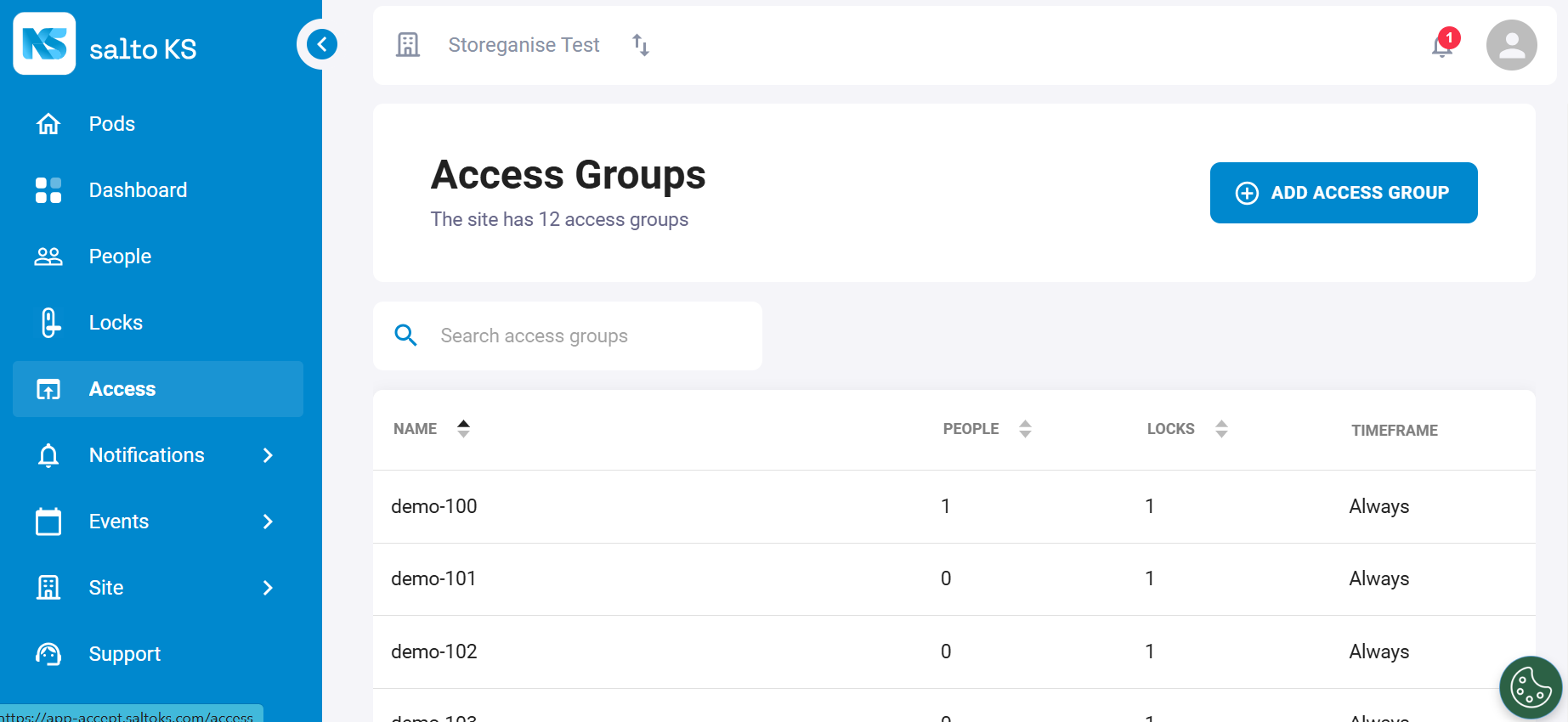
- Access groups loosely correspond to Storeganise Units. To view access groups, go to Sidebar > Access.
- Units in Salto must be created manually; Storeganise will not create them automatically. An Access group can include multiple locks. For example, access to the building and access to the unit.
- Operators typically use Salto locks for main or floor entrances, while individual units rely on regular locks.
- Salto PINs are specific to UnitRentals in Storeganise or Users in Salto.
- PINs manage Access Groups, which are connected to locks, controlling access to individual units.
- Storeganise automatically appends the Storeganise User ID to the end of the Salto User Alias for tracking and mapping. If a Salto user already exists, update their alias manually in Salto to include the Storeganise User ID. If this is not done, the integration may rely on email matching or create a duplicate user, which is not recommended.

- Syncing the customer’s email with Salto enables the ability to use phones as digital keys through the Salto app. However, before rolling out this feature to your customers, we recommend testing it first to ensure it functions smoothly with your setup.
Troubleshooting
- Sync delays: Access changes may take up to 30 seconds to sync. Refresh the Salto dashboard to confirm updates.
- Access errors Ensure unit names and Salto IDs in Storeganise match those in the Salto KS system and verify that all required fields are properly configured in Storeganise.
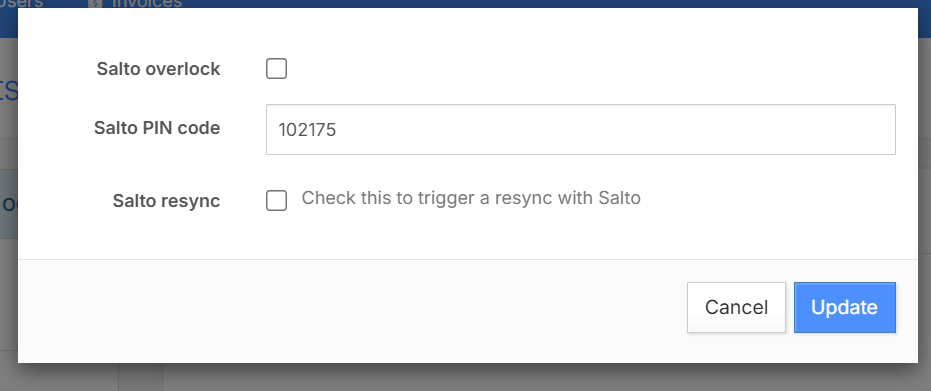
- Manual sync: If discrepancies occur, manually trigger a data synchronization from Storeganise to Salto from the unit rental page > Rental custom fields > Check
Salto resync
Ready to get started?
Send us your request and the Storeganise team will install the Salto KS access control Add-on for you.
Request installationJump to