The OpenTech Alliance Add-on in Storeganise enables seamless integration with OpenTech Alliance's access control system for efficient and automated facility management.
Setting up the OpenTech Alliance Add-on
Enable the Add-on
Navigate to Sites > [Your Site] > Add-ons and click the + icon.
Select OpenTech Alliance from the list and install it.
Contact Storeganise support if the add-on is not on your list.
Configure the Add-on
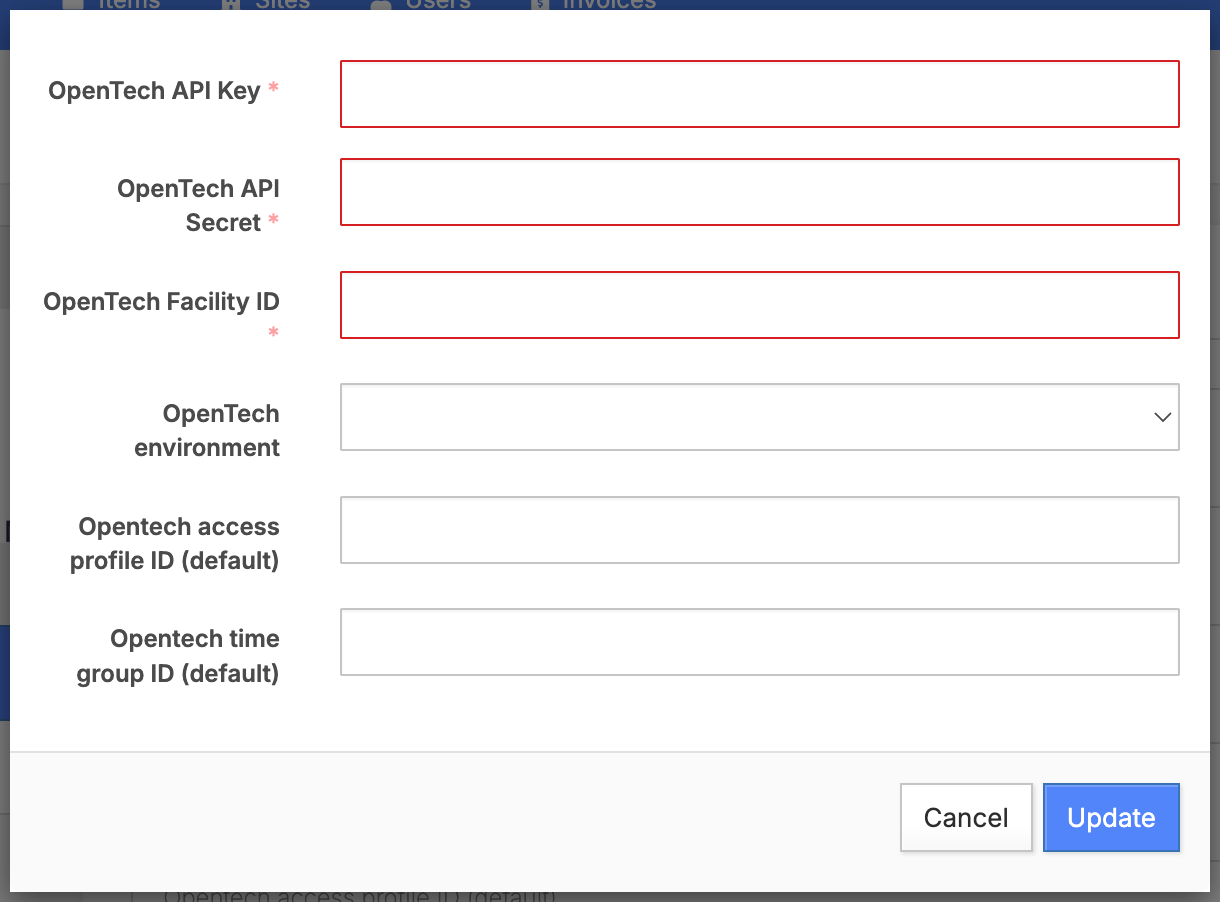
OpenTech Add-on settings
OpenTech API Key
Provided by your OpenTech rep
OpenTech API Secret
Provided by your OpenTech rep
OpenTech Facility ID
This can be found in your OpenTech dashboard under Configuration > General > Property Number
OpenTech environment
If this is a live account, select production
If this is a testing environment, select testing
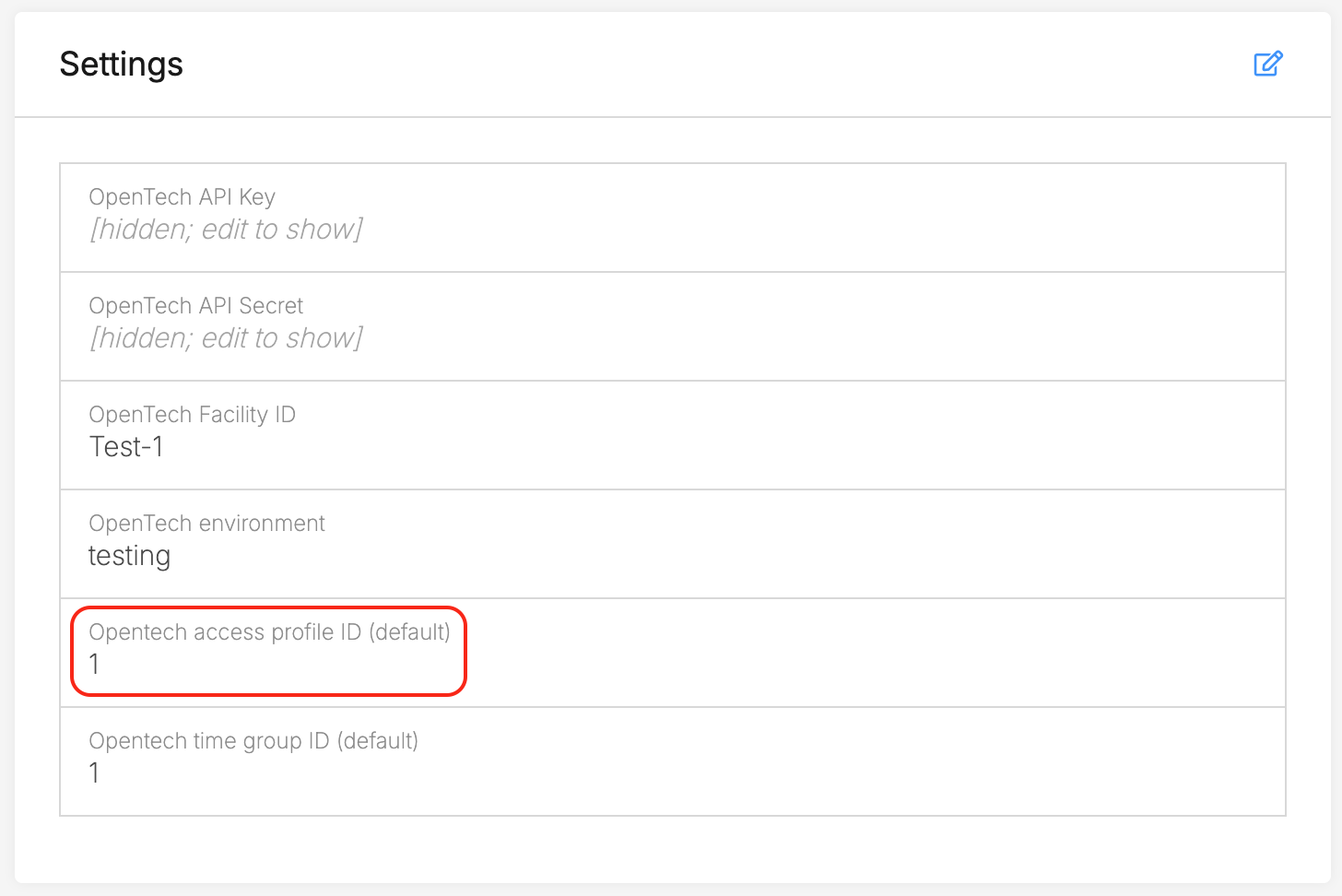
Opentech access profile ID (default)
Optional setting to apply a default Access Profile value for all new move-ins
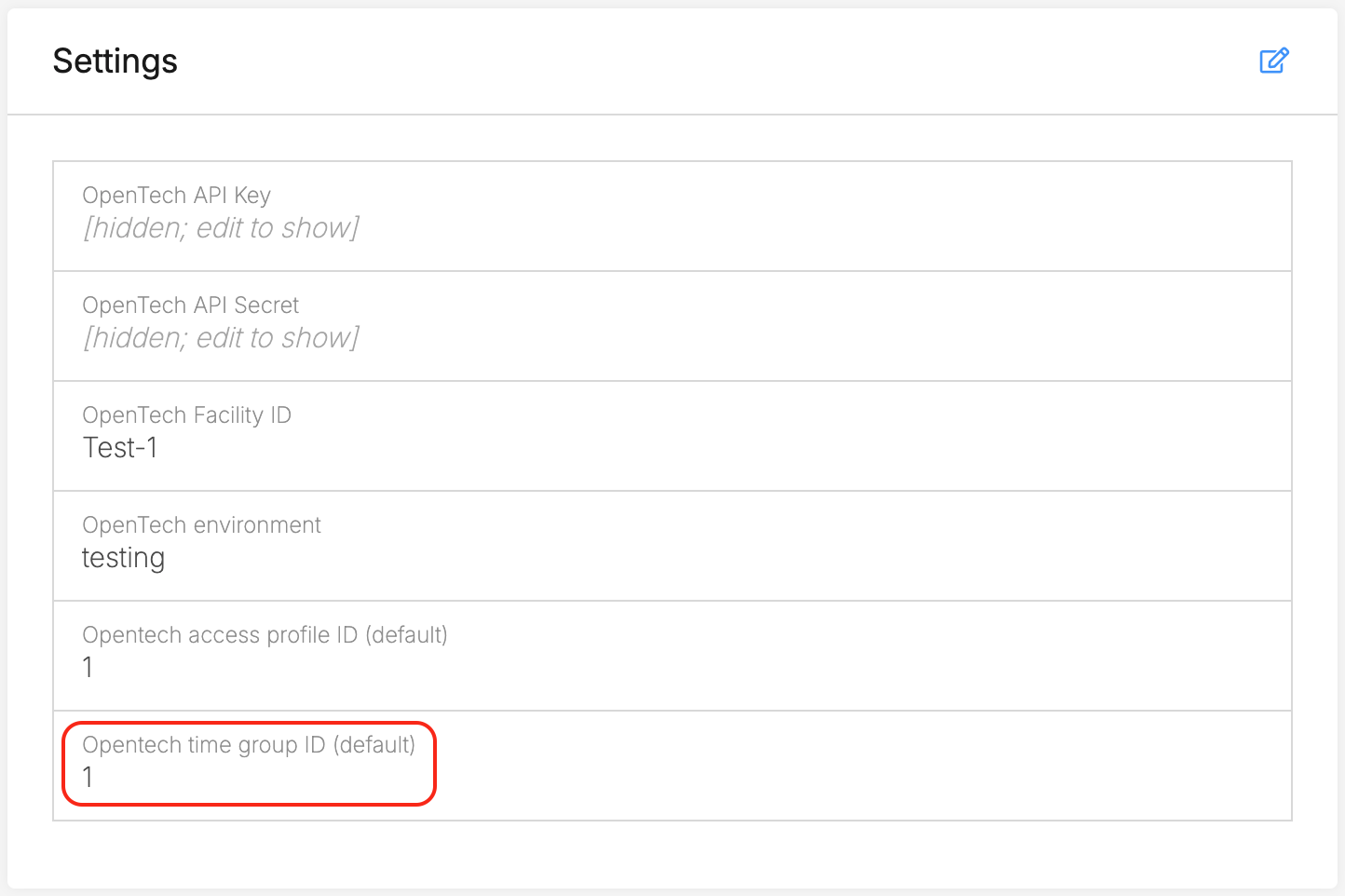
Opentech time group ID (default)
Optional setting to apply a default Time Schedule value for all new move-ins
Configure the unit custom fields
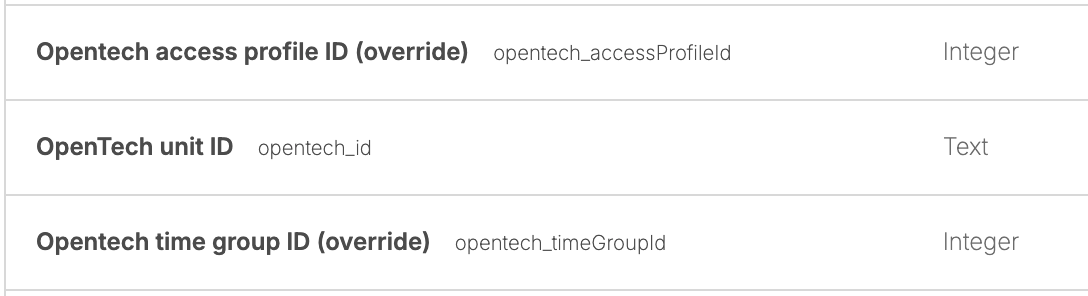
Once the Add-on is installed, there are 3 unit custom fields which will be automatically created:
OpenTech unit custom fields
OpenTech unit ID
Populate this field for every unit in your account that you need to sync with OpenTech
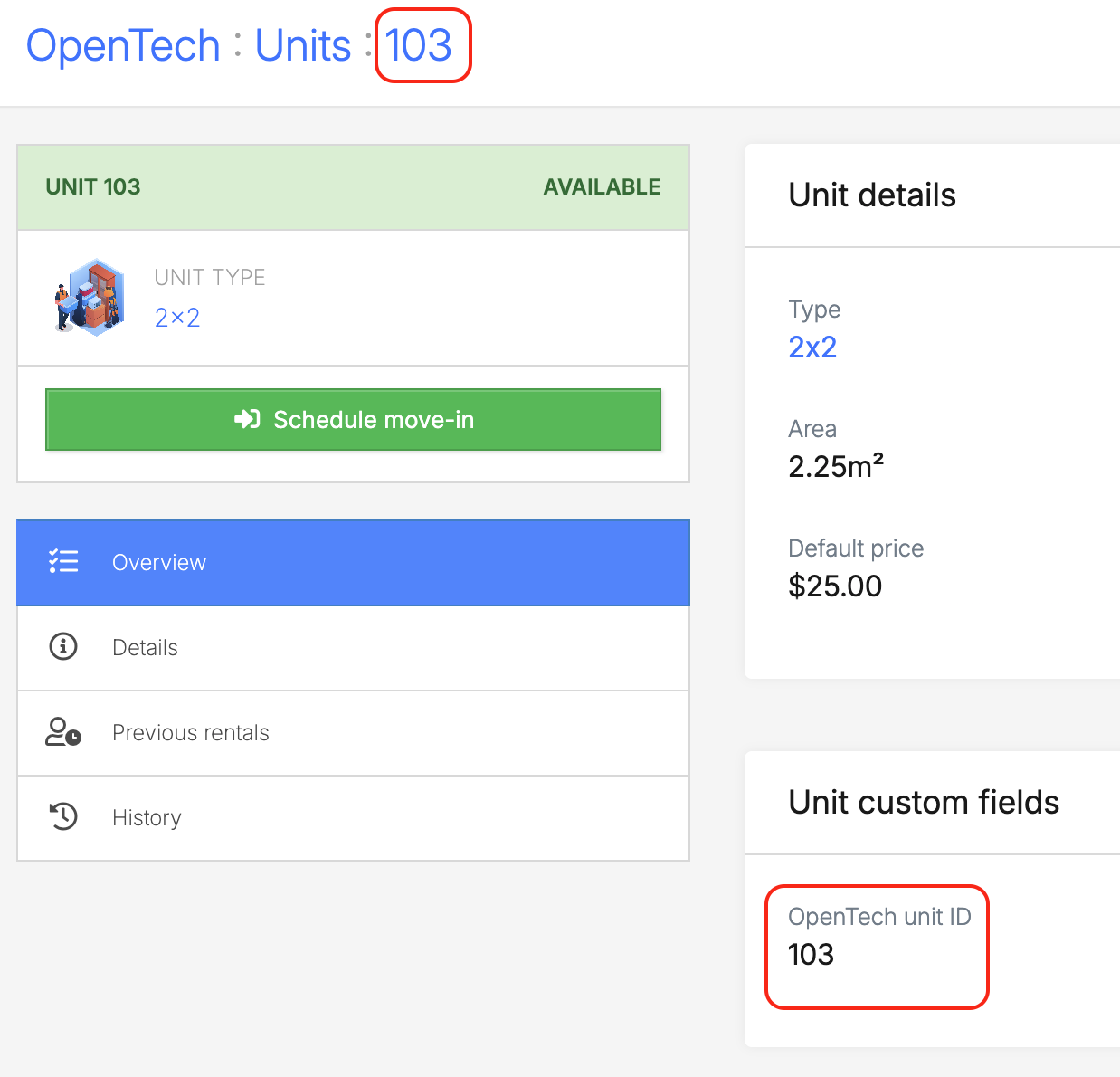
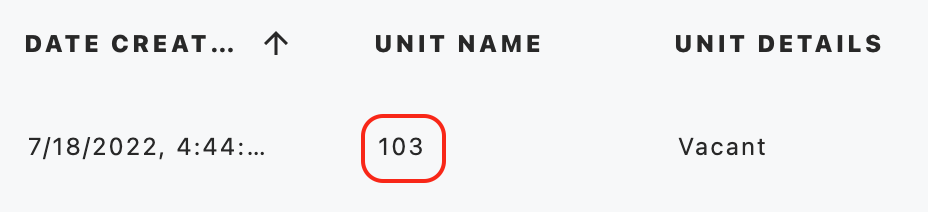
The value should be identical for:
Unit name in Storeganise
Unit custom field in Storeganise
Unit name in OpenTech
Note the unit name and unit custom field match
Note the unit in OpenTech also matches
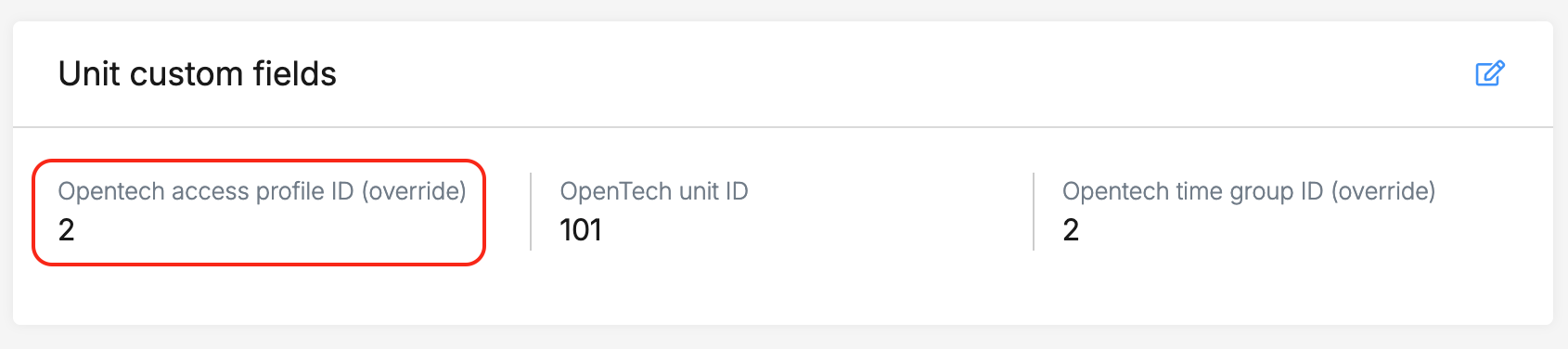
Opentech access profile ID (override)
Optional setting to override the default Access Profile and apply a different value for move-ins at this unit
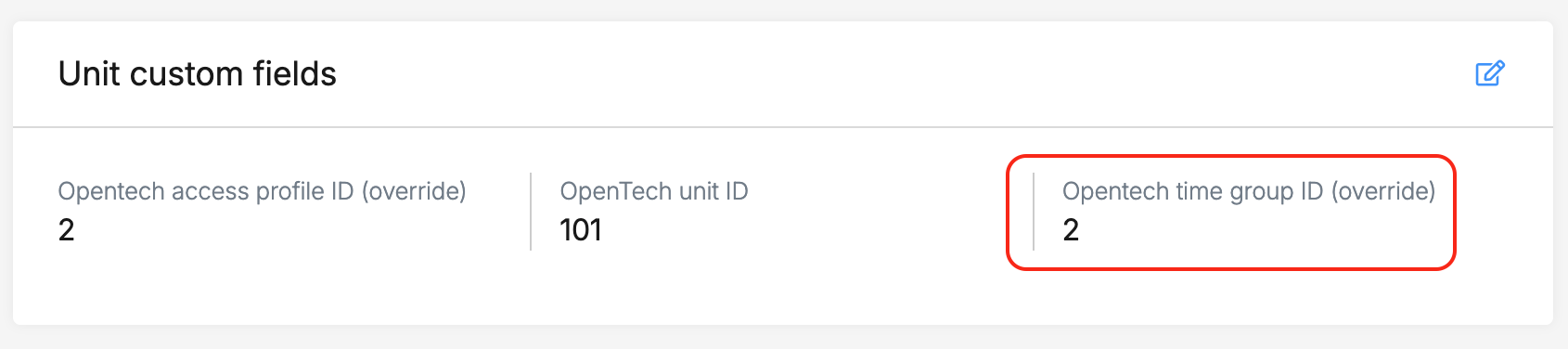
Opentech time group ID (override)
Optional setting to override the default Time Schedule and apply a different value for move-ins at this unit
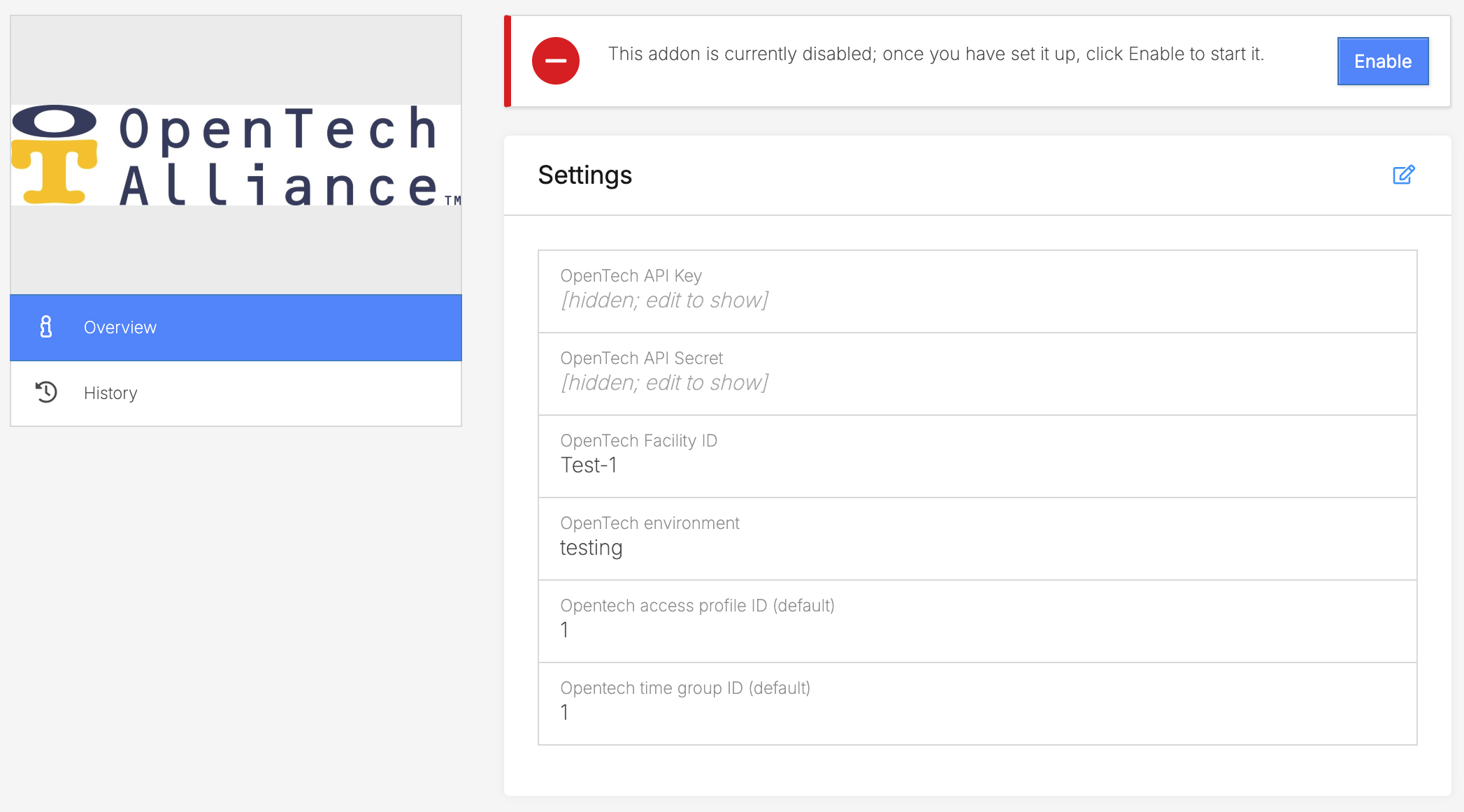
Activate the Add-on
Once configured, click Enable to activate the integration and begin syncing with your OpenTech dashboard.
The Add-on settings page. Click 'Enable' to begin syncing.
How the Add-on works
Unit status synchronization
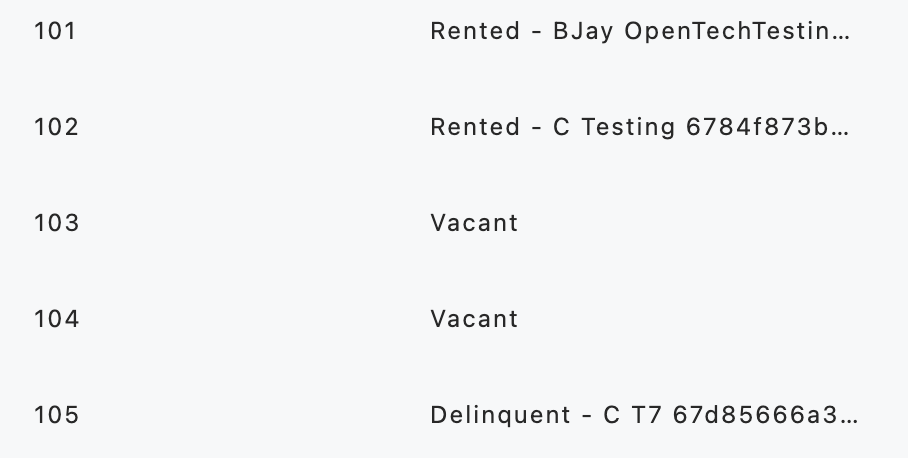
The integration syncs rental and access control statuses between Storeganise and OpenTech Alliance:
Rented → The unit is occupied by a tenant.
Vacant → The unit is available for rental.
Delinquent → The unit is overlocked due to overdue payments.
Unit statuses in OpenTech
Move-ins & move-outs
When a move-in is completed in Storeganise, the unit status updates to Rented in OpenTech Alliance.Storeganise unit rentalOpenTech dashboard
When a move-out is processed, the unit status changes to Vacant in the OpenTech Alliance dashboard.
Overlocking units
If a unit rental becomes overdue in Storeganise, OpenTech will show it as Delinquent, automatically triggering an overlock in OpenTech Alliance.
To remove the overlock, settle all overdue invoices in the rental in Storeganise, which automatically lifts the overlock.
Once the overlock is removed, the unit status reverts to Rented or Vacant as applicable.
Access Profiles and Time Schedules
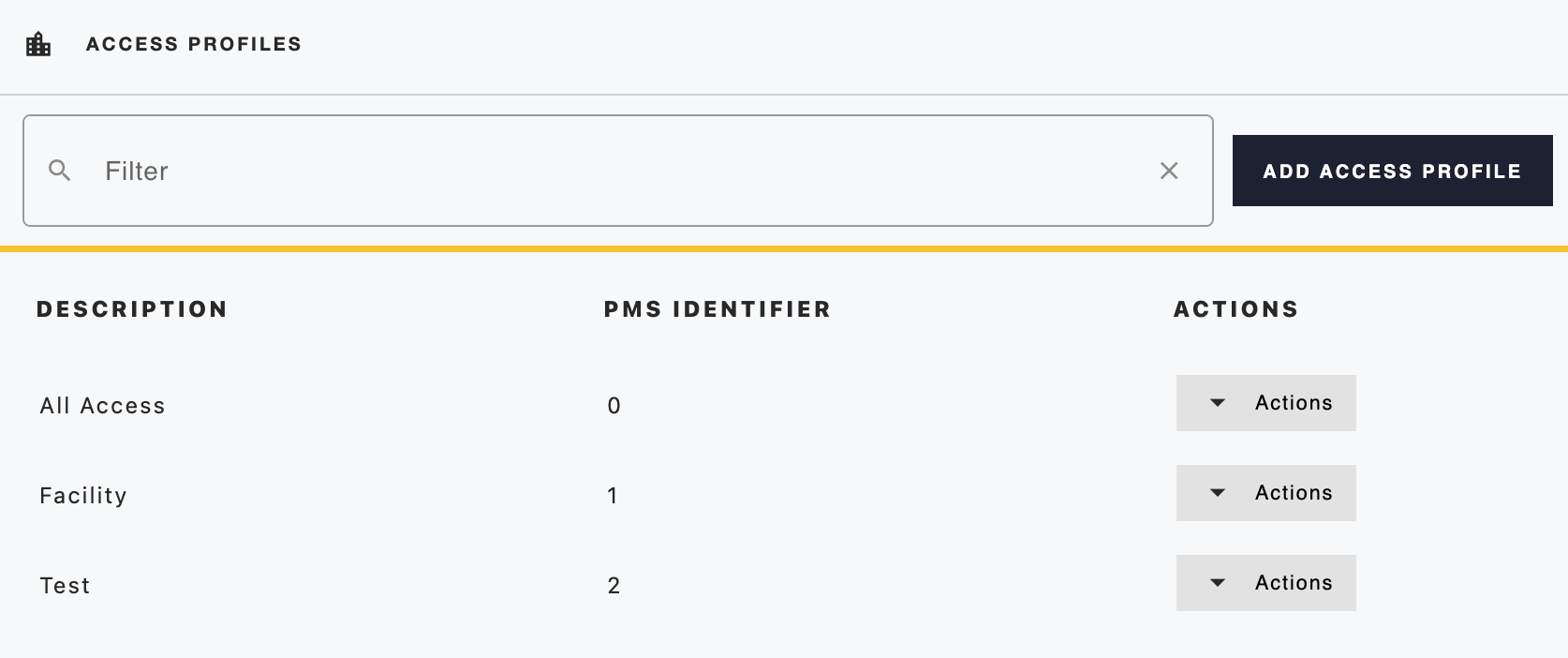
Access Profiles
Access Profiles in the OpenTech dashboard
This determines what areas of your facility a user has access to
You will enter the correspondingPMS IDENTIFIER value in Storeganise
In the Add-on settings, the integer value entered here will apply this Access Profile to all new move-ins
The default value in the Add-on settings
In the unit custom field Opentech access profile ID (override), the value will override the default and apply this Access Profile to move-ins at that specific unit
Unit custom field to override the default
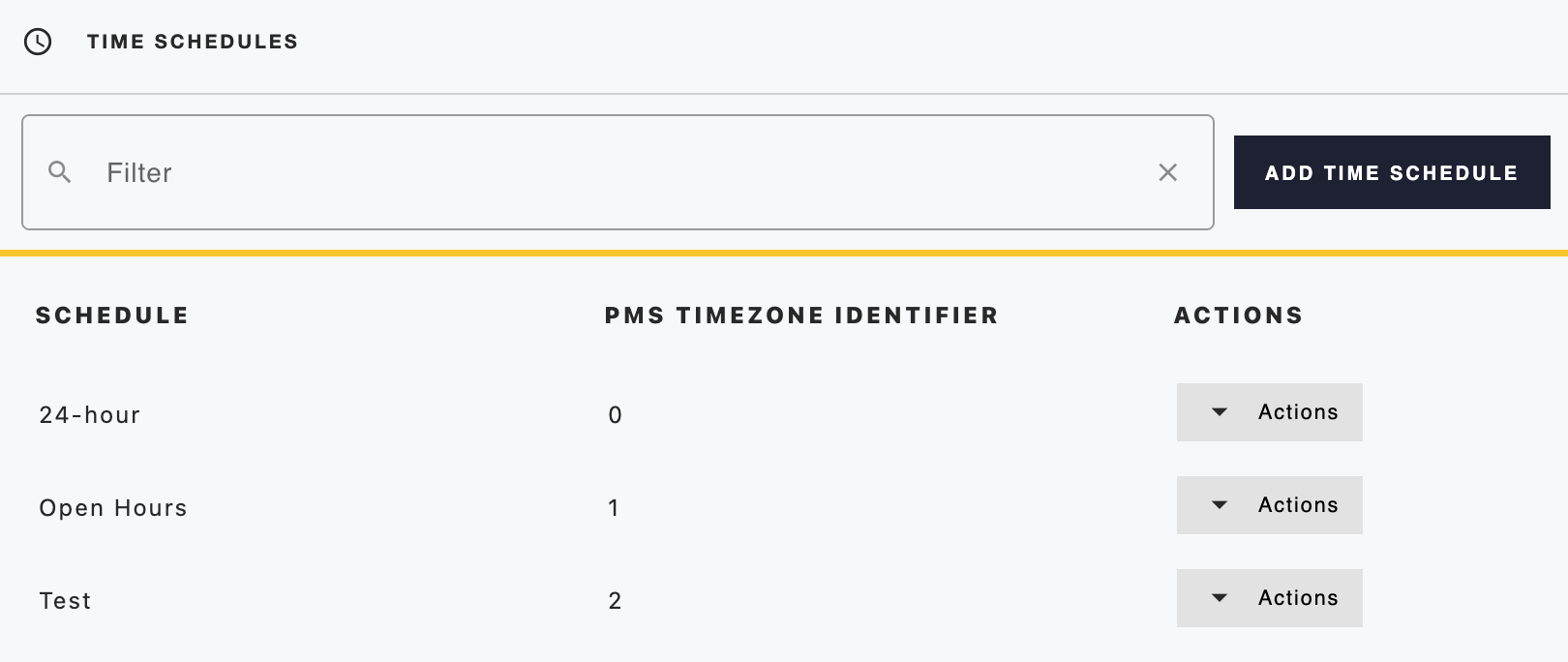
Time Schedules
Time Schedules in the OpenTech dashboard
This determines when a customer can access your facility
You will enter the correspondingPMS TIMEZONE IDENTIFIER value in Storeganise
In the Add-on settings, the integer value entered here will apply this Time Schedule to all new move-ins
The default value in the Add-on settings
In the unit custom field Opentech time group ID (override), the value will override the default and apply this Time Schedule to move-ins at that specific unit
Unit custom field to override the default
Access codes & visitor management
You can view access codes, time schedules, and access profiles in OpenTech by going to Dashboard > Customers > Tenants
Visitor logs show past customers but do not retain access codes for security reasons.
Troubleshooting
Sync delays
Changes in Storeganise may take a few moments to update in OpenTech Alliance. Refresh the OpenTech Alliance dashboard to confirm updates.
Unit status mismatches
Ensure that unit names in Storeganise match those in OpenTech Alliance to avoid syncing errors.
Manual re-syncing
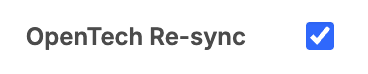
If discrepancies occur, manually trigger a sync from the unit rental page in Storeganise under the Rental custom fields section. Edit the custom fields and toggle on the OpenTech Re-sync field. Click save and the rental will trigger a sync with OpenTech.
The re-sync rental custom field
Ready to get started?
Send us your request and the Storeganise team will install the OpenTech Alliance access control Add-on for you.

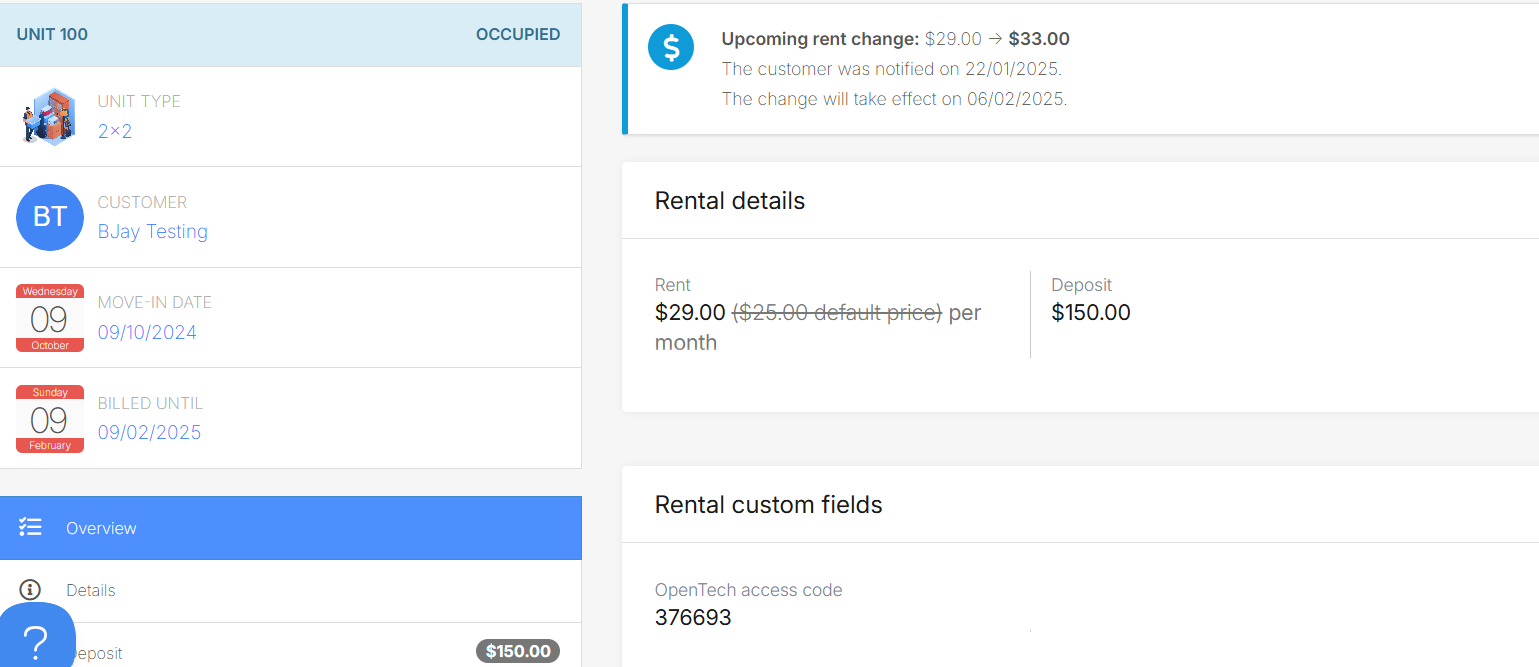 Storeganise unit rental
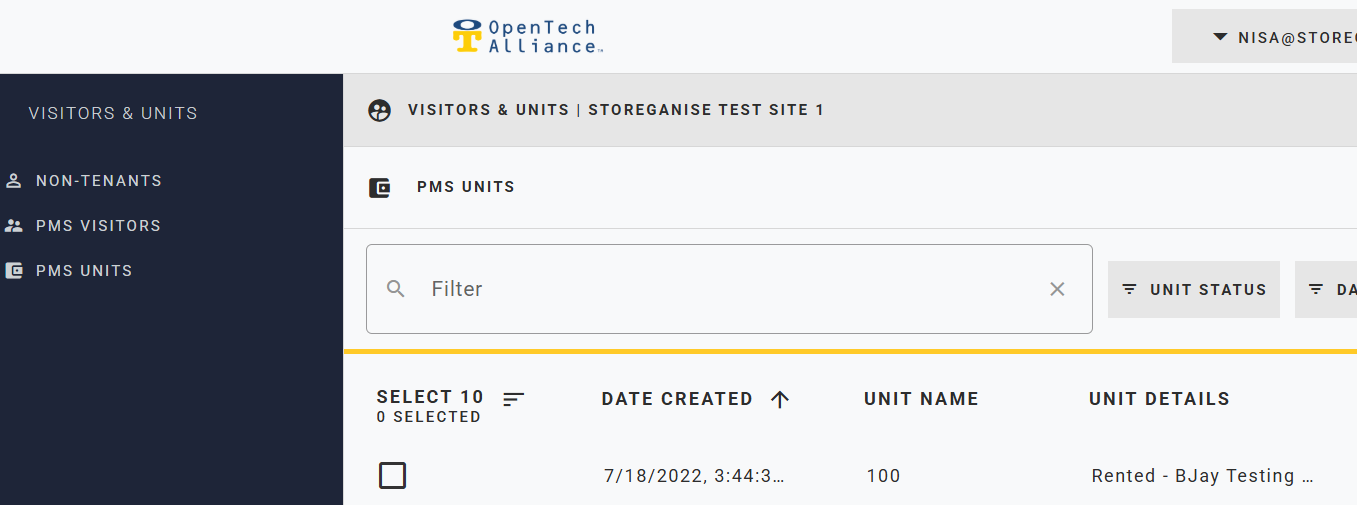 OpenTech dashboard