Integrating Entryfy with Storeganise allows for seamless management of access control within your storage facilities. This integration ensures that access permissions are automatically synchronized with unit rentals, move-ins, move-outs, and other related actions.
Please note this section is for demonstration only. If your Add-on has already been installed, you can skip to "Configure Entryfy settings".
Setting up Entryfy Add-on
Enable the Entryfy Add-on:
Navigate to your Storeganise Management Portal.
Go to Sites > [Your Site] > Add-ons.
Click the + icon to add a new add-on.
Select the Entryfy add-on from the list.
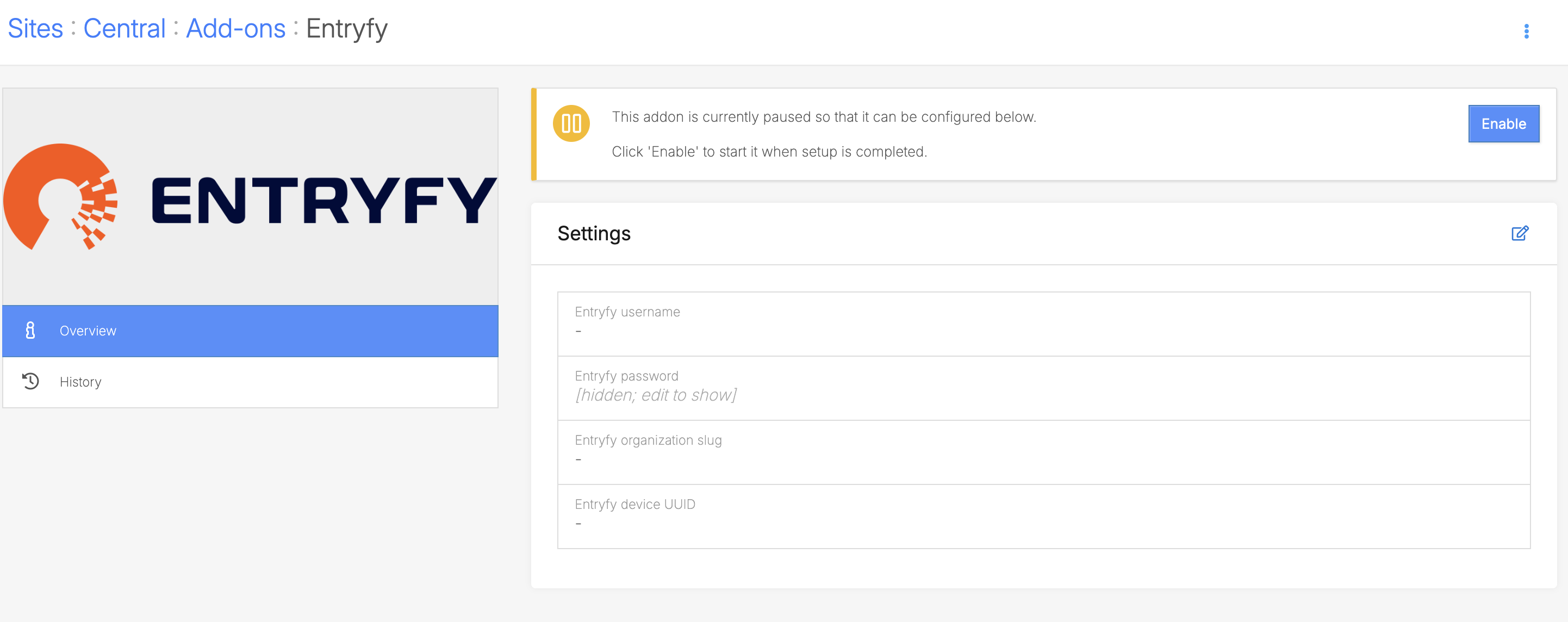
Configure Entryfy settings: During the Add-on setup, input the following credentials
Entryfy username, password, and organization slug — need to be provided by Entryfy
Entryfy device UUID — Optional. If not pre-filled when enabling the Add-on, use a random 14-digit numerical value.
Add Entryfy ID to units in Storeganise:
Each unit in Storeganise requires an Entryfy IDunit custom field to link it to the corresponding Entryfy door.
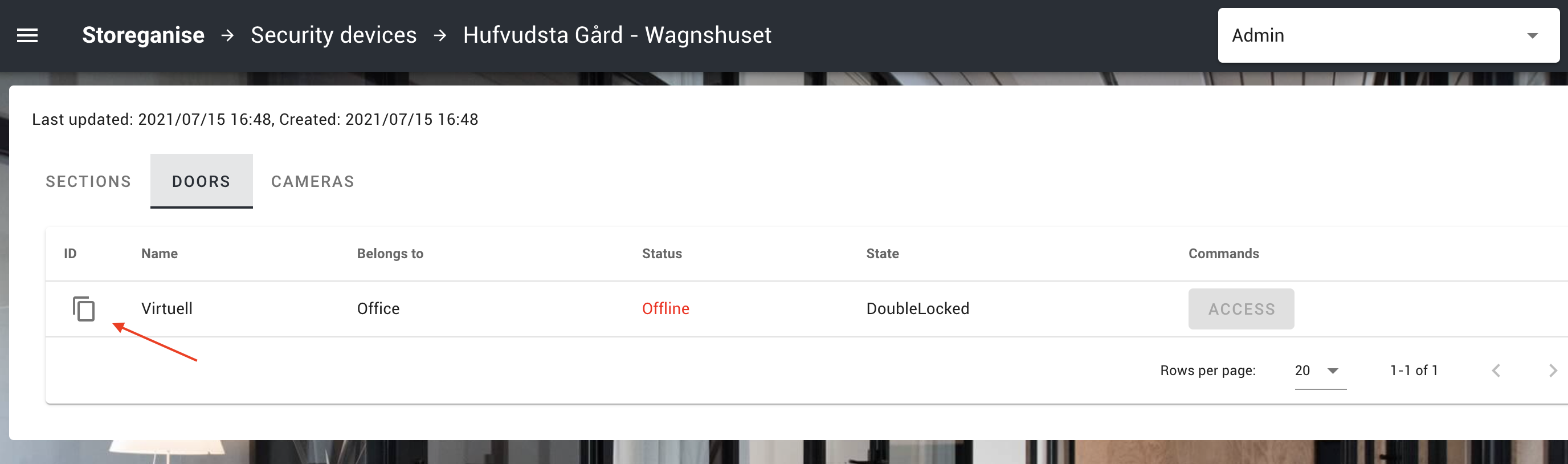
To find the Entryfy ID: Log into the Entryfy dashboard.Navigate to Security devices > Your organization.Select the "Doors" tab.Copy the UUID from the ID column corresponding to the door.
Paste this UUID into the Entryfy ID to the unit custom field for the matching unit in Storeganise. This can be done via bulk updates.
Once all the Add-on settings have been added, you can Enable the Add-on. Do not Enable the Add-on before completing all necessary fields.
Managing access with the Entryfy Add-on
Move-ins:
Upon completing a move-in, Storeganise will automatically create a user in Entryfy with the appropriate access permissions based on the unit's Entryfy ID .
How the user looks under the "Accesses" tab in Entryfy
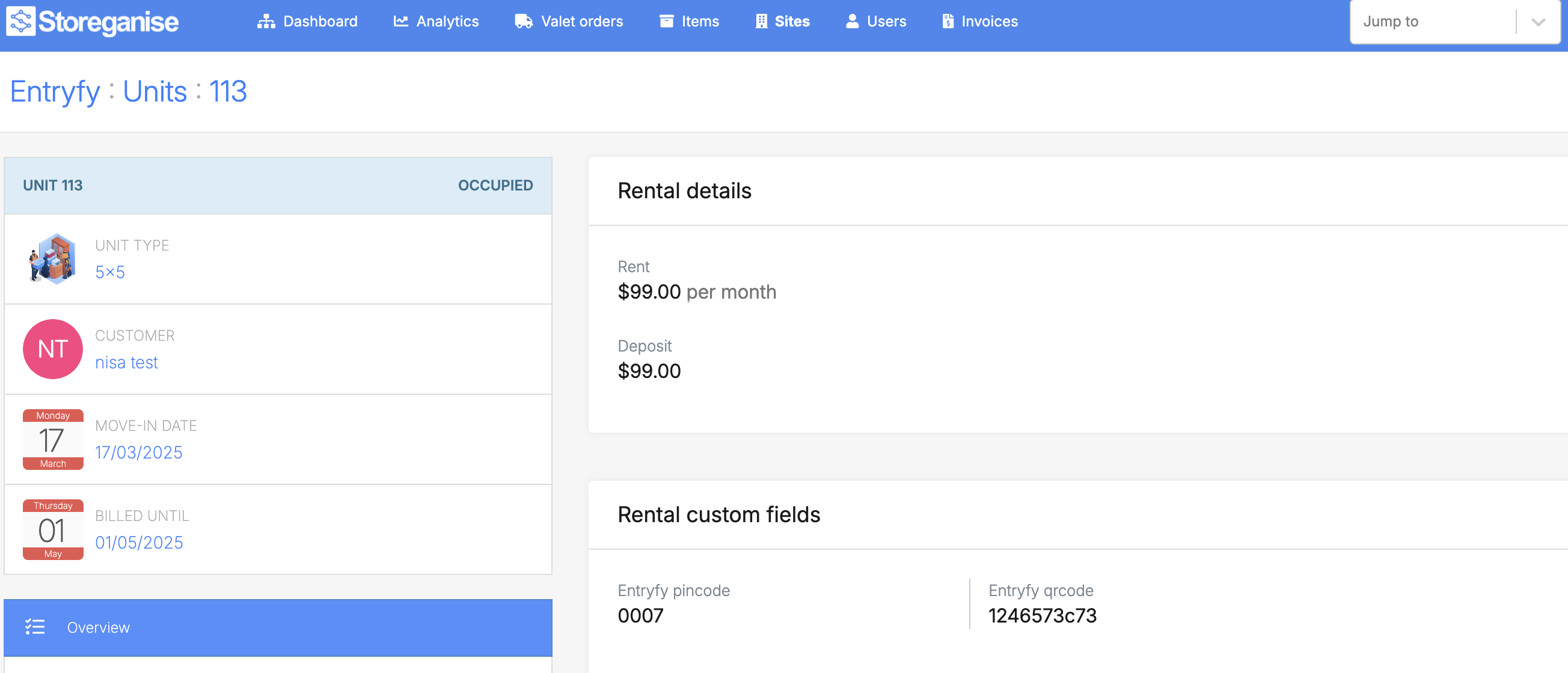
The user will receive a PIN code and a QR code for access.
How a unit with Entryfy looks in Storeganise
Move-outs:
When a move-out is processed, Storeganise will revoke the user's access in Entryfy, ensuring they no longer have entry permissions.
Overlocking:
If a unit becomes overdue, Storeganise can automatically overlock the unit in Entryfy, restricting access until the overdue status is resolved. The user will be shown as 'suspended' in the Entryfy dashboard.
Troubleshooting
User synchronization: After a move-in, verify that the user is active in Entryfy and has the correct access permissions.Access revocation: Ensure that users who have moved out no longer appear in the active user list in Entryfy and that their access is revoked.Data consistency: Regularly check that the Entryfy ID custom fields in Storeganise match the corresponding door IDs in Entryfy to maintain accurate synchronization.Access codes: Entryfy links access codes to the user level, meaning a user will have the same access code for multiple units.
Ready to get started?
Send us your request and the Storeganise team will install the Entryfy access control Add-on for you.