Add-on: Mollie payments
Prerequisites
- A Mollie account, created or connected through the Add-on. If you don't have a Mollie account yet, don't sign up on the Mollie website first. Install the Add-on, then use the connection link to create your account, so it's set up correctly with Storeganise.
- Storeganise invoicing currency set to EUR (for iDEAL/SEPA) or GBP (for BACS Direct Debit — UK operators only)
- UK operators using BACS must have the GBP Mollie Add-on installed — this is a separate Add-on from the EUR version
- Operators using BACS will need to ask their Mollie representative to turn on BACS support in their Mollie account
- Storeganise team has installed the Add-on for your business (contact support if it’s not yet enabled)
How to connect your Mollie account
Please note this section is for demonstration only.
Note: The demo below is interactive.
- In the Management Portal, go to Main Settings > Add-ons.
- Find Mollie and click Enable.
- A task will appear prompting you to connect your Mollie account. Click the link in the task to proceed.
- Sign in to your Mollie account and select the correct organisation profile.
- Click Connect to complete the authorisation.
- Back in Storeganise, click the pencil icon and select your country from the list, then click Save.
- Once done, click Enable again to activate the Add-on. The task will automatically be removed once complete.
Understanding Mollie Add-on updates
When you install or update the Mollie Add-on, Storeganise automatically creates custom fields needed for payment tracking and processing.Invoice custom field: Mollie Payment IDThe Add-on automatically creates a custom field called Mollie Payment ID on all invoices. This field stores the unique payment identifier from Mollie whenever an invoice is charged, enabling you to:- Match invoices in Storeganise with payments in your Mollie Dashboard
- Prevent duplicate payment attempts on the same invoice
- Track and troubleshoot payment issues
- Generate accurate financial reconciliation reports
Configuring payment methods
Note: The demo below is interactive.
- Go to Organisation settings > Products > Payments.
- Select the payment methods you want to enable.
Important: ⚠️ Currently, the Add-on supports:
- Credit cards (listed as "Cards"), including Apple Pay and Google Pay where enabled
- SEPA Direct Debit — the setup method depends on your operating country (see below)
- BACS Direct Debit (UK operators only, GBP currency). Important - you will need to contact your Mollie representative to enable BACS on your Mollie account.
To enable Apple Pay and Google Pay: go to Organisation settings → Products → Payments in your Mollie Dashboard and turn them on. They aren't enabled automatically. Once turned on, they appear as options within the standard card checkout — there's no separate wallet method to configure, and Google Pay in particular doesn't appear as its own line item; it's handled as part of the card flow.
Configuring your operating country
The Mollie Add-on uses your configured country to determine how SEPA mandates are created for your customers. To set this, go to Main settings > Add-ons, open Mollie settings, and set the Country field to match your operating country using the table below.| Country code | Country | Currency | Mandate method |
|---|---|---|---|
| NL | Netherlands | EUR | iDEAL first payment (€0.01) |
| GB | United Kingdom | GBP | BACS hosted form (£0.00) |
| AT | Austria | EUR | Manual IBAN entry |
| BE | Belgium | EUR | Manual IBAN entry |
| CY | Cyprus | EUR | Manual IBAN entry |
| DE | Germany | EUR | Manual IBAN entry |
| EE | Estonia | EUR | Manual IBAN entry |
| ES | Spain | EUR | Manual IBAN entry |
| FI | Finland | EUR | Manual IBAN entry |
| FR | France | EUR | Manual IBAN entry |
| GR | Greece | EUR | Manual IBAN entry |
| IE | Ireland | EUR | Manual IBAN entry |
| IT | Italy | EUR | Manual IBAN entry |
| LT | Lithuania | EUR | Manual IBAN entry |
| LU | Luxembourg | EUR | Manual IBAN entry |
| LV | Latvia | EUR | Manual IBAN entry |
| MT | Malta | EUR | Manual IBAN entry |
| PT | Portugal | EUR | Manual IBAN entry |
| SI | Slovenia | EUR | Manual IBAN entry |
| SK | Slovakia | EUR | Manual IBAN entry |
Advanced configuration (custom booking flows only)
⚠️ Warning: The following setting is for custom booking flows only and requires special integration work. Do not enable this feature without consulting Storeganise support first.Charge full amount upfront for iDEAL
By default, when customers set up SEPA Direct Debit using iDEAL, they're charged €0.01 as a verification payment. A checkbox setting exists in the Add-on settings to charge the full invoice amount upfront during iDEAL registration instead.Important considerations:- Custom portals only: This feature is designed for operators using custom booking portals (not the standard Storeganise booking flow)
- Configuration requirements: Requires specific technical integration and site configuration changes
- Auto-charge must be disabled: The "Auto-charge invoice" site setting must be turned off for this feature to work correctly
- Support required: Contact support@storeganise.com before enabling this feature to ensure your setup is compatible
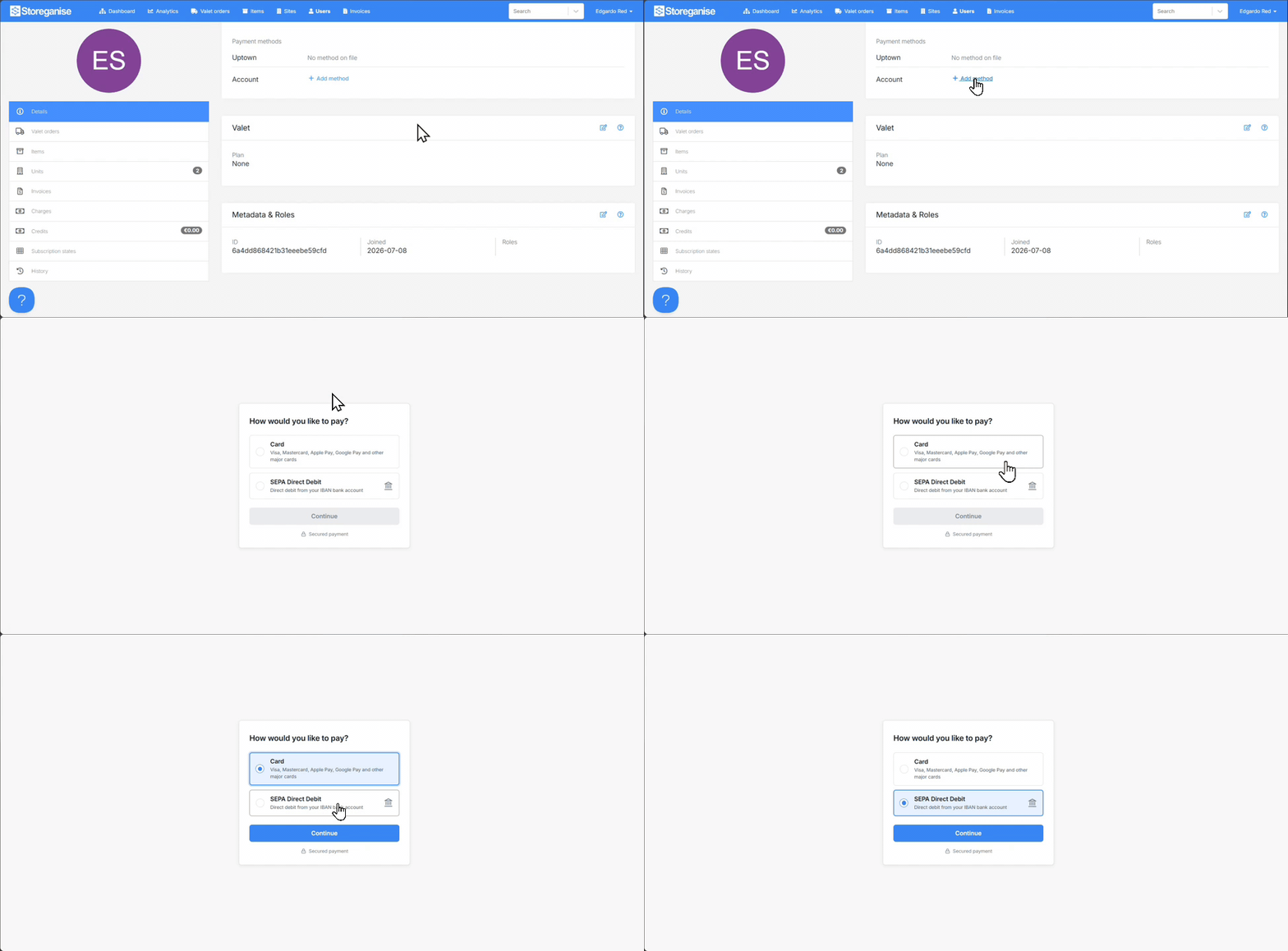
How customers add payment methods
Payment forms in the customer's language
Payment forms are displayed in the customer's language automatically. The checkout language is determined by the language the customer is using in their Customer Portal — no configuration is required by the operator.The Mollie Add-on supports 15 languages, covering all 19 SEPA-eligible countries. Customers see all payment instructions, field labels, and confirmation messages in their own language.Charging invoices
You can charge invoices manually or automatically.To charge manually:- Go to Customer > Billing in the Admin Portal.
- Select an unpaid invoice.
- If the customer has a valid payment method, click Charge.
- Credit card payments are processed instantly.
- SEPA Direct Debit payments take 2–3 business days to clear. BACS Direct Debit payments take up to 5 business days to clear. During this time, invoices show as Pending.
- Enable Automatic invoicing in Storeganise. Payments will run automatically using the customer’s stored mandate.
Refunds
When you issue a credit note in Storeganise, the Mollie Add-on automatically processes a refund — you don't need to log into your Mollie Dashboard separately.How it works:- The refund is applied against the customer's most recent payments first, working backwards until the full credit note amount is covered.
- This works across all supported payment methods: credit card, iDEAL, SEPA Direct Debit, and BACS Direct Debit.
- Credit card refunds process in real time.
- SEPA Direct Debit refunds typically settle within 1–3 business days.
- BACS Direct Debit refunds typically settle within 3–5 business days.
Chargebacks and disputes
If a customer disputes a card or SEPA Direct Debit payment, Storeganise automatically detects it and:- Marks the invoice as Failed
- Creates a task with a direct link to the dispute in your Mollie Dashboard
Payment reconciliation and tracking
Each invoice that's charged through Mollie automatically stores the Mollie Payment ID for reconciliation purposes. To find it, go to User > Invoices, open the invoice, and scroll to the custom fields section. The Mollie Payment ID field will contain the payment reference.Why this matters:- Cross-reference Storeganise invoices with payments in your Mollie Dashboard
- Track payment status and resolve disputes
- Generate financial reports with complete payment details
- Audit trail for all payment transactions
Understanding payment statuses
- Delayed – The invoice is waiting for its scheduled charge date and hasn't been charged yet. This applies to every payment method, credit card, digital wallet, SEPA, or BACS.
- Paid – Payment completed successfully
- Pending – Payment is processing. This is specific to SEPA and BACS Direct Debit, credit card and digital wallet payments settle immediately and go straight to Paid or Failed. SEPA typically clears within 2–3 business days; BACS takes up to 5 business days.
- Failed – Payment was declined or unsuccessful
- Invoice is marked as paid immediately
- Customer can see the paid invoice in their Customer Portal
- Mollie Payment ID is stored in the invoice for your records
- The invoice hasn't been charged yet, this is expected, not an error
- It will charge automatically on its scheduled date
- No action needed unless the date has clearly passed
- Normal for SEPA and BACS Direct Debit payments. SEPA typically clears within 2–3 business days; BACS takes up to 5 business days.
- Invoice shows as "Pending" in Storeganise
- Customer can still complete their booking or move-in
- Status automatically updates to "Paid" or "Failed" once payment clears (2–3 business days for SEPA; up to 5 for BACS)
- Invoice returns to unpaid status
- Customer receives notification to update their payment method
- You can retry charging once the customer adds a valid payment method
Troubleshooting
Invoices stuck in PendingThis is normal for SEPA and BACS Direct Debit payments. SEPA payments take 2–3 business days to clear; BACS payments take up to 5 business days. If you'd like a customer to complete a move-in while the invoice is pending, you can use the "Auto complete move-ins with unpaid invoice" Add-on. The invoice status will automatically update once Mollie confirms the payment.Payment methods not showing for a siteMollie Add-ons work at the site level. If a customer has multiple sites, they must add payment methods separately for each site. Payment methods from Site A won't appear when booking at Site B.Failed paymentsWhen a payment fails, the customer receives an automatic notification. Ask them to:- Go to Customer Portal > Billing > Payment method
- Update or add a new payment method
- You can then retry charging the invoice manually
Migrating from another payment provider
If you're switching to Mollie from another provider, or you already have a Mollie account with existing customer payment tokens, Storeganise can help migrate them so your customers don't have to re-add their payment details. Contact support@storeganise.com to arrange this; it's currently a supported migration handled by our team rather than a self-service setting. Card tokens typically take 1–4 weeks to migrate, SEPA mandates migrate faster, and BACS mandates typically take 4–6 weeks.Quick start (cheat sheet)
- Enable Mollie Add-on in Main settings > Add-ons.
- Connect your Mollie account via the task prompt.
- In Mollie Dashboard, activate Credit card and/or SEPA Direct Debit (and BACS for UK).
- In Storeganise, go to Main settings > Add-ons > Mollie Payments and set the Country field to your operating country.
- Customers add payment methods via booking, move-in, or the Customer Portal.
- Set invoicing to Automatic for auto-charges.
Frequently asked questions
1. Why is my invoice marked as "Delayed" or "Pending"?
These are two different things. "Delayed" means the invoice hasn't been charged yet, it's simply waiting for its scheduled charge date, and applies to every payment method (credit card, digital wallet, SEPA, or BACS). "Pending" means a charge is actively in progress, and only happens with SEPA or BACS Direct Debit, since credit card and digital wallet payments settle immediately and go straight to Paid or Failed. Mollie updates direct debit payment status once per business day, so a Pending invoice will typically clear within 2–3 business days for SEPA, and up to 5 business days for BACS. If your customer's bank supports SEPA Instant, settlement can be much faster, sometimes seconds or minutes, rather than waiting for the next daily batch. The invoice status will automatically update to "Paid" or "Failed" once Mollie confirms the result.
2. Can a customer complete their booking if their invoice is pending payment?
Yes. When using SEPA or BACS Direct Debit, customers can complete their booking or move-in while the invoice shows as "Pending". The unit will be reserved, and the invoice will automatically update to "Paid" or "Failed" once the payment clears.
3. What if a customer updates their payment method after an invoice is already generated?
Any future charges, including outstanding pending invoices, will use the updated payment method. Mollie always uses the most recent valid mandate when processing payments.
4. Will customers see their full IBAN or card number in Storeganise?
No. For security and privacy, customers only see partial details. Credit cards show the card type and last 4 digits (e.g., "Mastercard ending in 1234"). SEPA Direct Debit shows the IBAN with only the last 4 digits visible (e.g., "IBAN ****3567"). BACS Direct Debit displays "UK Bank Account" as account details are not exposed by Mollie. This complies with European data protection requirements.
5. What does "Mollie (Credit card)" mean on an invoice?
This indicates the payment was processed using Mollie, and the method used was a credit card. You'll also see "Mollie (Direct debit)" for SEPA payments and "Mollie (BACS Direct Debit)" for UK bank account payments.
6. Why do I see a Mollie Payment ID in my invoice records?
Every invoice charged through Mollie automatically stores the Mollie Payment ID in the invoice custom fields. This helps you match Storeganise invoices with transactions in your Mollie Dashboard, resolve payment disputes, and generate accurate financial reports. This tracking happens automatically, you don't need to configure anything.
7. Can I issue refunds through Storeganise?
Yes. Issue a credit note as normal and the Mollie Add-on will process the refund automatically, no separate login to your Mollie Dashboard required. The refund is applied against the customer's most recent payments first, working backwards until the full credit note amount is covered, across credit card, iDEAL, SEPA Direct Debit, and BACS Direct Debit. After issuing a credit note, it may briefly show as "Pending" while Mollie confirms the refund. Credit card refunds process in real time; SEPA refunds typically settle within 1–3 business days; BACS refunds typically settle within 3–5 business days.
8. Will I be notified if a customer disputes a card or SEPA payment?
Yes. If a customer disputes a card or SEPA Direct Debit payment, Storeganise automatically marks the invoice as Failed and creates a task with a direct link to the dispute in your Mollie Dashboard. If a chargeback is later reversed in your favour, a second task is created to flag this, the invoice itself stays Failed, so you'll need to reconcile it manually. See question 11 for how this works specifically for BACS Direct Debit disputes.
9. Why can't my customer see their payment method when booking at a different site?
Mollie Add-ons work at the site level. Customers must add payment methods separately for each site. Payment methods added for Site A won't appear when the customer books at Site B. This ensures proper financial separation between different storage facilities.
10. What is the "Charge full amount upfront for iDEAL" setting?
This advanced setting is only for operators with custom booking portal integrations. It allows charging the full invoice amount during iDEAL setup instead of the standard €0.01 verification. This feature requires special configuration and should only be enabled after consulting with Storeganise support. Most operators should leave this disabled and use the standard SEPA Direct Debit flow.
11. How do BACS chargebacks work?
This works the same way as card and SEPA disputes (see question 8), with one important difference: BACS Direct Debit chargebacks are governed by the BACS Direct Debit Guarantee. Unlike credit card disputes, BACS chargeback decisions are conclusive, they cannot be contested by the operator. If a customer successfully disputes a payment, the funds are returned to them automatically. If an agreement is reached with the customer to repay, they must initiate a new payment. You'll receive an email notification from Mollie when a chargeback occurs.
12. Can my customers pay with Apple Pay or Google Pay?
Yes, if you've enabled them in your Mollie Dashboard (Organisation settings > Products > Payments). They appear automatically within the card checkout on supported devices, there's nothing further to configure in Storeganise. Note that Google Pay doesn't appear as a separate line item, it's handled as part of the standard card flow.
13. Are payment forms shown in my customer's language?
Yes. Payment forms are displayed in the language set on the customer's account profile. If their language isn't available, the form falls back to English. This applies to all field labels, button text, help text, error messages, and SEPA legal text.
14. Why do I see a task asking me to reauthorise the Mollie Add-on?
This can appear after a Storeganise update, triggered by the first Mollie activity on your account following the update (a webhook, checkout, charge, or payment method lookup). It's a one-time step, click the link in the task to reauthorise. You don't need to disable and re-enable the Add-on, and your existing setup keeps working as normal while you wait for the task to appear or get around to it.
15. Do delayed or pending invoices affect a customer's unpaid balance or a move-out?
Yes. Delayed and Pending invoices are both included in a customer's unpaid balance total, and will trigger the move-out warning if you attempt to process a move-out while one is outstanding. This is expected, not an error, the invoice simply hasn't cleared yet.
If you need help configuring Mollie Payments or have questions about invoice charges, contact our support team.
Ready to get started?
Send us your request and the Storeganise team will install the Mollie payments Add-on for you.
Request installation