Adding a customer from the Management Portal
You can create a user profile on behalf of a customer directly from the Management Portal. Then, to access their account, the customer will need to reset their password through your Customer Portal.Note: Customers added this way will not receive the 'Welcome' email template. This will be the same if you're importing users.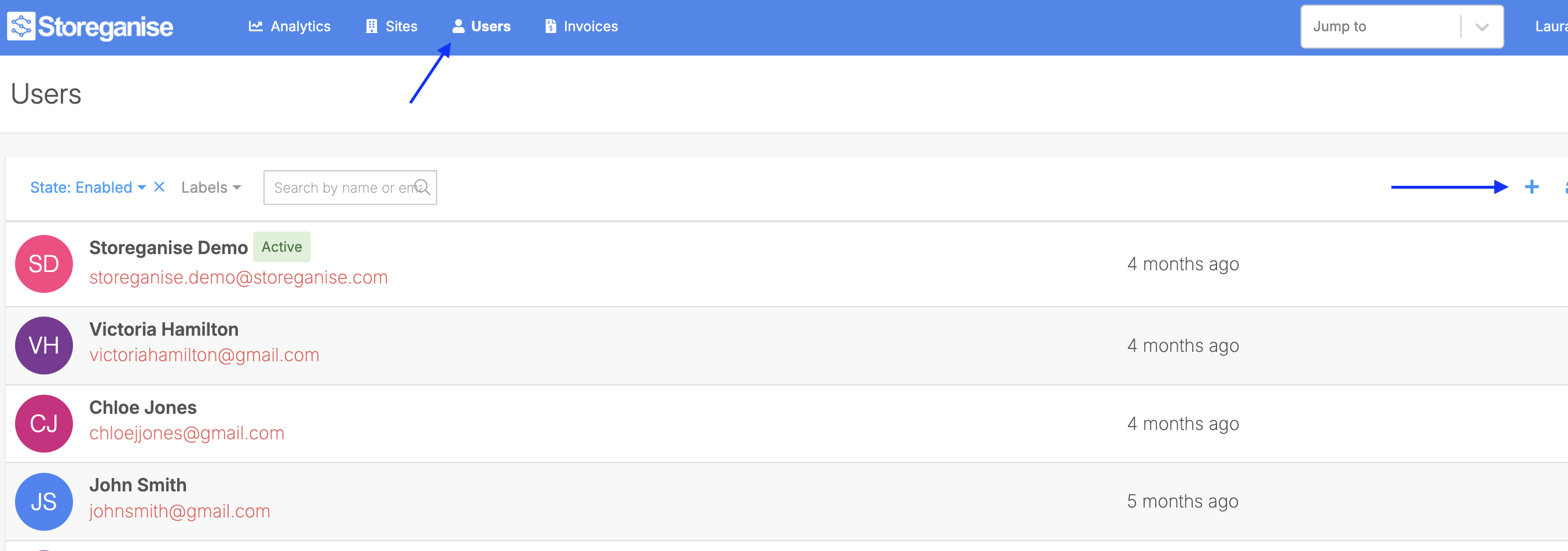
 After logging in, customers can:Since the customer will not receive the automated welcome email when added this way, you will likely want to send them a separate message to inform them how to access their account.Below is a simple example template to help speed up this process. Be sure to change the URL to accurately reflect your Customer Portal.
Hi [Customer Name],We’ve set up your account in our system. To access it for the first time, please reset your password by following these steps:
Adding a new customer
- Go to the Users tab in the Management Portal
- Click on + in the top right
- Enter the customer’s details, including any unique custom fields you may have
- Click Create user
Please note that once an account is created for a user, either from the customer portal or management portal, there will be restrictions applied for the customer to NOT be able to edit the first name and last name from their profile section in the customer portal. This can only be done from the management portal side.
How your customer will log into their profile
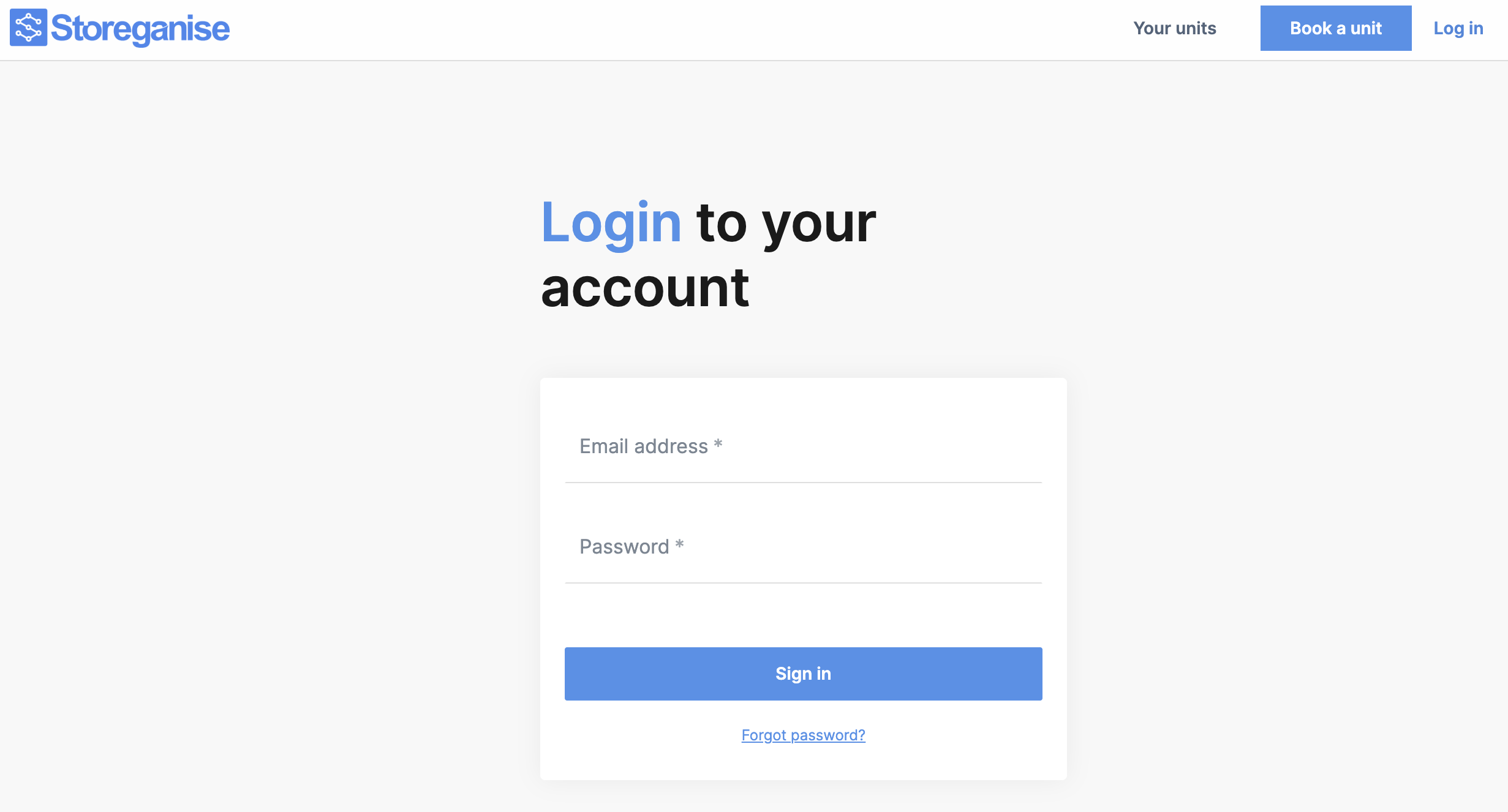
Customers created from the Management Portal do not receive the 'Welcome' email automatically. To log in for the first time, they must:- Go to your company's Customer Portal (the default URL is:
yourbusiness.storeganise.com/account/login) - Click Forgot password?
- Enter their email address and click Send password reset email
- Check their email inbox for the password reset email
- Click the link in the email to reset their password
- Create a new password and log in to their account
- Add or update their payment details
- View and manage their units
- See their billing history
Example email template
Please note that the email will not be sent automatically through Storeganise. This part of communication is handled outside of Storeganise.
- Go to yourbusiness.storeganise.com/account/login
- Click 'Forgot password?'
- Enter your email address and follow the instructions in the email you receive
- Once you reset your password, you can login to your profile to manage your account
Jump to