Add-on: Fortis payments
Prerequisites
Before installing the Fortis Add-on, ensure you have:- An active Fortis merchant account, opened through Storeganise. If you don't have a Fortis account yet, contact support@storeganise.com for our application link. Please don't apply with Fortis directly, as accounts opened outside our link have to be manually transferred by Fortis before the Add-on can be set up, which can cause delays.
- If you already have a Fortis account opened directly with Fortis, contact us before installing the Add-on so we can arrange the transfer.
- Access to your Fortis Dashboard credentials
- Your Fortis User ID and Location ID (found in your Fortis Dashboard)
- Admin access to your Storeganise account
Setting up the Fortis Add-on
Note: Address verification (AVS) settings — how strictly billing addresses are checked — are configured entirely in your Fortis Dashboard (Location → Settings → Services → pencil icon on the CC option → Virtual Terminal Settings), not in the Storeganise Add-on.
Step 1: Connect your Fortis account
After installation, you need to connect your Fortis account using OAuth:- Go to Settings → Add-ons → Fortis
- Click Connect to Fortis
- You'll be redirected to the Fortis authorization page
- Log in with your Fortis Dashboard credentials
- Grant Storeganise access to your Fortis account
- You'll be redirected back to Storeganise
- Find in: Locations > Site location > General info > Location Id
- Need help? Follow Fortis's guide to find your Location ID
- Enter in Add-on settings
- Important: Your Location ID determines the currency for all transactions. International cards are accepted but will be charged and settled in the currency configured for your Fortis merchant location/account.
- Find in: Locations > Site location > Services
- Need help? Follow Fortis's guide to find your Product Transaction IDs
- Copy Transaction IDs for each payment method you want to accept
- Enter the corresponding IDs in Add-on settings
How payment methods work
Credit card payments
When customers add a credit card through your customer portal:- The card information is securely tokenized by Fortis
- Only the last 4 digits are stored and displayed in Storeganise
- Credit card payments are processed immediately
- Invoice status updates to "paid" right away
- The payment appears in your Fortis Dashboard within minutes
ACH (bank account) payments
When customers add a bank account:- Bank account details are securely tokenized by Fortis
- Only the last 4 digits of the account number are displayed
- ACH payments enter a "pending" state for 2-3 business days
- Invoice status remains "pending" during clearing
- Once cleared, the invoice automatically updates to "paid"
- The payment appears in your Fortis Dashboard during the clearing period
Payment method display
Payment methods are displayed differently depending on where you're viewing them:Customer portal (Billing section): - Credit cards show: Card brand + last 4 digits (e.g., "VISA •••• 4242") - Bank accounts show: Bank icon + last 4 digits (e.g., " •••• 0021")Management Portal (Customer billing section): - Shows the same masked format - Displays which payment method is set as default - Allows you to view all saved methods for each customerApple Pay and Google Pay
Customers checking out on a supported device can pay with Apple Pay or Google Pay. These appear automatically as options within the card checkout — no separate configuration is needed on the customer's side.To enable this for your business:- Contact your Fortis account manager to request a wallet Product Transaction ID (PTID) for your merchant account. This can't be self-provisioned.
- Once provided, enter it in your Add-on settings under Product Transaction IDs.
Updating payment methods
Customers can update their payment methods at any time:- Go to the customer portal
- Navigate to Billing
- Click Update payment methods
- Add a new payment method or select a different existing method
- The new method is automatically saved and can be set as default
Adding or updating a customer's payment method from the Management Portal
Admins can add or update a customer's card or bank account directly from the Management portal, without needing the customer to do it themselves through the Customer portal, sometimes referred to as Mail Order/Telephone Order (MOTO).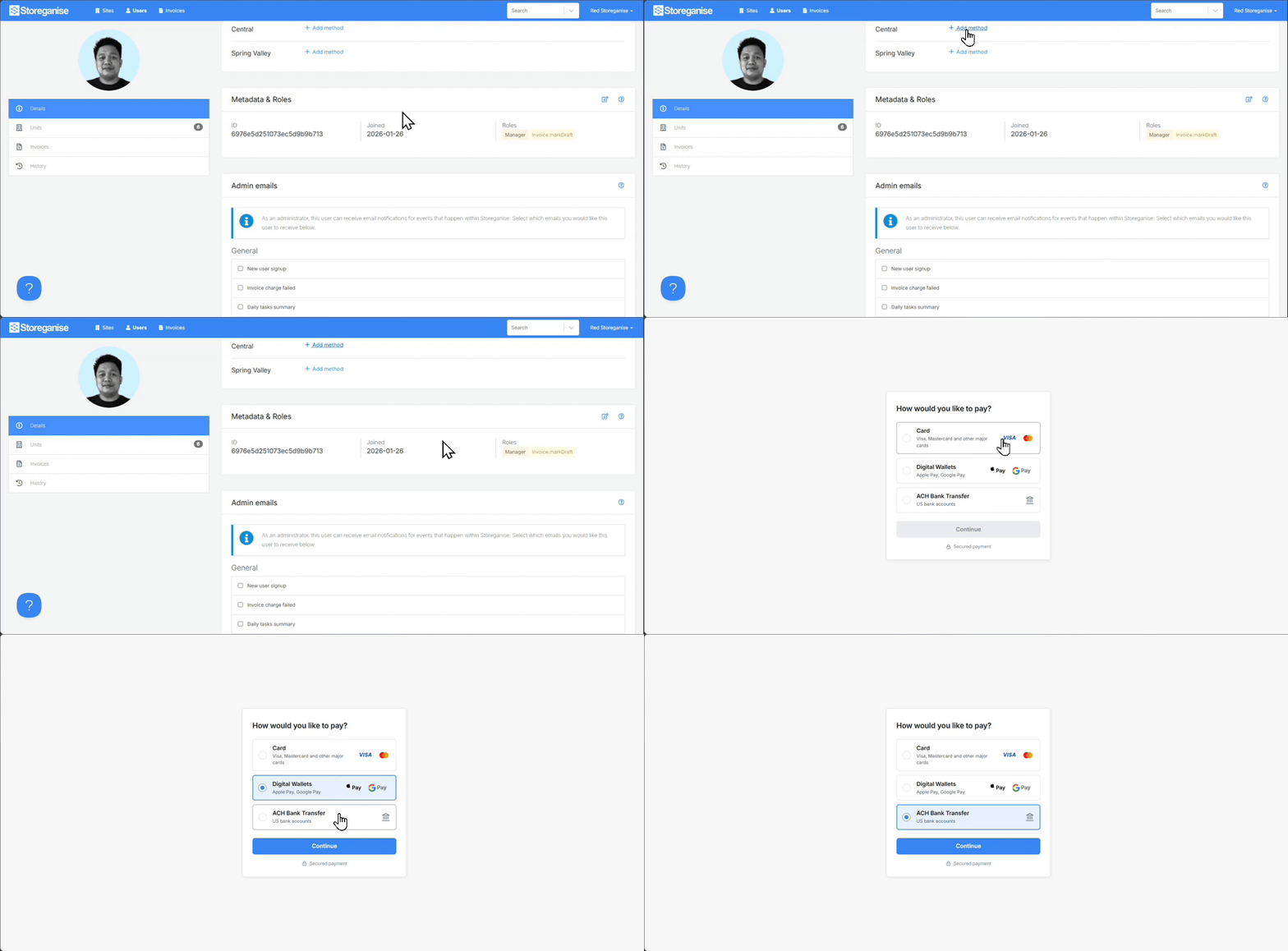
- Go to the customer's profile in the Management portal
- Click Add/update payment method
- Complete the secure Fortis-hosted checkout on the customer's behalf
Processing payments
Automatic payment processing
When automatic billing is enabled, invoices are charged automatically:For credit cards: 1. Invoice is generated 2. Payment is processed immediately 3. Invoice status updates to "paid" 4. Customer receives payment confirmationFor ACH payments: 1. Invoice is generated 2. ACH transaction is initiated 3. Invoice status shows "pending" 4. After 2-3 business days, invoice updates to "paid" 5. Customer receives confirmation once clearedManual payment processing
You can manually charge invoices in two ways:From the customer portal (customers can do this): 1. Navigate to Invoices 2. Find the unpaid invoice 3. Click Pay Invoice 4. Select the saved payment method 5. Confirm paymentFrom the Management Portal (admins can do this): 1. Go to the customer's invoice 2. Click Charge Invoice 3. The system uses the customer's saved payment method 4. Payment processes immediately (credit card) or enters pending state (ACH)Understanding transaction IDs
Each successful payment creates a unique Fortis Transaction Id that's stored on the invoice. This transaction ID:- Links the Storeganise invoice to the Fortis payment record
- Prevents duplicate charges on the same invoice
- Persists across sites (in multi-site setups, each site has its own transaction IDs)
- Allows you to track payments in both systems
Refunds
Refunds
When you issue a credit note in Storeganise, the Fortis Add-on automatically processes a refund — you don't need to log into your Fortis Dashboard separately.How it works:- The refund is applied against the customer's most recent transactions first, working backwards until the full credit note amount is covered.
- This works for both credit card and ACH payments.
- Credit card refunds process in real time.
- ACH refunds follow standard ACH clearing timing.
Chargebacks and disputes
If a customer disputes a card payment, Storeganise automatically detects it and:- Marks the invoice as Failed
- Creates a task on the invoice directing you to your Fortis Dashboard to review the dispute
Enabling chargeback detection
This feature requires a one-time setup step. In your Add-on settings, enter your Fortis User ID and User API Key (found in your Fortis Dashboard). Chargeback detection won't run until both are configured.Notes on this feature specifically
- Card chargebacks only — ACH disputes use a different Fortis endpoint and aren't covered.
- There's no direct link from the task to the specific dispute in the Fortis Dashboard yet — Fortis has this as an open feature request. The task points to the dashboard generally.
- Matching a chargeback to the right invoice is done by card digits + amount + date, not an exact reference — extremely unlikely to mismatch, but worth knowing it isn't a guaranteed 1:1 link in the rare case of two same-amount, same-card charges on the same day.
Currency support
The Fortis Add-on automatically detects the currency of each invoice:- Supported currencies: USD (US Dollars) and CAD (Canadian Dollars)
- Currency is determined by the invoice settings in Storeganise
- Each payment is processed in the invoice's currency
- Currency information is sent to Fortis with each transaction
Multi-site configuration
Business-level installation (shared merchant account)
If you install the Add-on at the business level:- One Fortis merchant account is used across all sites
- All sites share the same OAuth connection
- Payment methods are still isolated per site
- Customers can only see payment methods for their specific site
- Reporting in Fortis shows all transactions across sites
Site-level installation (independent accounts)
If you install the Add-on at the site level:- Each site connects to its own Fortis merchant account
- Sites have completely independent OAuth connections
- Payment methods are fully isolated between sites
- Each site can have different Fortis configurations
- Reporting in Fortis is separated by site
Site isolation behavior
Regardless of installation type, payment methods are always isolated:- A customer on Site A cannot see or use payment methods from Site B
- Transaction IDs are site-specific and don't cross-contaminate
- Each site's invoices operate independently
- Customers with accounts on multiple sites must add payment methods separately for each site
Troubleshooting
Connection issues
Problem: OAuth connection fails or redirects to an error pageThe OAuth connection requires valid Fortis Dashboard credentials and proper authorization.Solution: 1. Verify you're using the correct Fortis Dashboard login credentials 2. Check that your Fortis account has active status 3. Ensure your browser allows redirects from Storeganise 4. Try disconnecting and reconnecting the Add-on 5. Clear your browser cache and try againIf the issue persists, contact Fortis support to verify your account has API access enabled.Problem: "Payment setup failed" error when adding payment methodThis error typically occurs if there's a communication issue between Storeganise and Fortis.Solution: 1. Check that the OAuth connection is still active in Settings → Add-ons → Fortis 2. Verify your Fortis account hasn't expired or been suspended 3. Try reconnecting the OAuth connection 4. Contact support if the error message includes specific technical detailsPayment processing issues
Problem: Credit card payment fails with "card declined" errorCard declines can happen for various reasons including insufficient funds, incorrect card details, or security blocks.Solution: 1. Ask the customer to verify their card details are correct 2. Ensure the card hasn't expired 3. Check if the customer's bank is blocking the transaction 4. Try a different payment method 5. Contact Fortis support if legitimate cards are consistently declinedProblem: ACH payment stays in "pending" status for more than 5 business daysACH payments normally clear within 2-3 business days, but delays can occur.Solution: 1. Check the transaction status in your Fortis Dashboard 2. Verify the payment was successfully initiated 3. Confirm the bank account details were correct 4. Look for any failure notifications in Fortis 5. Contact Fortis support to investigate the specific transactionIf the ACH payment failed, you can retry the charge manually.Problem: Invoice shows "paid" but payment isn't in Fortis DashboardOccasionally, there may be a sync delay between systems.Solution: 1. Check the Fortis Transaction Id custom field on the invoice 2. Search for that transaction ID in your Fortis Dashboard 3. Verify the payment was actually processed 4. Wait 15-30 minutes for sync delays to resolve 5. If the transaction ID exists but isn't in Fortis, contact supportProblem: Customer sees error "No payment method added" when trying to payThis occurs when a customer hasn't saved a payment method or the saved method was removed.Solution: 1. Ask the customer to go to Billing in the customer portal 2. Click Update payment methods 3. Add a new credit card or bank account 4. Return to the invoice and try paying againProblem: Duplicate charges on the same invoiceThe Fortis Transaction ID system prevents duplicate charges, but issues can occur if the transaction ID isn't properly saved.Solution: 1. Check if the invoice has a Fortis Transaction Id in the custom field 2. If multiple transaction IDs exist, check your Fortis Dashboard to see which processed successfully 3. If a customer was genuinely charged twice, process a refund through Fortis Dashboard 4. Contact support if duplicate charges occur regularlyThe system is designed to prevent this, so recurring duplicates indicate a configuration issue.Problem: Payment method shows in customer portal but won't process paymentsPayment methods must be properly tokenized by Fortis to work correctly.Solution: 1. Ask the customer to remove the payment method 2. Re-add the payment method through the booking flow or billing page 3. Verify the new method appears with the correct last 4 digits 4. Try processing a test paymentIf the issue continues, the payment method may have failed tokenization. Contact Fortis support to investigate.Multi-site specific issues
Problem: Customer payment methods appearing on wrong siteThis shouldn't happen, but can occur if sites are misconfigured.Solution: 1. Verify each site has its own OAuth connection (for site-level installations) 2. Check that the Fortis Transaction Id custom field is configured at the site level 3. Confirm the customer account is properly associated with the correct site 4. Contact support if cross-site contamination persistsProblem: Shared merchant account showing wrong site attributionWhen using business-level installation, all transactions go through one Fortis account.Solution: 1. Use transaction metadata in your Fortis Dashboard to identify the originating site 2. Each transaction includes site information in the payment description 3. Filter your Fortis reports by site-specific identifiers 4. Consider switching to site-level installation if you need complete separationFrequently asked questions
1. What is the Fortis Add-on and who can use it?
The Fortis Add-on is a payment processing integration that enables self-storage operators using Storeganise to accept credit card and ACH (bank account) payments directly through their customer portal and management dashboard. This integration connects your Storeganise account with Fortis, a leading payment gateway, allowing customers to save payment methods for automatic billing and enabling operators to process manual payments when needed. The Add-on is available to all Storeganise customers with an active, approved Fortis merchant account opened through Storeganise's application link.
2. How do credit card and ACH payments differ in processing time?
Credit card and ACH payments process differently due to their underlying payment networks. Credit card payments are processed immediately—when a customer pays with a credit card, the invoice status updates to "paid" right away, and the transaction appears in your Fortis Dashboard within minutes. ACH (bank account) payments, however, enter a "pending" state for 2-3 business days while the payment clears through the banking system. During this time, the invoice status remains "pending," and once the ACH payment successfully clears, the invoice automatically updates to "paid." This delay is normal and reflects standard banking clearing times.
3. What's the difference between business-level and site-level installation?
The Fortis Add-on offers two installation approaches to suit different business structures. Business-level installation uses one Fortis merchant account across all sites, with all sites sharing the same OAuth connection and transactions consolidated in a single Fortis account—ideal for centralized payment management. Site-level installation allows each site to connect to its own independent Fortis merchant account with completely separate OAuth connections and isolated reporting—perfect for operators managing sites in different regions or requiring complete separation between locations. Regardless of installation type, payment methods are always isolated per site, ensuring customers can only see and use payment methods associated with their specific site.
4. How does the Fortis Transaction ID prevent duplicate charges?
Each successful payment through the Fortis Add-on creates a unique Fortis Transaction ID that's automatically stored in a custom field on the invoice. This transaction ID links the Storeganise invoice to the Fortis payment record and serves as a critical safeguard against duplicate charges. When the system attempts to charge an invoice, it first checks if a transaction ID already exists—if one is present, the system prevents the duplicate charge from processing. The transaction ID persists across sessions and is site-specific in multi-site setups. If a payment fails, you can retry the charge, and the system will create a new transaction ID for each attempt, allowing legitimate retries while still protecting against accidental duplicates.
5. Can customers use multiple payment methods, and how is the default method determined?
Yes, customers can save multiple credit cards and bank accounts in the system. When multiple payment methods are saved, customers can select which method to use when paying invoices manually through the customer portal. For automatic billing, the system uses the most recently added or updated payment method as the default. Customers can change their default payment method at any time by going to the Billing section in the customer portal, clicking "Update payment methods," and adding or selecting their preferred method. The newly selected method will automatically become the default for future automatic charges.
6. What happens when a payment fails, and how can I retry it?
When a payment fails, the invoice remains in "unpaid" or "failed" status, and the customer receives a notification if configured. Failed payments don't block future payment attempts—you have multiple options for retrying. From the Management Portal, navigate to the customer's invoice and click "Charge Invoice" to retry using the customer's saved payment method. Customers can also retry from their customer portal by going to Invoices, finding the unpaid invoice, and clicking "Pay Invoice." Each retry attempt creates a new transaction ID, allowing the system to track multiple attempts while still preventing duplicate successful charges. Common failure reasons include insufficient funds, expired cards, incorrect bank details, or security blocks from the customer's financial institution.
7. How does currency detection work, and what currencies are supported?
The Fortis Add-on automatically detects the currency of each invoice based on your Storeganise invoice settings. Currently, the Add-on supports USD (US Dollars) and CAD (Canadian Dollars). When you create an invoice in Storeganise, the currency information is automatically sent to Fortis with each payment transaction, ensuring the payment is processed in the correct currency. If you attempt to process a payment in a currency that Fortis doesn't support, the payment will fail with a clear error message. This automatic detection eliminates the need for manual currency configuration and reduces the risk of processing payments in the wrong currency.
8. Are payment methods secure, and what information is stored in Storeganise?
Payment security is handled by Fortis using industry-standard tokenization protocols. When customers add a payment method, the sensitive card numbers and bank account details never touch Storeganise servers—instead, Fortis securely tokenizes the information and returns only a token and the last 4 digits to Storeganise. All payment data is encrypted both in transit and at rest. Fortis is PCI DSS compliant for card payments, meeting the highest security standards. Staff members viewing payment information in Storeganise can only see the payment method type (credit card or ACH), the last 4 digits, and transaction IDs linking to Fortis records. Full payment details are only accessible in your Fortis Dashboard, which has its own separate access controls and security measures.
9. What should I do if the OAuth connection fails during setup?
OAuth connection failures typically occur due to credential issues or authorization problems. First, verify you're using the correct Fortis Dashboard login credentials and that your Fortis account has active status. Ensure your browser allows redirects from Storeganise, as the OAuth flow requires redirecting to Fortis and back. Try disconnecting and reconnecting the Add-on by going to Settings → Add-ons → Fortis. If the problem persists, clear your browser cache and cookies, then attempt the connection again. You should also verify with Fortis support that your account has API access enabled—some merchant accounts may require this to be specifically activated. If you continue experiencing issues after these steps, contact Storeganise support with any specific error messages displayed during the connection attempt.
10. Can I process refunds through the Fortis Add-on?
Yes. Issue a credit note as normal in Storeganise and the Fortis Add-on will process the refund automatically against the customer's most recent transactions — see "Refunds" above for how the refund is applied and settlement timing.
11. Will I be notified if a customer disputes a payment?
Yes, for card payments. Storeganise checks for chargebacks once a day and, when one is found, marks the invoice as Failed and creates a task directing you to your Fortis Dashboard to review the dispute. You'll need to enter your Fortis User ID and User API Key in the Add-on settings first — chargeback detection stays off until both are configured. ACH disputes aren't currently covered.
12. How are payment methods isolated in multi-site configurations?
Payment method isolation is a core security and organizational feature of the Fortis Add-on, working identically regardless of whether you use business-level or site-level installation. When a customer adds a payment method on Site A, that payment method is exclusively available for Site A transactions—it cannot be seen or used for Site B, even if the same customer has an account there. Transaction IDs are also site-specific and never cross-contaminate between sites. If a customer rents units at multiple sites within your business, they must add payment methods separately for each site, and each site's invoices are processed completely independently. This isolation ensures proper accounting, prevents accidental cross-site charges, and maintains clear financial boundaries between different locations in your reporting.
13. What's the difference between immediate and delayed charging?
Immediate charging and delayed charging offer different timing options for when customer payments are processed. With immediate charging, the invoice is charged as soon as it's generated—this works best for move-ins, new rentals, or one-time charges where you want instant payment. The customer must already have a saved payment method for immediate charging to work. Delayed charging creates the invoice but doesn't charge it immediately; instead, the charge occurs on a specific future date that you designate. This is particularly useful for monthly recurring charges where invoices are generated at the beginning of the billing period but should be charged on a specific date, or when you want to give customers advance notice of upcoming charges. Both methods work with credit cards and ACH payments, though ACH payments will still require 2-3 business days to clear regardless of when charging is initiated.
Ready to get started?
Send us your request and the Storeganise team will install the Fortis payments Add-on for you.
Note: A Fortis merchant account is required. If you don't have one yet, send us a request and we'll share the application link.