When a customer moves into a unit, Storeganise automatically sends them a move-in confirmation email. This is one of the most important emails your customers will receive, as it confirms their rental and gives them everything they need to get started.
What's included
A move-in confirmation email typically contains:
The customer's name and unit details
The move-in date
A summary of their rental terms and pricing
Any access codes they need to enter the facility (if applicable, see below)
You can customise what appears in this email to match your facility's needs. See Editing email templates.
Access codes
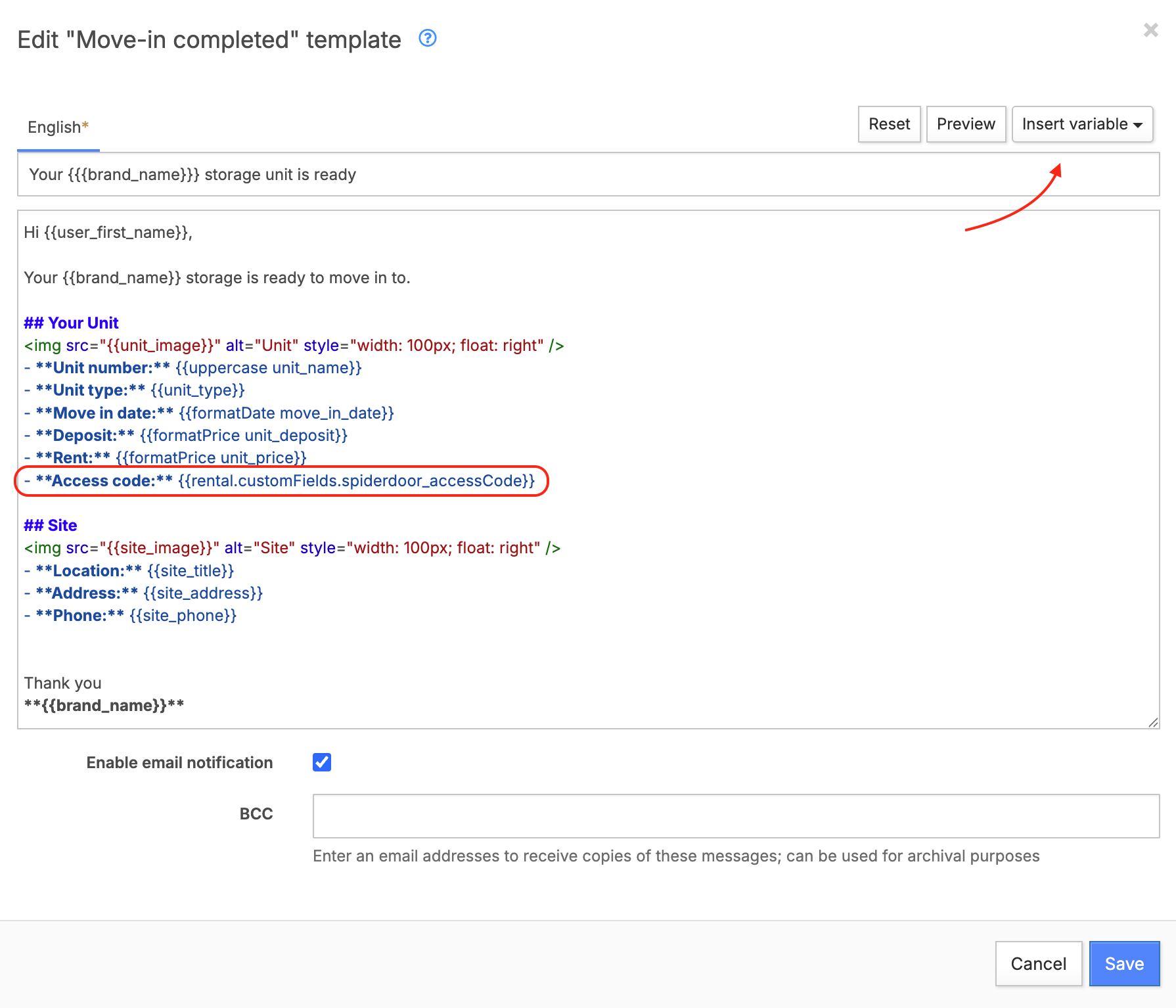
If your facility uses an access control system, Storeganise can automatically include the customer's gate or door codes in the move-in email. This means customers receive everything they need to access the facility in a single email, without you having to send codes manually.To include access codes in the email, you'll need to add them to your move-in email template. Regardless of which access control system you use, the user's access code is housed in a unit rental custom field. So to deliver this code to your customers you will need to add the corresponding custom field variable to the Move-in completed email template.This is easy to setup:
Add a new access code section to your email template
Click the Insert variable button and select the corresponding rental custom field
Save the changes to the email template
Your access control Add-on automatically creates this custom field, so you can simply select it from the variable dropdown list
Resending a move-in email
Sometimes you may need to resend a customer's move-in email. Common reasons include:
The customer missed or deleted the original email
The customer has updated their email address
Access codes weren't available when they moved in and have since been assigned
The customer is having trouble accessing the facility and needs their codes resent
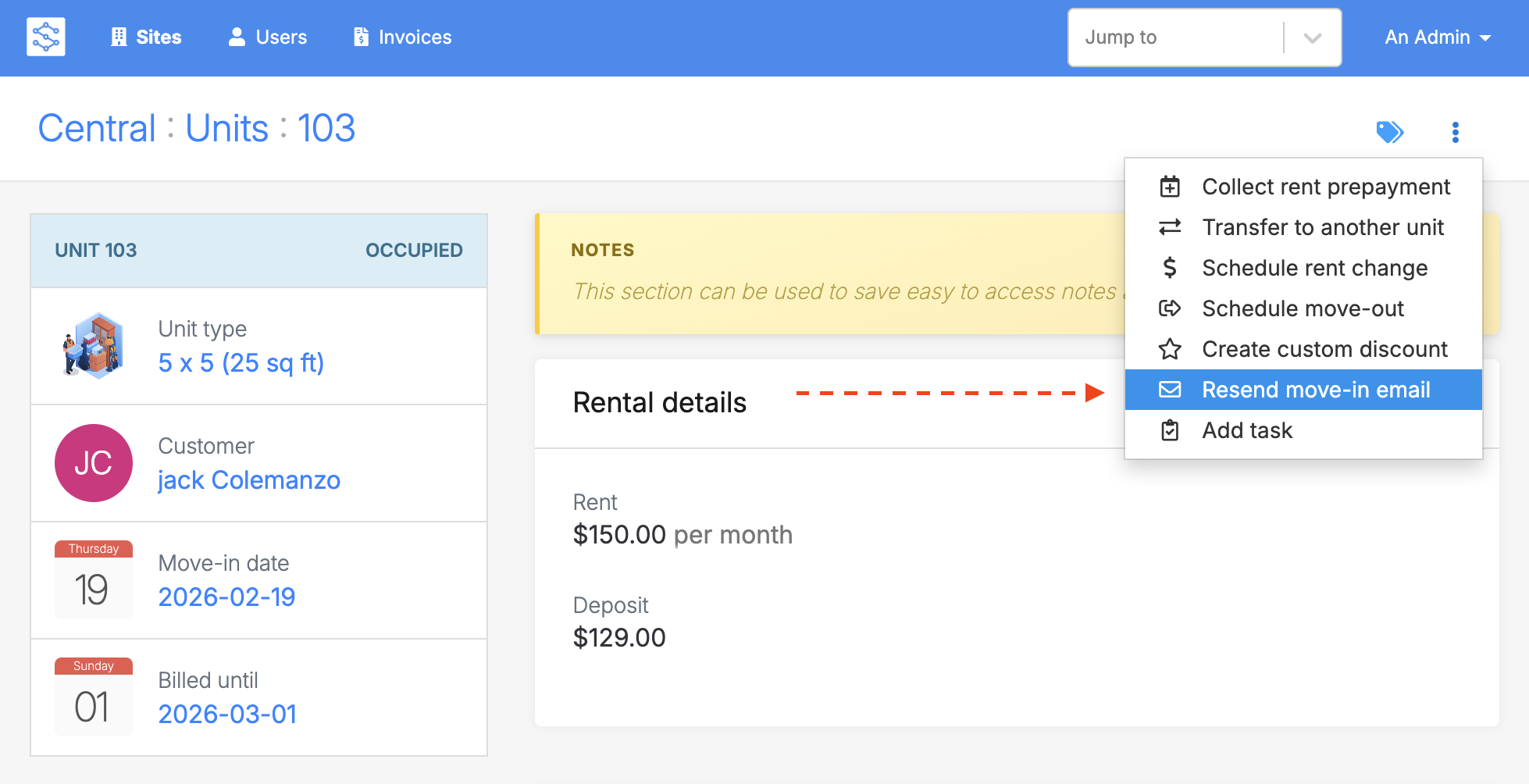
To resend:
Open the unit rental for the customer
Click the 3-dot menu (⋯) in the top-right corner of the page
Select Resend move-in email
Resending the move-in confirmation email
Before you resend: Make sure the customer's email address is correct. If they've changed it, update their contact details first, otherwise the email will go to the old address.