Auto-retry failed payments
When a payment fails, Storeganise automatically retries the charge on the customer's registered payment method over the following days. This removes the need for admins or customers to manually retry each failed payment and helps recover revenue without intervention.Auto-retry works with all supported payment gateways, including Stripe, Mollie, Fortis, and more.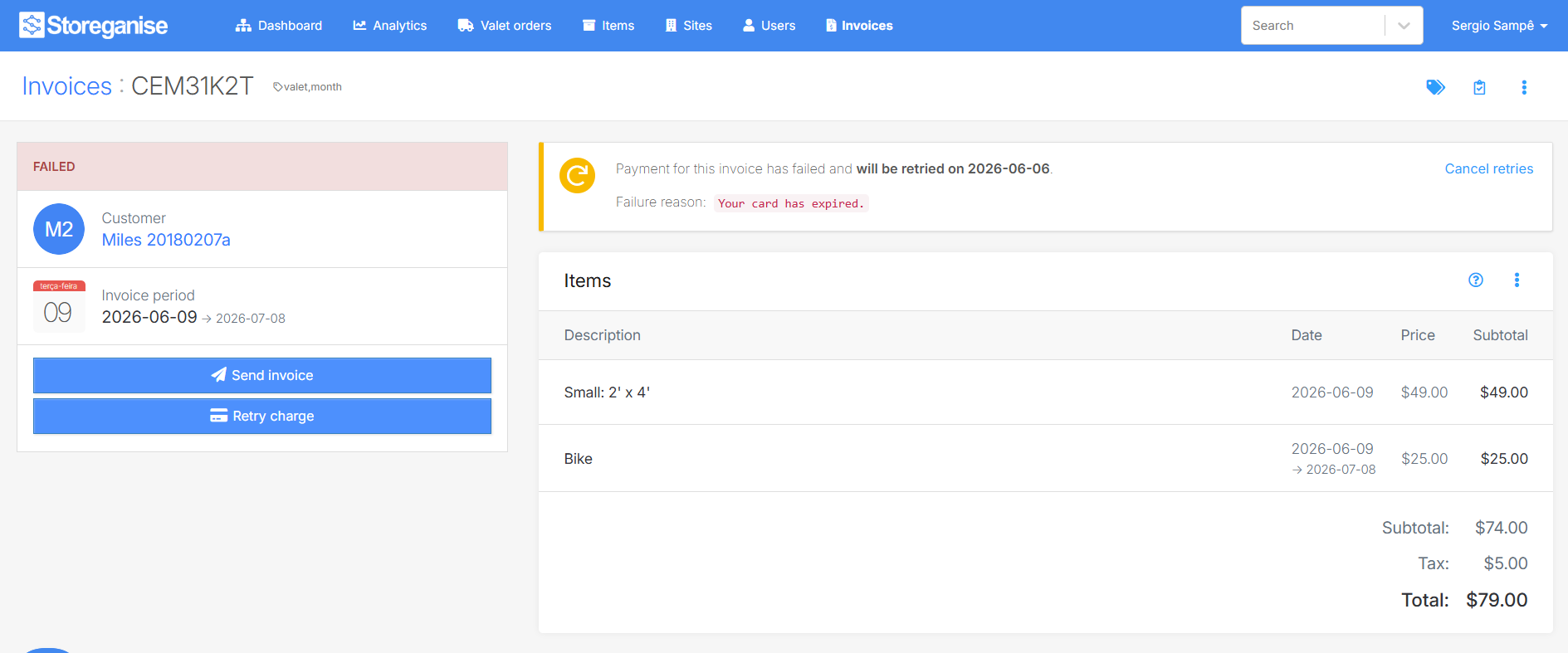
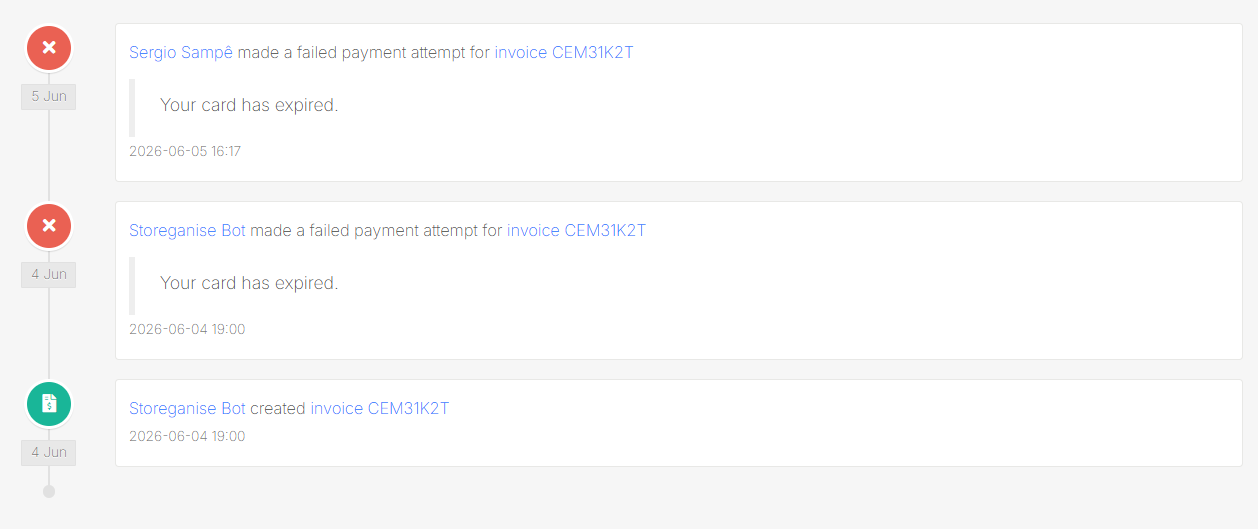

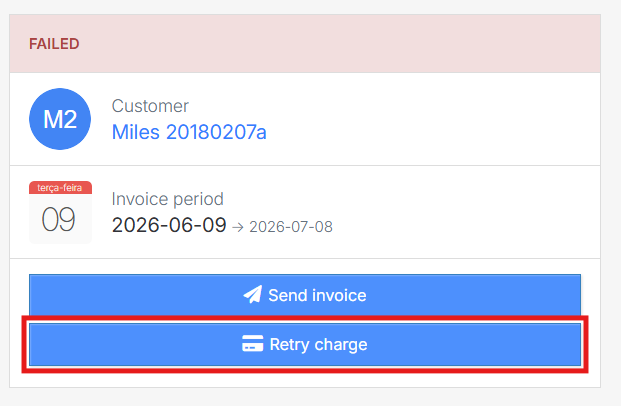 The system immediately attempts a single charge on the customer's registered payment method. If the charge succeeds, the invoice is marked as Paid and a receipt email is sent. If it fails, this does not add any extra scheduled retries. The remaining automatic retries (if any) continue on their original schedule.When you click Retry charge, the next scheduled automatic retry is rescheduled relative to that attempt. The exact gap may vary slightly depending on where you are in the retry cycle.
 Once cancelled, the system stops all future automatic retries for that invoice. You can still manually charge the customer using the existing Charge customer button at any time.
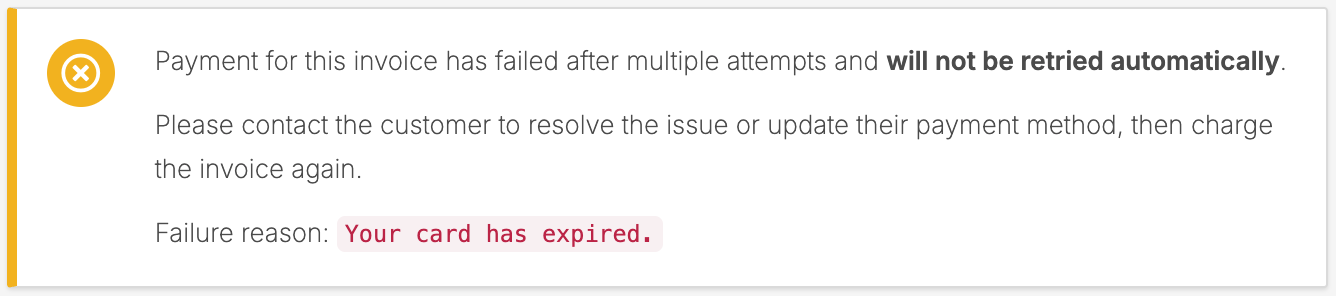 At this point, you can:
Do I need to enable auto retry? No. Auto-retry is always active. It is a default system function and cannot be enabled or disabled.Does auto retry work with all payment gateways? Yes. Click the Retry button on the invoice to run one immediate charge attempt. This does not add extra scheduled retries. You can also use the existing Charge customer button at any time.Can I customize the retry schedule? No. The retry schedule (1, 3, 5, and 7 days after the initial failure) is set by the system and cannot be changed.Does the customer receive an email for every retry attempt? Yes. Standard notifications apply on every attempt, based on invoice state, just as they do for any charge.What happens if the customer updates their payment method during the retry cycle? The next scheduled retry uses the customer's current registered payment method. If the customer updates their card or bank details, the next retry automatically uses the new details.Can I still manually charge a customer while retries are scheduled? Yes. You can use the Retry button on the invoice to trigger an immediate charge attempt, or use the existing Charge customer button at any time.Does auto retry affect the invoice state? No. The invoice stays in the Failed state throughout the retry process. It only changes to Paid if a retry or manual charge succeeds.
How auto-retry works
When a charge attempt fails on an invoice, Storeganise automatically schedules up to four retry attempts at the following intervals after the initial failure:- 1 day after the 1st failed charge
- 3 days after the 2nd failed charge
- 5 days after the 3rd failed charge
- 7 days after the 4th failed charge
What happens during the retry process
While retries are in progress, the invoice remains in the Failed state. The system tracks the number of charge attempts on the invoice. Each retry attempt follows the same process as the original charge, using the customer's registered payment method.Notifications during retries
The standard notification behavior applies on every charge attempt, whether it is the initial charge, a scheduled retry, or a manual retry:- If a retry attempt fails, the system sends the standard failed invoice email to the customer and a notification to the admin, just as it does for any failed charge.
- If a retry attempt succeeds, the invoice is marked as Paid and the customer receives a receipt email as usual.
Invoice history
Every retry attempt and its outcome are logged in the History section at the bottom of the invoice detail page. You can see the timestamp and whether the charge succeeded or failed.Managing retries
You can monitor and control the retry process directly from the invoice detail page.Viewing retry status
Open a failed invoice to see the current retry status. The alert banner at the top of the page shows:- Whether a retry is scheduled and when it will run
Manually retrying a charge
If you do not want to wait for the next scheduled retry, you can trigger a retry manually:- Open the failed invoice.
- Click the Retry charge button in the alert banner.
Cancelling retries
If you want to stop the system from retrying a specific invoice (for example, if you plan to handle it manually or write it off), you can cancel the scheduled retries:- Open the failed invoice.
- Click the Cancel retries button in the alert banner.
What happens when all retries fail
If all four retry attempts fail, the system:- Marks the retry process as complete. The invoice remains in the Failed state.
- Updates the alert banner on the invoice detail page to reflect that all retry attempts have been exhausted.
- Manually retry using the Charge customer button if the customer has updated their payment method.
- Contact the customer to resolve the payment issue.
- Follow the bad debt invoice process if the payment cannot be recovered.
Frequently asked questions
Jump to
Related articles
Invoicing settings
Invoice states and outstanding balance
Billing / invoice related emails
Bad debt invoice process