Add-on: Sensorberg
Connect your Storeganise account with Sensorberg to automate access control across the full customer lifecycle. When the Add-on is active, move-ins, move-outs, overdue lockouts, and unit transfers automatically update customer access in Sensorberg.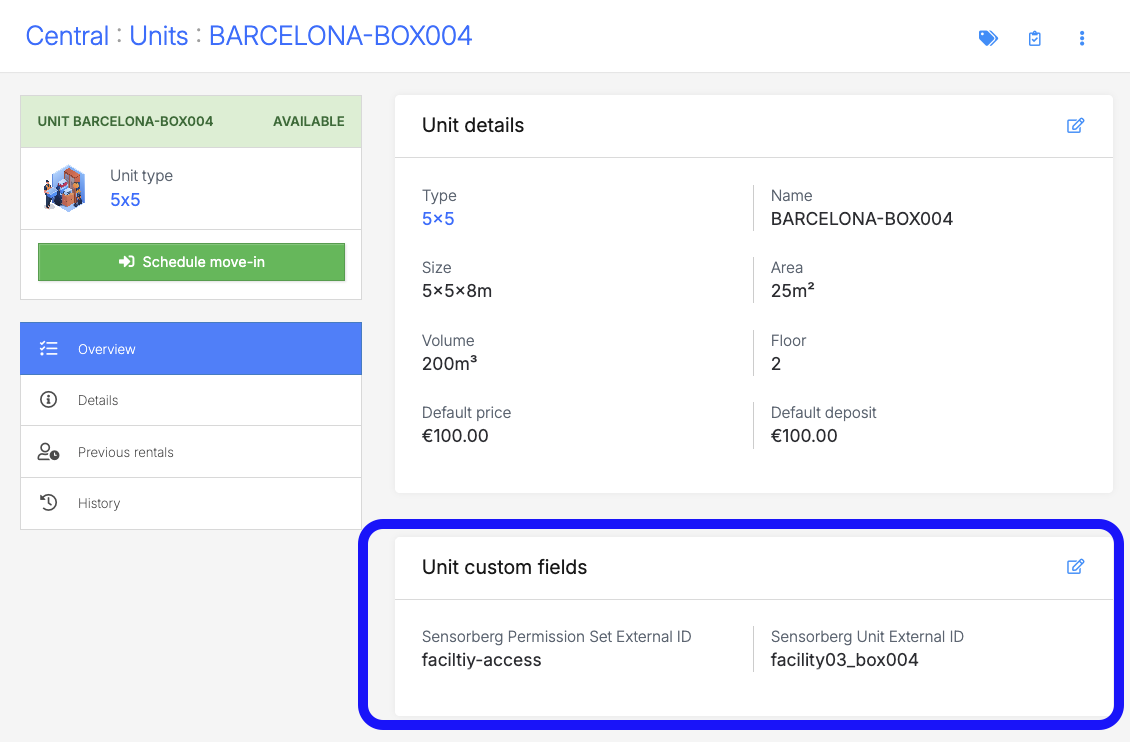
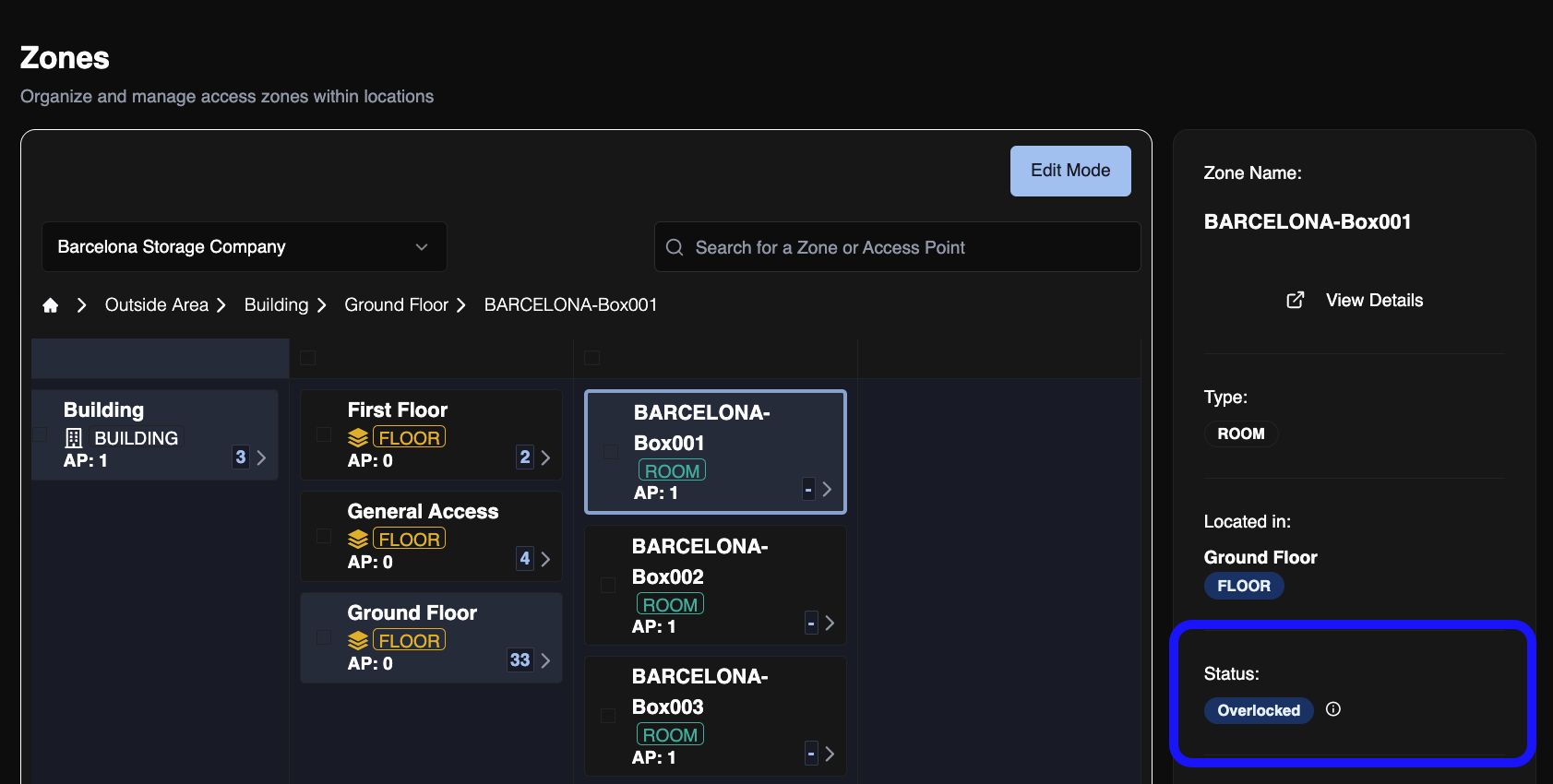 For digital units (Sensorberg Unit External ID populated), the unit's zone status is set to overlocked in Sensorberg immediately. The customer's Permission Set assignment is unchanged -- they retain access to shared areas (facility entrance, lift, floor) and any other units they rent. Only the specific unit door is restricted.For analog units (Sensorberg Unit External ID blank), all of the customer's Permission Set assignments are removed, restricting access to the entire facility.To unlock the unit:
Prerequisites
Before setting up the Sensorberg v2 Add-on, make sure you have:- A Sensorberg OCB v2 account with an active API key
- Your organization's domain URL from the Sensorberg OCB dashboard (format:
your-org.ocb.apps.sensorberg.com) - For each unit: the Permission Set external identifier and the unit zone external ID from the Sensorberg OCB dashboard
Setting up the Sensorberg v2 Add-on
- In your Storeganise Admin Portal, navigate to Settings → Add-ons
- In the Add-on settings panel, enter your API key and your domain URL
- Click Enable
- Sensorberg Permission Set External ID (
sensorberg_id) -- the external identifier of the Permission Set assigned to the customer on move-in. Depending on your setup, this is either a Permission Set for one unit that also includes your shared access areas, such as the facility entrance, lift and floors (each unit has its own value), or a shared Permission Set for facility access only (several units can share the same value). - Sensorberg Unit External ID (
sensorberg_unitId) -- the zone external ID for the specific unit door. This is what the Add-on targets when overlock is triggered. Each unit has a unique value.Fill this in for every unit with its own door lock, even if the unit’s Permission Set already includes that door. Without it, the unit’s zone isn’t marked asRentedin Sensorberg, and overlocking the unit removes the customer’s access to the whole facility.
For analog units with no digital lock, set Sensorberg Permission Set External ID (sensorberg_id ) only and leave Sensorberg Unit External ID (sensorberg_unitId ) blank.
- Units without Sensorberg Permission Set External ID (
sensorberg_id) populated will not have access provisioned automatically. A task is created on the unit rental if a move-in is attempted on an unmapped unit. - Units without Sensorberg Unit External ID (
sensorberg_unitId) set are treated as analog units -- overlock on these units removes the customer's Permission Set assignment entirely.
How access works
Move-in
When a move-in job is completed in Storeganise, the Add-on:- Creates the customer in Sensorberg if they don’t already have an account, or reuses their existing one
- Assigns the customer to the Permission Set configured for their unit
- Sets the unit’s zone to
Rentedin Sensorberg, if the unit has a Sensorberg Unit External ID - Generates a PIN and stores it on the unit rental and the customer’s user record
Move-out
When a move-out job is completed, the customer’s Permission Set assignment for that unit is removed in Sensorberg. If the unit has a Sensorberg Unit External ID, its zone is set back to Available. If the customer has other active rentals, their access to those units is unaffected.Unit transfer
When a customer transfers to a different unit, access to the old unit is revoked and access to the new unit is provisioned automatically. If there is an issue revoking the old unit, the new unit is still provisioned -- the two steps operate independently.Overdue lockout and restoration
When a rental is marked overdue in Storeganise, the customer's access is suspended across all of their active units at the site. The Add-on retains the permission references so access can be restored when the account is brought current.When the overdue status is cleared, the customer's access is restored automatically.Note: Overdue lockout in Sensorberg v2 works via full access revocation. A new permission reference is issued on restoration; the original reference is no longer valid after lockout. This is separate from manual overlock, which uses zone status changes for digital units.
Manual overlock and unlock
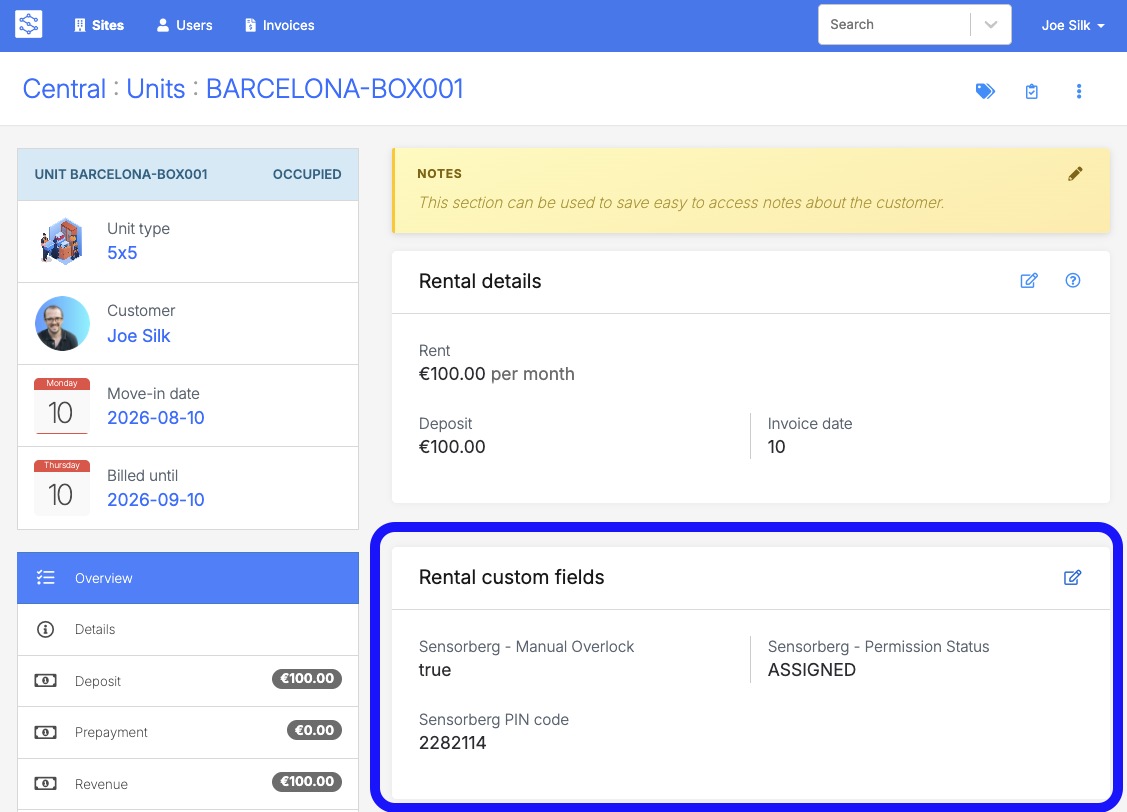
Operators can manually suspend or restore a customer's access for a specific unit directly from the unit rental in the Management Portal.To manually overlock a unit:- Open the unit rental
- Navigate to Custom fields
- Set Sensorberg - Manual Overlock (
sensorberg_overlocked) totrue - Save the rental
- Set Sensorberg - Manual Overlock (
sensorberg_overlocked) tofalseand save
Managing PIN codes
A customer's PIN is stored on their Storeganise user record and on each of their active unit rentals. To update a customer's PIN:- Open any of the customer's active unit rentals
- Update Sensorberg - Access Code (
sensorberg_pin) to the new value - Save the rental
Migrating existing customers
If you have customers who were already renting before the Add-on was installed, existing rentals can be migrated onto the Add-on with CSV imports; no new move-in jobs required.- Set Sensorberg Permission Set External ID (
sensorberg_id) and Sensorberg Unit External ID (sensorberg_unitId) on each unit using a units CSV import, and check they match your Sensorberg dashboard - Export your unit rentals from Storeganise as a CSV and add each customer’s existing PIN in
sensorberg_pin(Sensorberg - Access Code) - Re-import the rentals CSV with
sensorberg_resyncset to true to trigger provisioning. We recommend testing with one rental first
Contact support@storeganise.com to request migration assistance.
Troubleshooting
A task appears on the unit rental after a move-in
The most common cause is a missing or incorrect value on the unit's custom fields. Verify that Sensorberg Permission Set External ID (sensorberg_id ) and Sensorberg Unit External ID (sensorberg_unitId ) are correctly set on the unit record in Storeganise and match the values in the Sensorberg OCB dashboard.A task appears after a manual overlock or unlock
This indicates the zone status update in Sensorberg failed. Check that your Add-on credentials are still valid (Settings → Add-ons → Sensorberg v2) and try the action again.The customer still has access after a move-out
If access was not revoked, check the unit rental for an error task. This typically indicates a connection issue at the time of the move-out. Contact Storeganise support if the issue persists.Invalid credentials task on the Add-on
Your OCB v2 API key or domain URL is incorrect or has expired. Update the credentials in the Add-on settings and save -- the Add-on will revalidate automatically.Ready to get started?
Send us your request and the Storeganise team will install the Sensorberg OCB v2 Add-on for you.
Note: This Add-on is currently only available to European customers.
Jump to
Related articles
Add-on: Sensorberg (Legacy)