Use this Add-on to apply a different accounting code/tax rate to rent based on the type of customer. This is useful when your accounting setup requires rent to be taxed differently depending on the customer type or if you need to track these charges with a different accounting code.
How it works
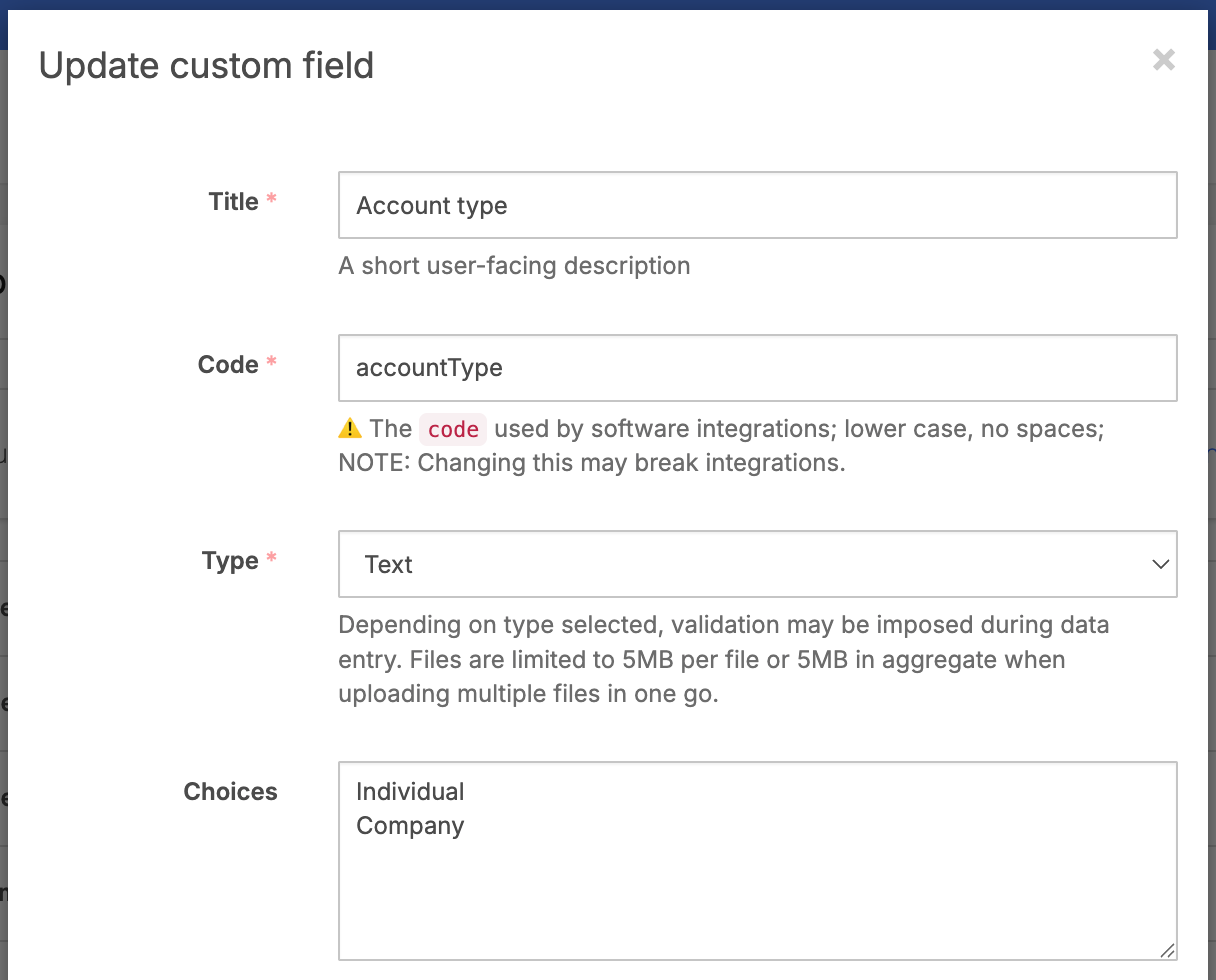
When the Add-on is installed, it automatically creates a user custom field called Account type with two pre-defined options:
Individual
Company
The default values of the user custom field that is created automatically
When a user reserves a unit in the Customer Portal, they will be prompted to select a choice from this custom field. When the Account type is set to Company, the Add-on applies a specific accounting code to their rent charges that overrides the default. When a user selects Individual the default system rent accounting code is applied.
Setting it up
Configure Add-on settings
In the Add-on settings, enter which accounting code to apply when the user selects their customer type. This must be a valid accounting code from your main settings.
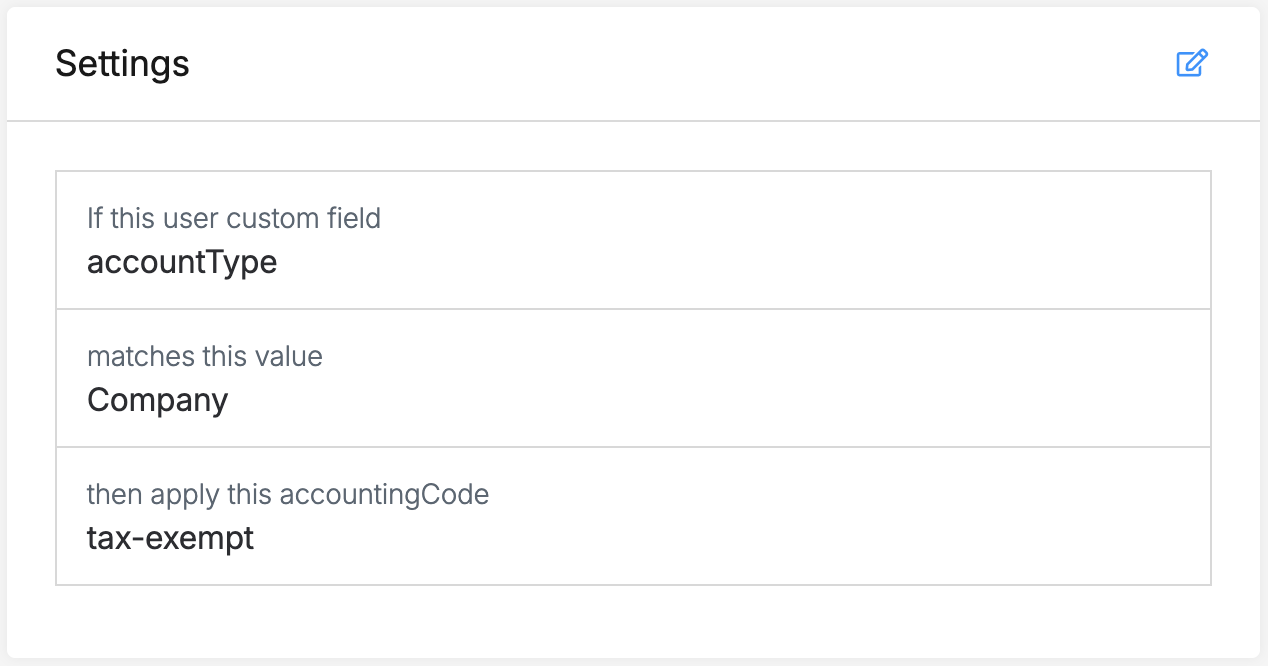
Add-on settings
If the user custom field: This is the code of the corresponding user custom field. This is set to accountType by default.
matches this value: This is the corresponding response in the custom field that triggers this Add-on. This is set to Company by default.
then apply this accountingCode: This must be entered manually. Enter the code value of the corresponding accounting code that you want to apply.
Note: You do not have to use the default names for the custom field or the 2 response options. Just ensure that if you change the custom field settings you also change the related Add-on settings. If these values do not match then the Add-on will not work.
Configure custom field settings
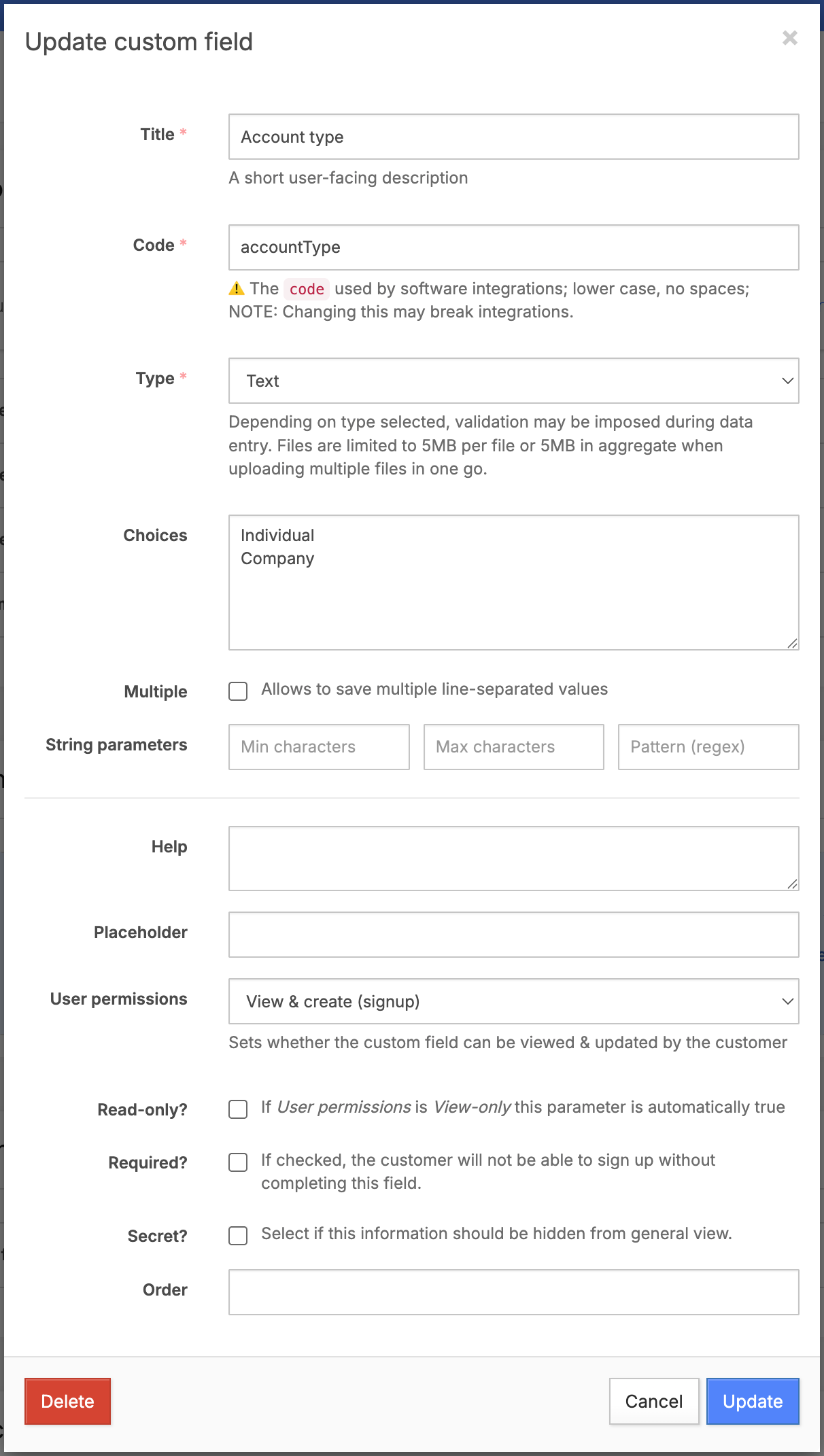
The user custom field is created and configured by default. You must only set the user permission value.
Custom field settings
The Title and Choices will be set by default. Change these values if you desire but be sure to also update the same values in the Add-on settings.
Set the User permissions setting based on your needs. See more info here.
Note: If you do not set the user permission setting the field will not display in your signup form.
Enable the Add-on
Go to Main settings > Add-ons
Find Individual vs Company tax rates and click it
Click Enable.
Note: Configure the Add-on settings before enabling it. Enabling without a valid accounting code may cause sync errors with your accounting integration.
Set an existing tenant's account type
If you need to apply this to existing customers, follow the steps below.
Open the user's profile in the Management Portal.
Edit the Custom fields section.
Select Individual or Company in the Account type custom field.
Save the profile.
Once updated, the appropriate accounting code is applied to the rent line item for that customer's invoices moving forward.
Ready to get started?
Send us your request and the Storeganise team will install the Individual vs Company tax rates Add-on for you.