Two-way email communications
Two-way email lets you read customers' email replies and answer them from the Management Portal. You can use it to keep every customer conversation in Storeganise instead of a separate inbox, so your whole team can see what was said about a customer, site, or unit rental.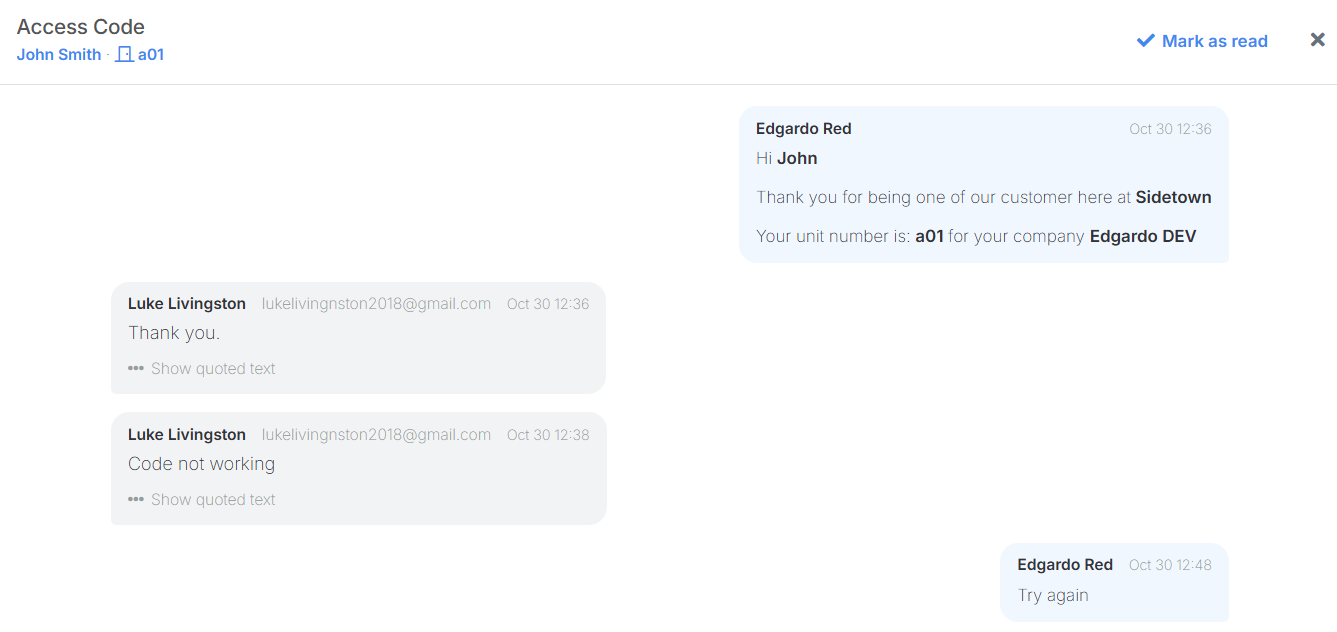
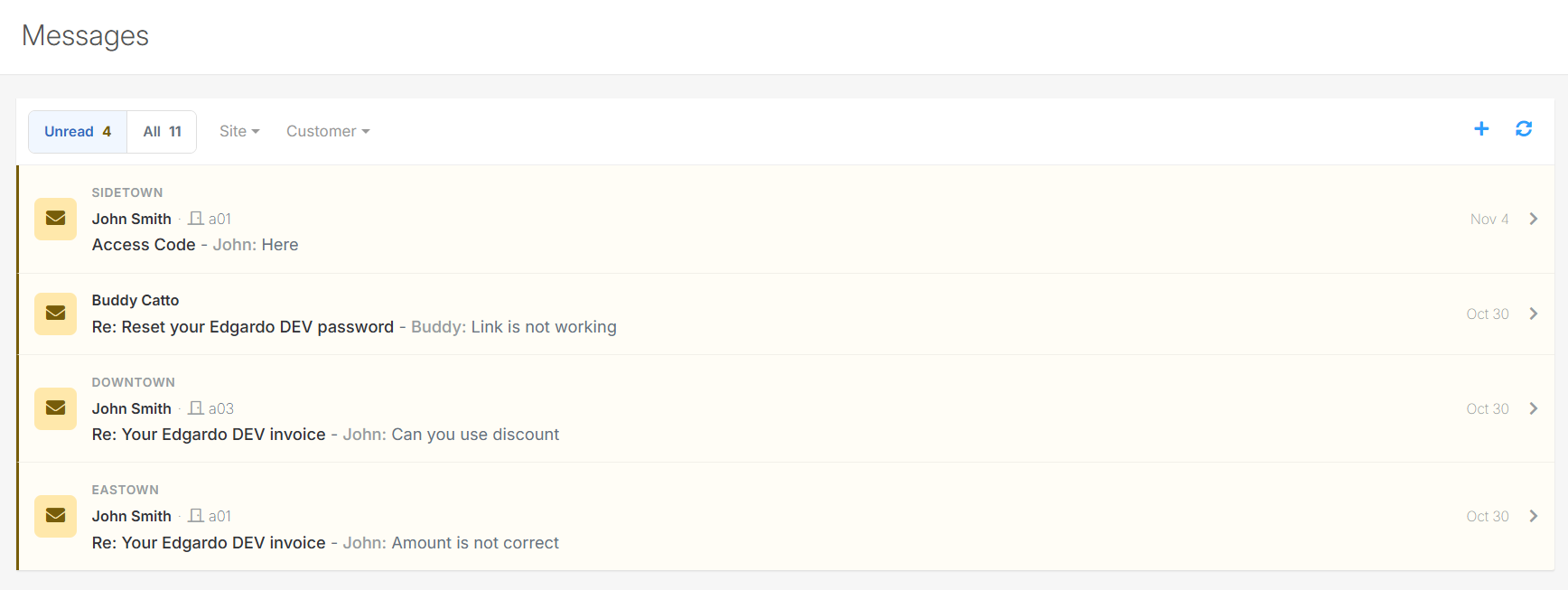
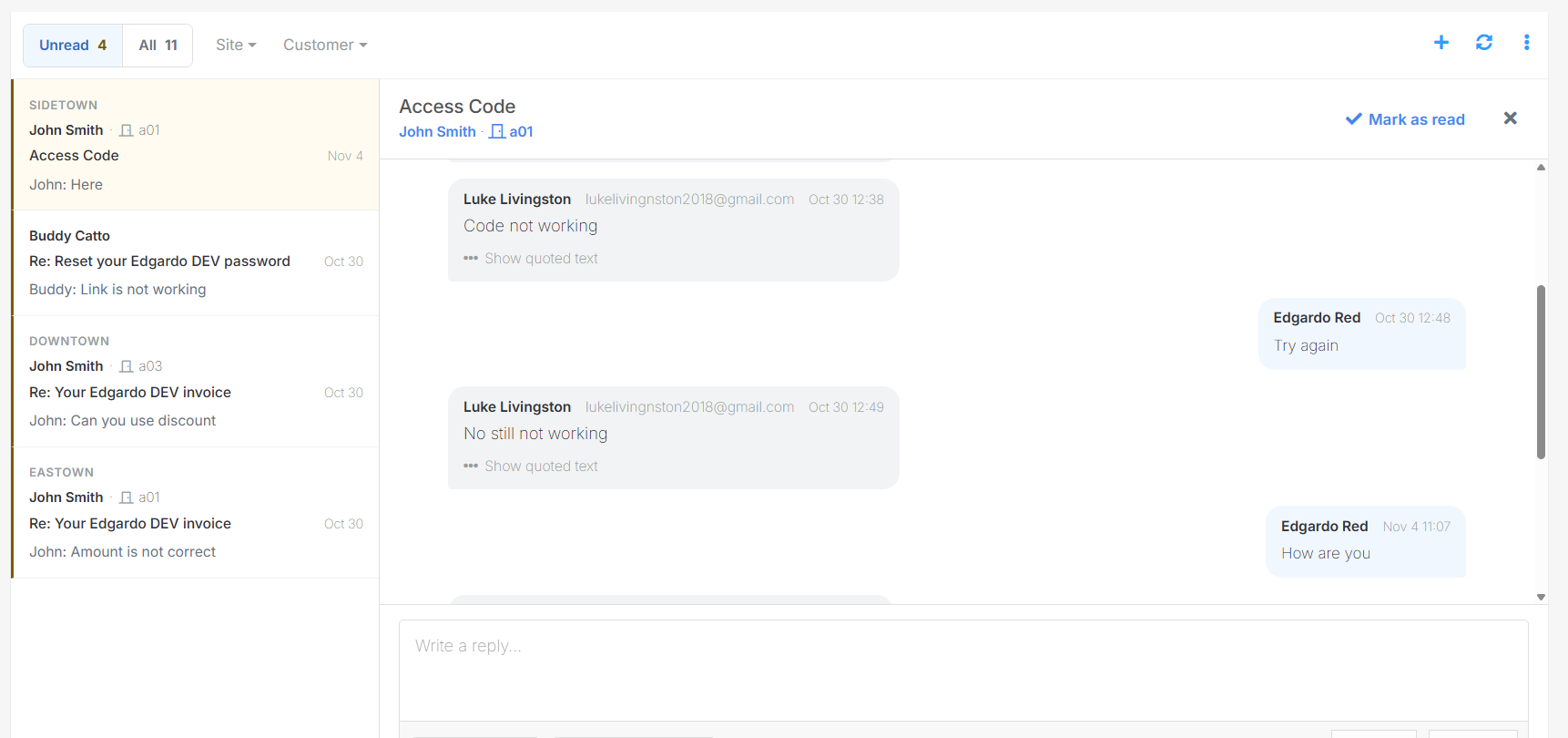
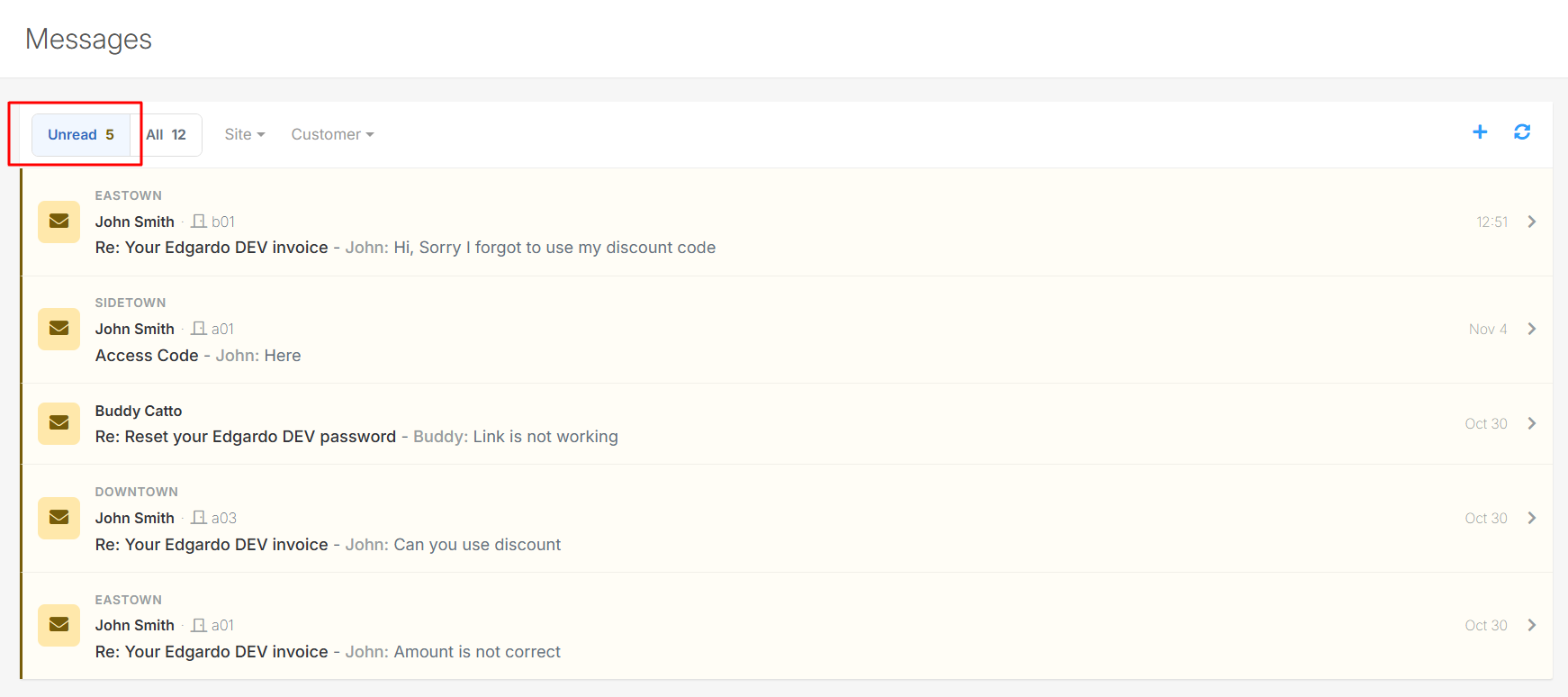
 After you save, the Messages pages show a conversation list and a message composer.
 Note: Replies are only saved while the feature is on. If a customer replies to an earlier email while it's off, that reply isn't captured.
A conversation about one unit rental doesn't show on the customer's other rentals. If a customer rents at two sites, each site only sees conversations about its own rentals.Replies to account emails, like the welcome email, aren't linked to a site or unit rental. They appear on the customer's Messages tab and the Messages page only.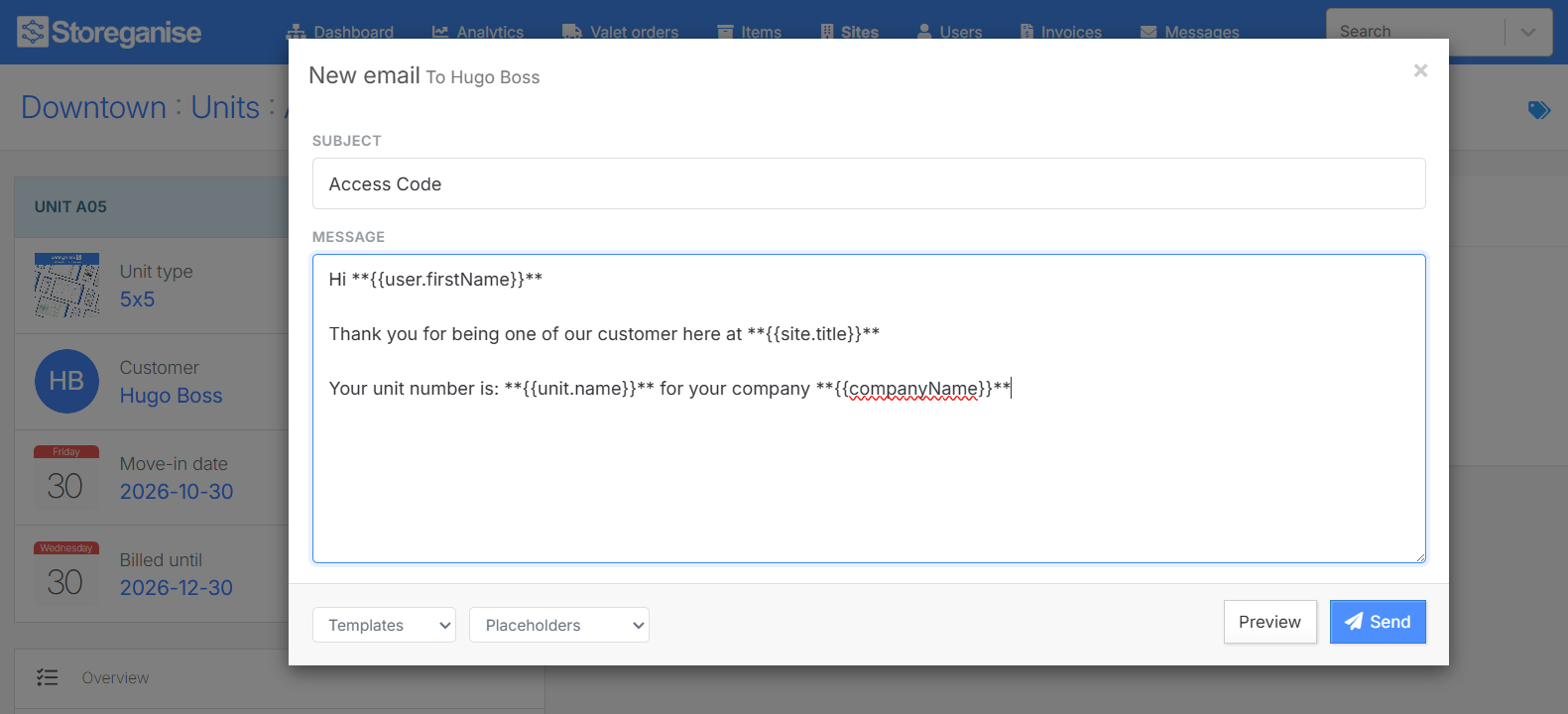
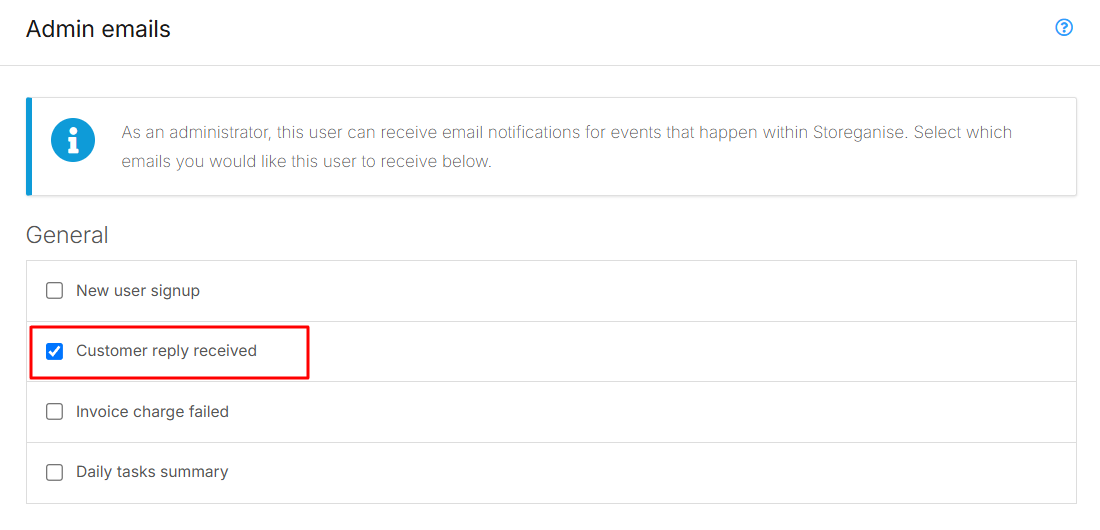 Only staff who turn this on receive the email. Replying to this notification email doesn't send anything to the customer. To answer the customer, reply from the conversation in Storeganise.
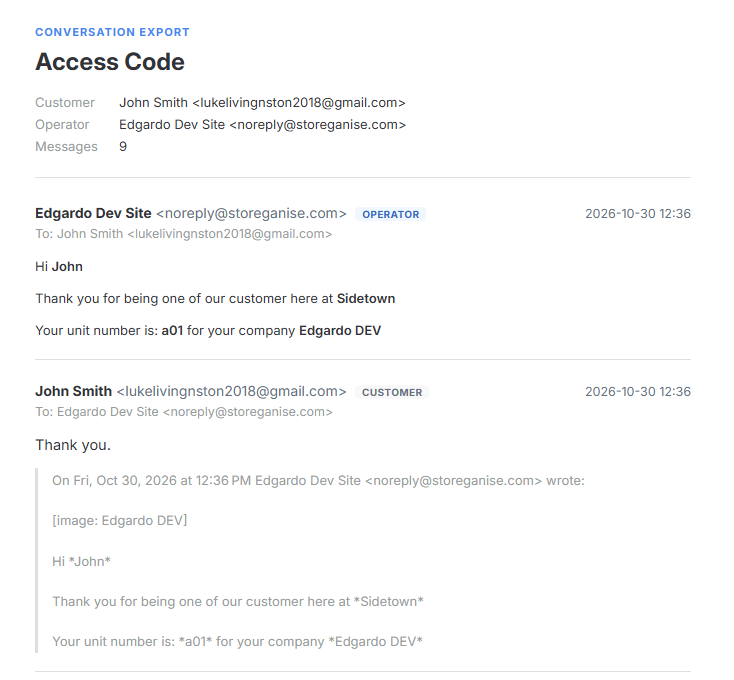
 The PDF lists every message with its sender, recipient, date, and text. The footer shows who exported it and when.
 Note: Only users with the manager or admin role can export conversations. Other staff don't see the Export option.


Two-way email doesn’t need any extra setup as it works with any From address, including the default noreply@storeganise.com. Customers just reply to the emails they receive.
Note: If you see "This feature is unavailable for this domain" when turning it on, contact our Support team and we’ll enable it for you.
How two-way email works
When two-way email is on, customers reply to your emails from their own inbox as usual. Their reply comes back into Storeganise as a message in a conversation. Customers don't need to log in to the Customer Portal.Replies are captured for two kinds of email:- Messages you write to a customer from the Management Portal
- Emails Storeganise already sends, such as invoices, receipts, move-in confirmations, rent price changes, and welcome emails
Turn on two-way email
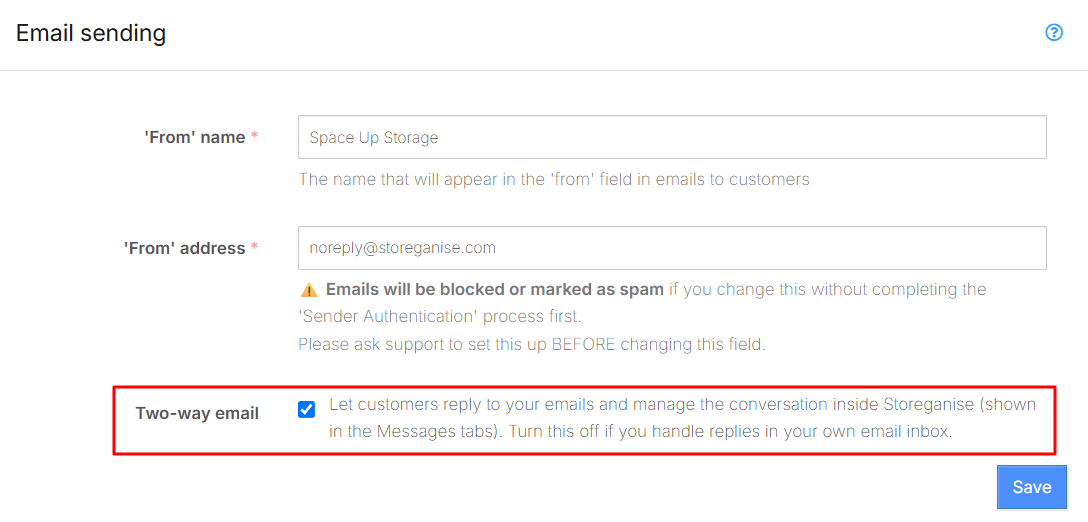
Two-way email is off by default. Until you turn it on, the Messages pages show a setup box instead of conversations.- Go to Main settings > Emails.
- Turn on two-way email communication.
- Click Save.
Where conversations appear
Each conversation is linked to the customer's user profile, and to the site and unit rental it's about where there is one. Where it shows depends on that link.| Page | Shows |
|---|---|
| Messages (top navbar) | Every conversation in your business, with the customer, site, and unit for each |
| User > Messages tab | All conversations with that customer, across every site and unit rental |
| Site > Messages | Conversations about that site's unit rentals and invoices |
| Unit rental > Messages tab | Conversations about that unit rental only |
Start a conversation with a customer
Start the conversation from the page it relates to, so it's linked to the right site or unit rental. For example, write from the unit rental when the message is about that unit.- Open the customer, site, or unit rental.
- Go to the Messages tab.
- Enter a subject and your message.
- Click Send.
Reply to a customer
Customer replies usually appear in the conversation within a few minutes.- Open the conversation from the Messages page or a Messages tab.
- Write your reply in the composer.
- Click Send.
Use templates and placeholders
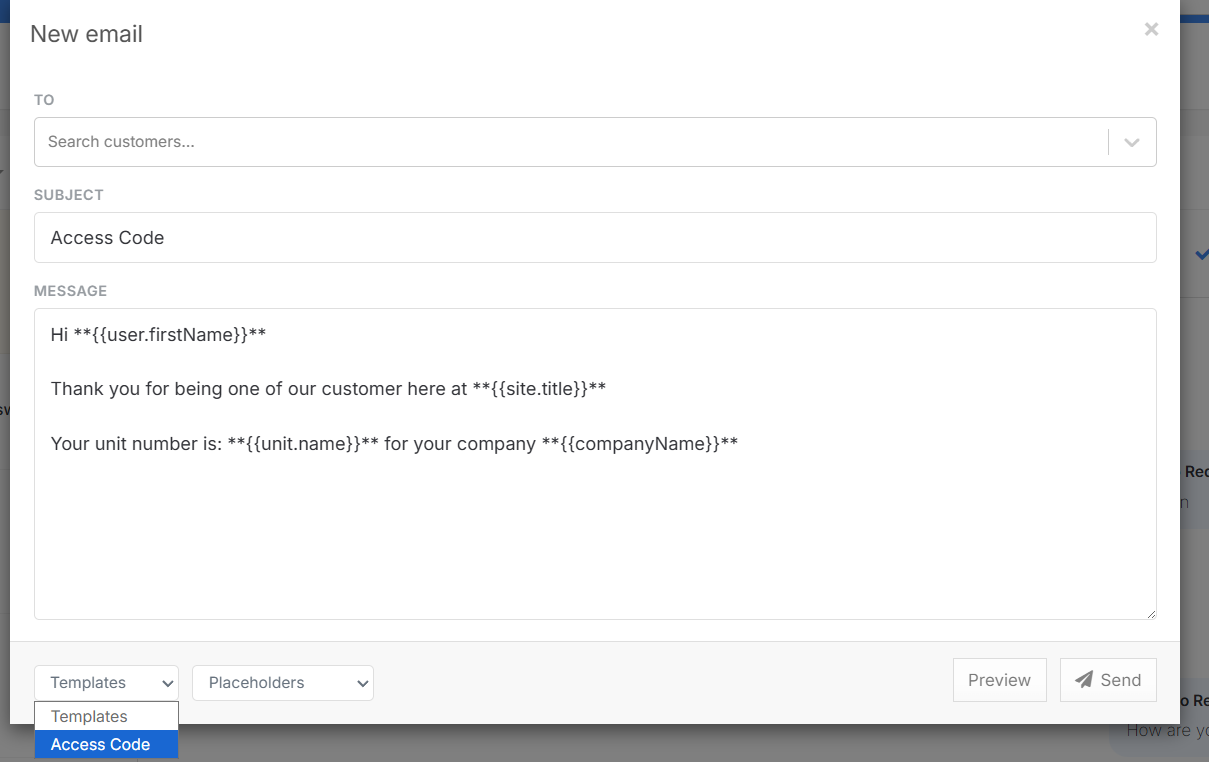
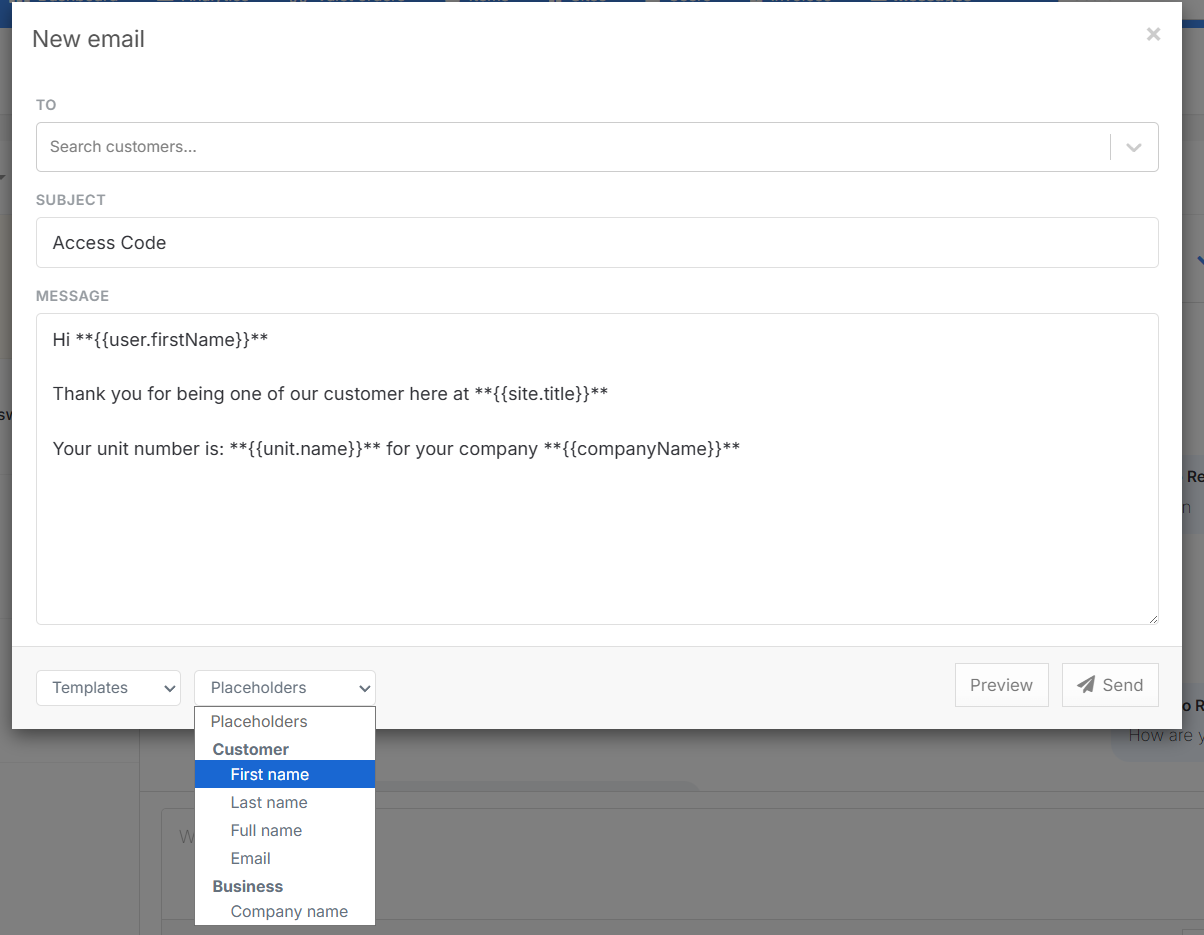
Save templates for messages you send often, like access code changes or maintenance notices. Add placeholders to fill in details such as the customer's name or unit automatically before the email is sent.Create a message template
- Go to Main settings > Emails > Direct message templates.
- Add a new message template.
- Enter a subject and message. You can use placeholders in both.
- Click Save.
Which placeholders you can use
The placeholders you can use depend on where you're writing from.| Placeholder | Customer | Site | Unit rental |
|---|---|---|---|
Customer details, such as {{user.firstName}} and {{user.email}} | Yes | Yes | Yes |
{{companyName}} | Yes | Yes | Yes |
{{site.title}} | No | Yes | Yes |
{{unit.name}} | No | No | Yes |
{{unitRental.startDate}} | No | No | Yes |
Track unread replies
New customer replies are highlighted as unread in the conversation list and in the conversation. The Messages item in the navbar shows how many unread replies you have.To clear a reply, open the conversation and click Mark as read. The highlight disappears and the navbar count drops straight away.Get an email when a customer replies
Staff can choose to receive a Customer reply received email for each new reply.- Open the staff member's user details page.
- In the admin email settings at the bottom of the page, turn on Customer reply received.
- Click Save.
Export a conversation as a PDF
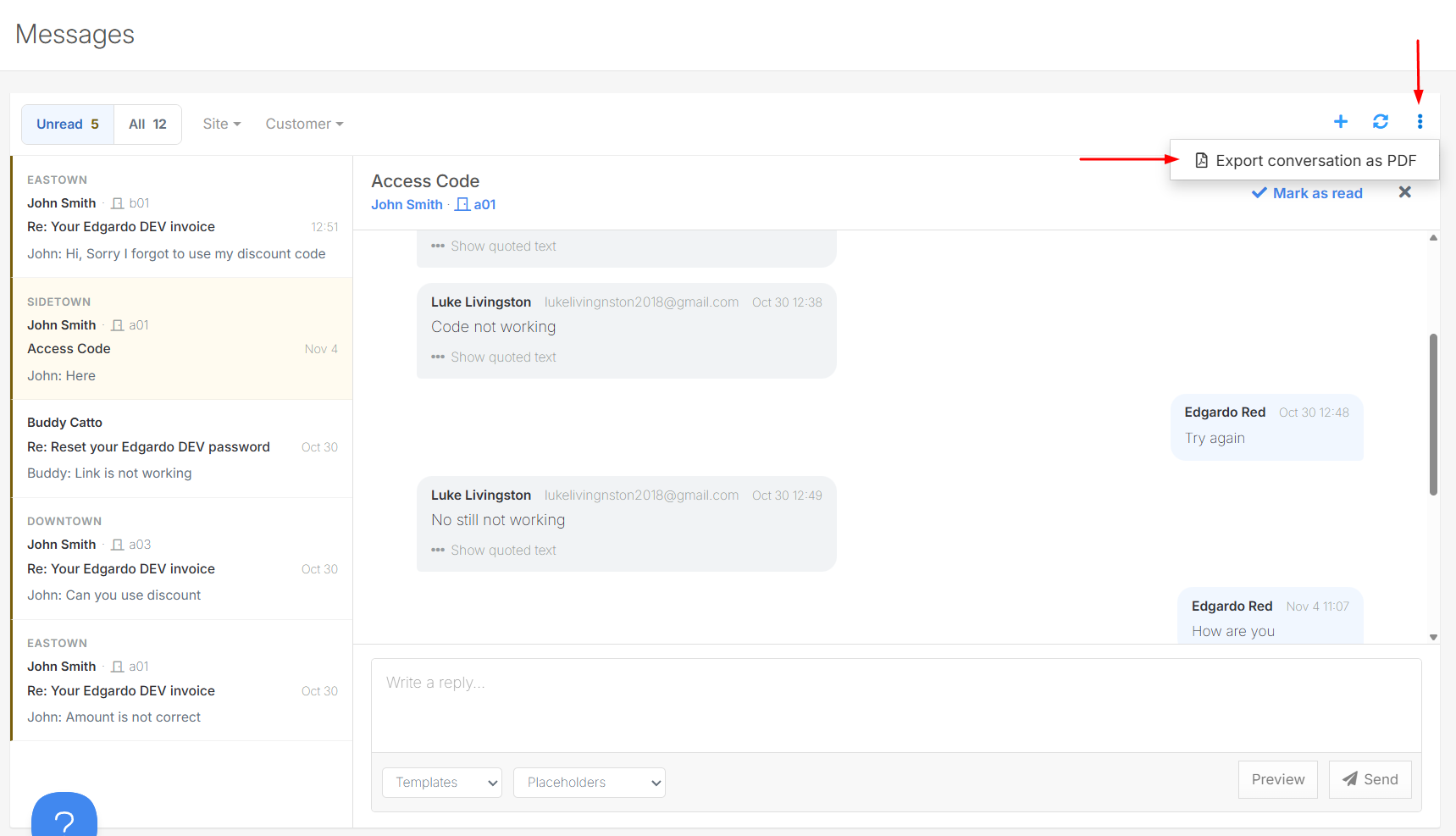
Download a conversation as a PDF when you need a record of your contact with a customer, for example as evidence during the lien process.- Open the conversation.
- Click Export.
- Save the PDF.
Bounced emails
If you send a message to an email address that is invalid or no longer working, it may initially appear as though the message was sent successfully. Storeganise checks for bounced emails once a day, so it can take up to 24 hours for the bounce to be detected.When a bounce is detected, Storeganise will:- Add a task to the customer indicating that their email is bouncing.
- Automatically disable emails for that customer.
- Correct the customer’s email address.
- Re-enable emails for the customer.
- Send the message again.
Limitations
Keep these limits in mind when you rely on Messages for customer contact:- Only replies to Storeganise emails come in. A new email a customer sends to your business address still arrives in your usual inbox, not in Messages.
- Attachments are dropped. Only the text of a reply is kept. Ask customers to send files another way if you need them.
- Replies sent while the feature is off are lost. They aren't saved, even after you turn it back on.
- Bounced emails aren’t flagged straight away. See Bounced emails above.
Turn off two-way email
Turn off two-way email in Main settings > Emails and click Save. The Messages pages show the setup box again.Your existing conversations are kept. When you turn the feature back on, they appear in full and unchanged.Jump to
Related articles
Email settings
Emails for admin users
Troubleshooting email delivery
Email Sender Authentication