Collecting prepayments on a unit
The unit's prepayment tab displays information about any prepayments made by the tenant for that specific unit. These prepayments are typically collected during the move-in process.
Methods for collecting prepayments: 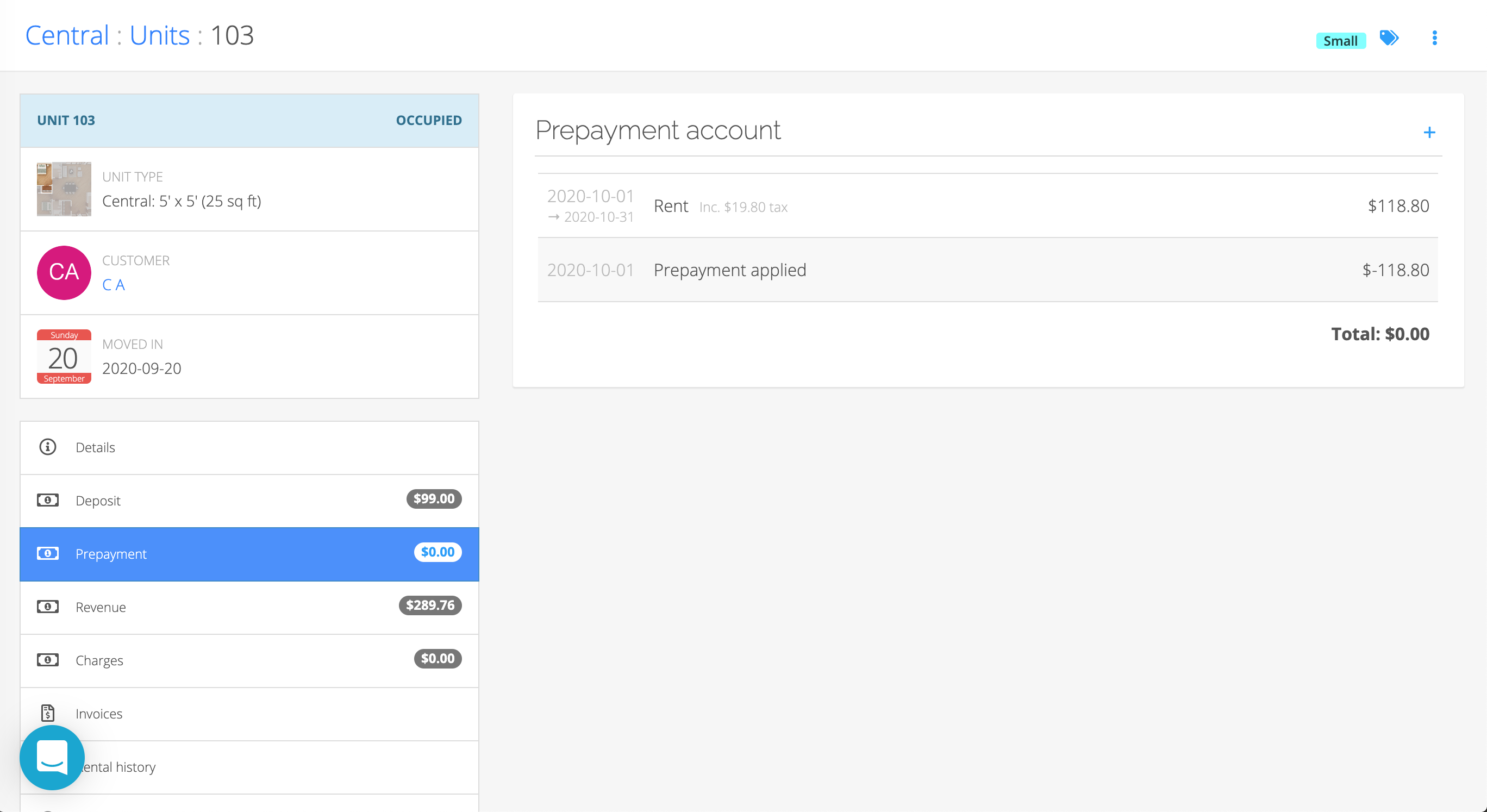
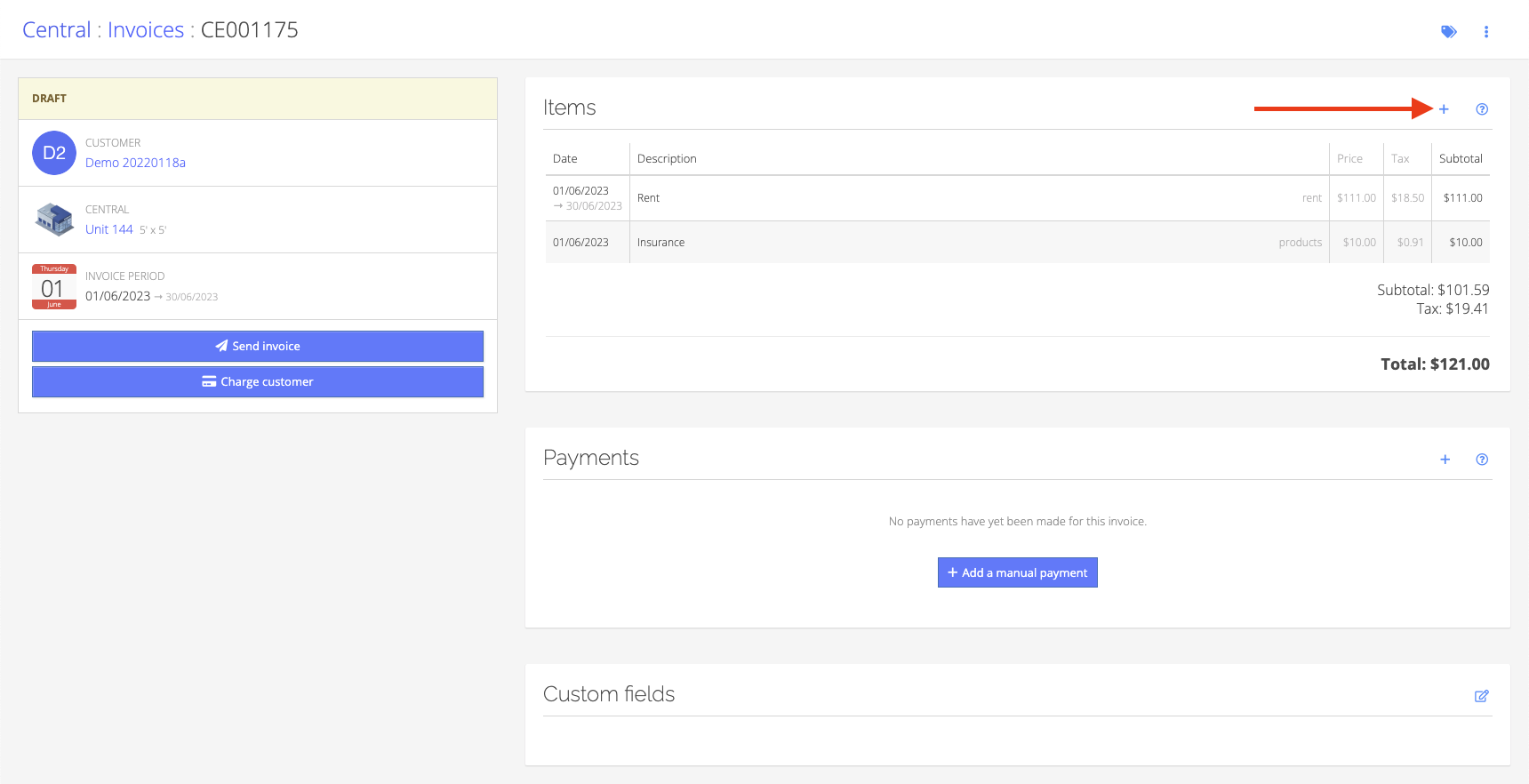
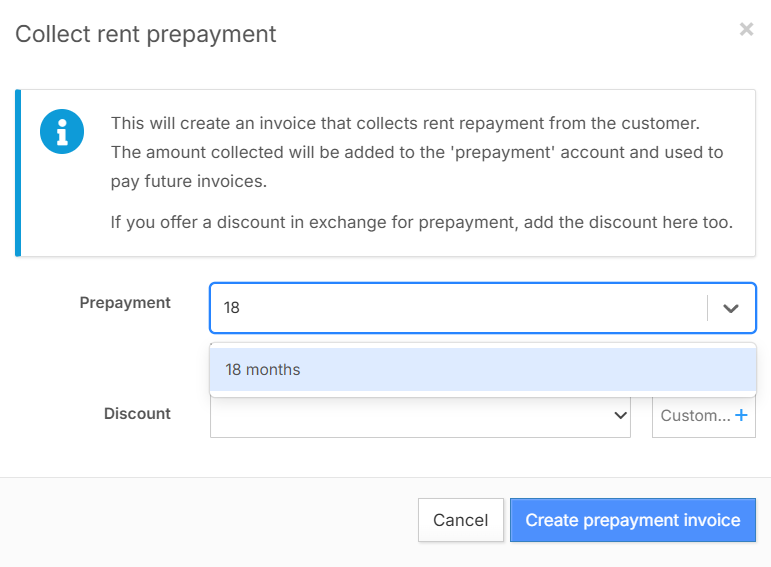
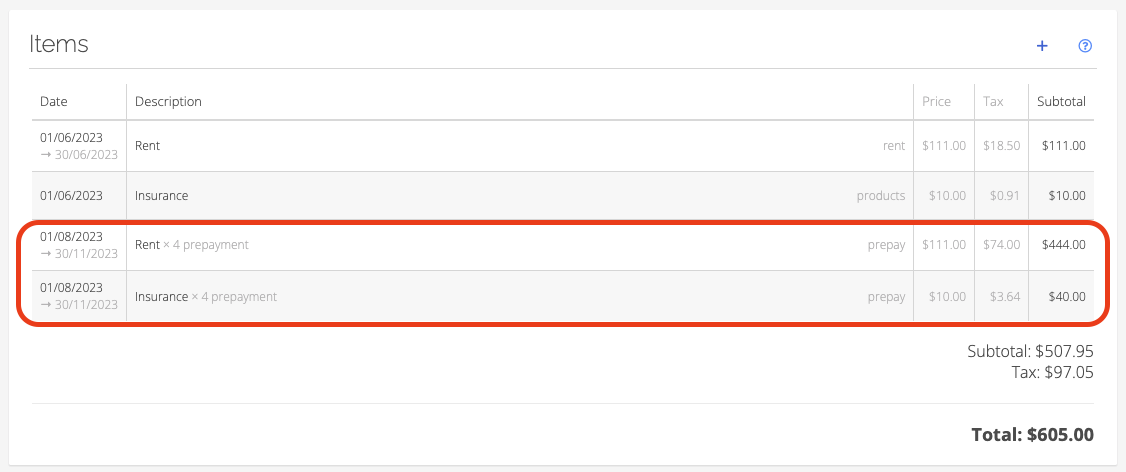
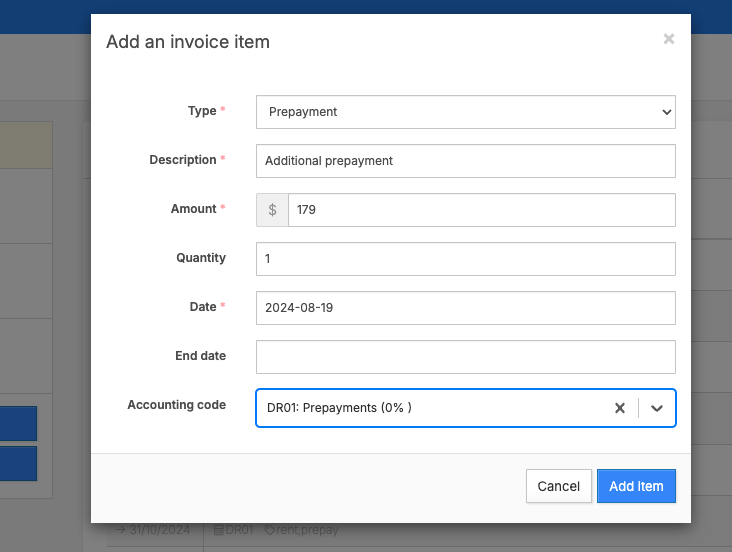
This will add the additional month's prepayment to the invoice which you can then send to the customer.
Adding to an existing invoice
Note: This can be done if you have an existing (draft state) invoice on the unit rental page.- Locate the invoice (Draft state) you want to use for additional prepayment. Click on the "+" icon in the upper right corner.
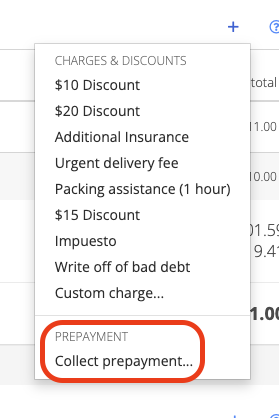
- Choose 'Collect prepayment'
- Enter the prepayment period. You may also add a discount if you would like.
- Confirm that all necessary line items are included in the invoice.
- The prepayment amount will be added to the unit rental 'Prepayment' account.
Adding from the unit rental page
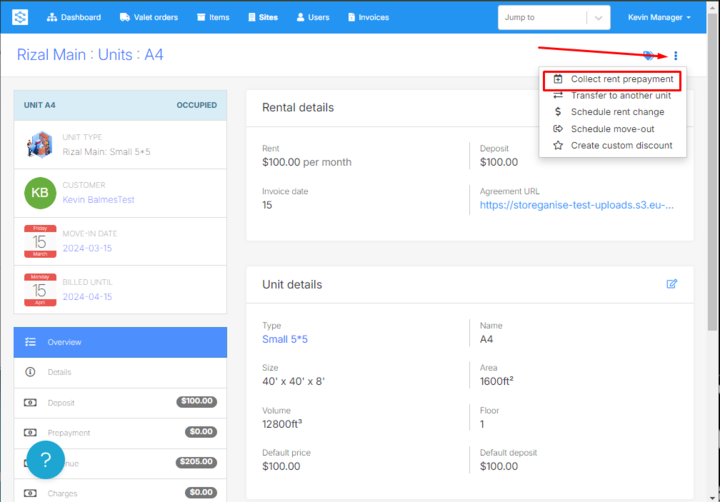
Note: This is only applicable if you don't have any existing (draft state) invoice.- Navigate to the specific unit you want to collect a prepayment for. Click the 3-dot icon in the upper right corner, and then choose "Collect rent prepayment."
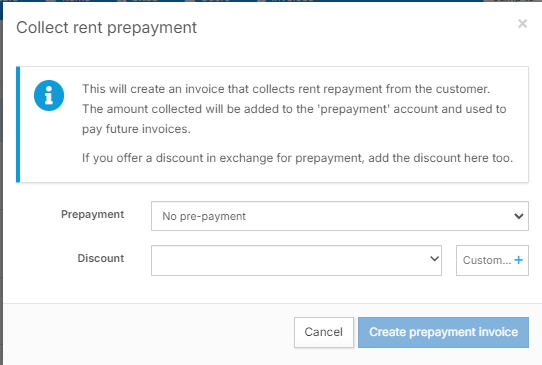
- Enter the prepayment period. You may also add a discount if applicable.
- The system will automatically generate a prepayment invoice. Make sure to double-check the details added.
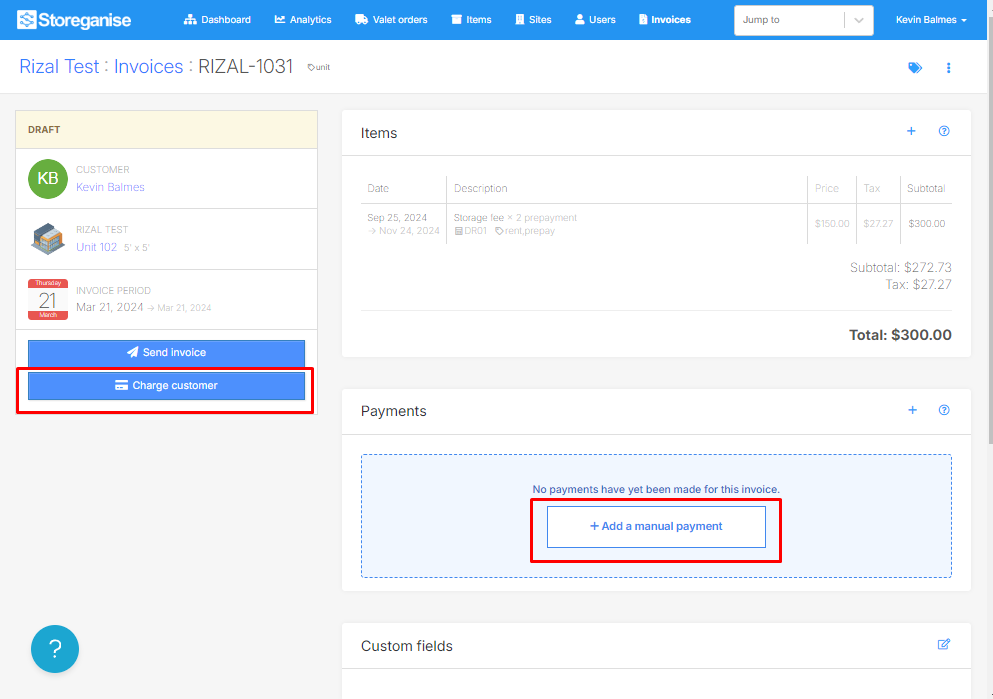
- Depending on the customer's payment details; you can either charge the customer if they have their payment details added or send the invoice to process the manual payment.
Adding prepayment to a "reserved" unit
Follow these steps to add a prepayment to a reserved unit's invoice:- Navigate to the invoice associated with the reserved unit.
- Note: Invoice must be in a draft state.
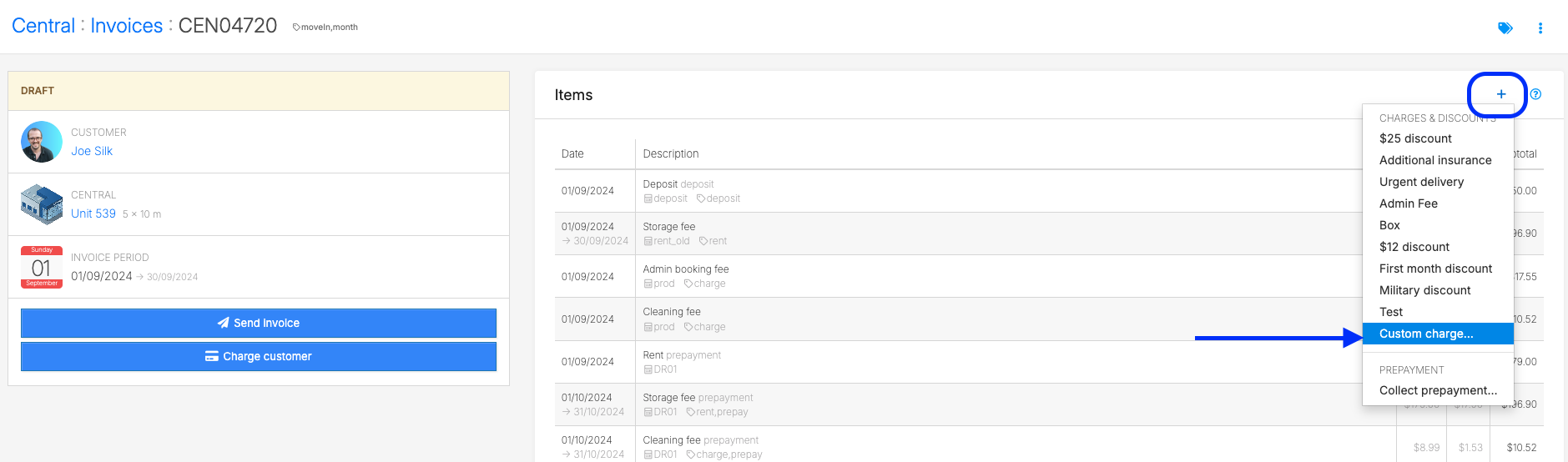
- Locate the + icon in the top right-hand corner of the invoice screen.
- Click on this icon and select "Custom charge" from the dropdown menu..
2. Add a Custom Charge
- In the "Custom charge" options, make sure to choose "Prepayment" as the type from the list.
- Fill in the necessary fields, including the Amount you wish to charge for the prepayment.
- After entering all the required information, click "Add Item" to include the prepayment on the invoice.
Jump to